

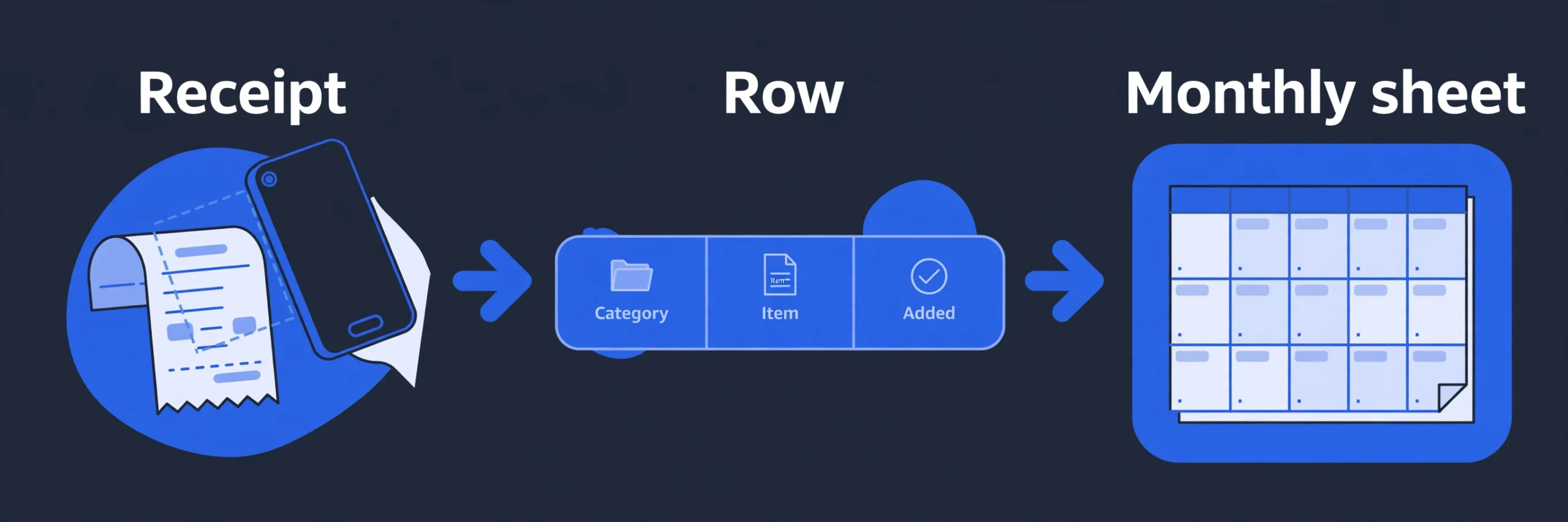
Maya is a freelance brand designer. On a normal month she collects about thirty receipts — software subscriptions, a train ticket, paper and ink, lunch with a client, a domain renewal, a parcel to a printer. None of them is hard on its own. The hard part is that they arrive in four different places: paper receipts in her jacket pocket, emailed receipts in her inbox, subscription invoices in a billing portal she only opens when the card is charged, and the odd receipt photographed on her phone and then forgotten in her camera roll. At the end of the month she sits down with a pile she does not trust, spends an evening typing numbers into a spreadsheet, guesses at three categories she cannot remember, and sends her accountant a sheet she knows has holes in it. The accountant sends it back with questions. The evening is gone, the sheet is still wrong, and next month the same pile starts again.
That is the job this guide solves. It shows you how to automate expense tracking small business owners can actually run themselves, with no code: one system in which a receipt is captured once, the system drafts the category, a human approves it, and the month ends with a clean sheet the accountant can actually use. You will learn what the whole system looks like end to end, how to start from the capture you already have instead of buying a new tool, how to build it in two layers so the simple version works before anything clever is added, the categorisation rule that keeps a wrong guess from becoming a wrong tax record, what the sheet ledger must hold on every row, the fifteen-minute monthly review that keeps it clean, what the accountant handoff must contain, and what to automate second once this system has run one full month. There is one worked example carried through the whole article — Maya, her thirty or so receipts a month, and the sheet her accountant actually accepts — so you can copy the shape of it for your own business, whether you are a freelancer, a small shop, or a two-person service business. Thirty receipts is the example’s number, not an average and not a claim about anyone else’s business; your number will be different, and the system does not care what it is.
No prices are quoted here, because plans and limits change and you should check them on the tool’s own page before you pay for anything. No accuracy figures for AI categorisation are quoted either, because the numbers circulating in other guides come from sources this article has not verified, and a percentage you cannot stand behind is worse than no percentage at all. What is here instead is a system you can build, test, and check every month — and that is what actually stops the lost receipts.
For the bigger picture, see 25 AI Automation Examples for Businesses in 2026.
What the System Does
Most guides about expense tracking only cover one leg of the job. They show you a template that takes a submitted expense and puts it in a table, or a single recipe that sends a receipt through one tool into a sheet, or an OCR tool that reads a receipt and hands you the numbers. Each of those is a useful component. None of them is a system, and on their own they leave the most expensive failures untouched: the receipt that was never captured at all, the category that was guessed wrong and filed anyway, the duplicate that got counted twice, the personal expense that slipped into the business sheet, and the month-end pile that nobody trusts enough to send to the accountant.
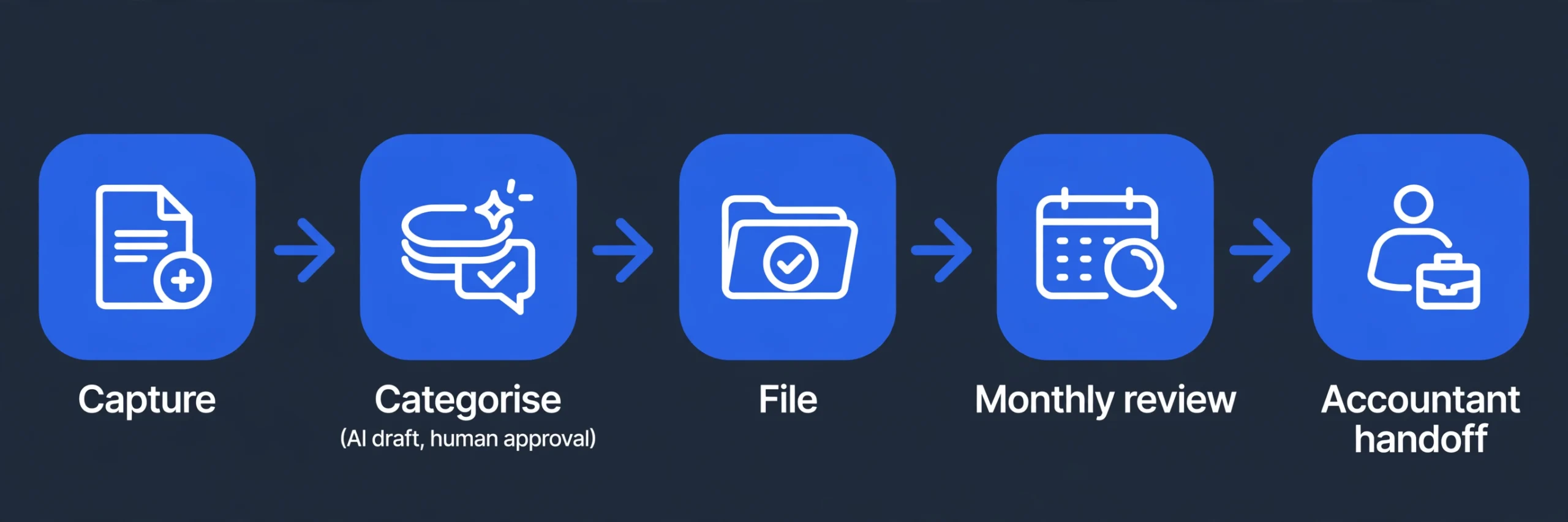
The system in this guide covers the whole journey, from the moment money leaves the business to the moment the accountant receives a sheet they can work with. It has five steps, and each one exists because skipping it costs either time or a wrong record. Together, the five steps make one expense tracking system for small business owners who want their receipts handled without losing control of the categories — and the point of this guide is to show you how to automate expense tracking small business owners can rely on, end to end, instead of bolting one clever step onto a shoebox of receipts and hoping for the best.
- Capture. Every receipt is captured once, in one place, the day it arrives — a phone photo dropped into a folder, an emailed receipt forwarded to the same folder, or a subscription invoice saved as a file. One capture point, not four. A receipt that is captured once cannot be lost in a jacket pocket.
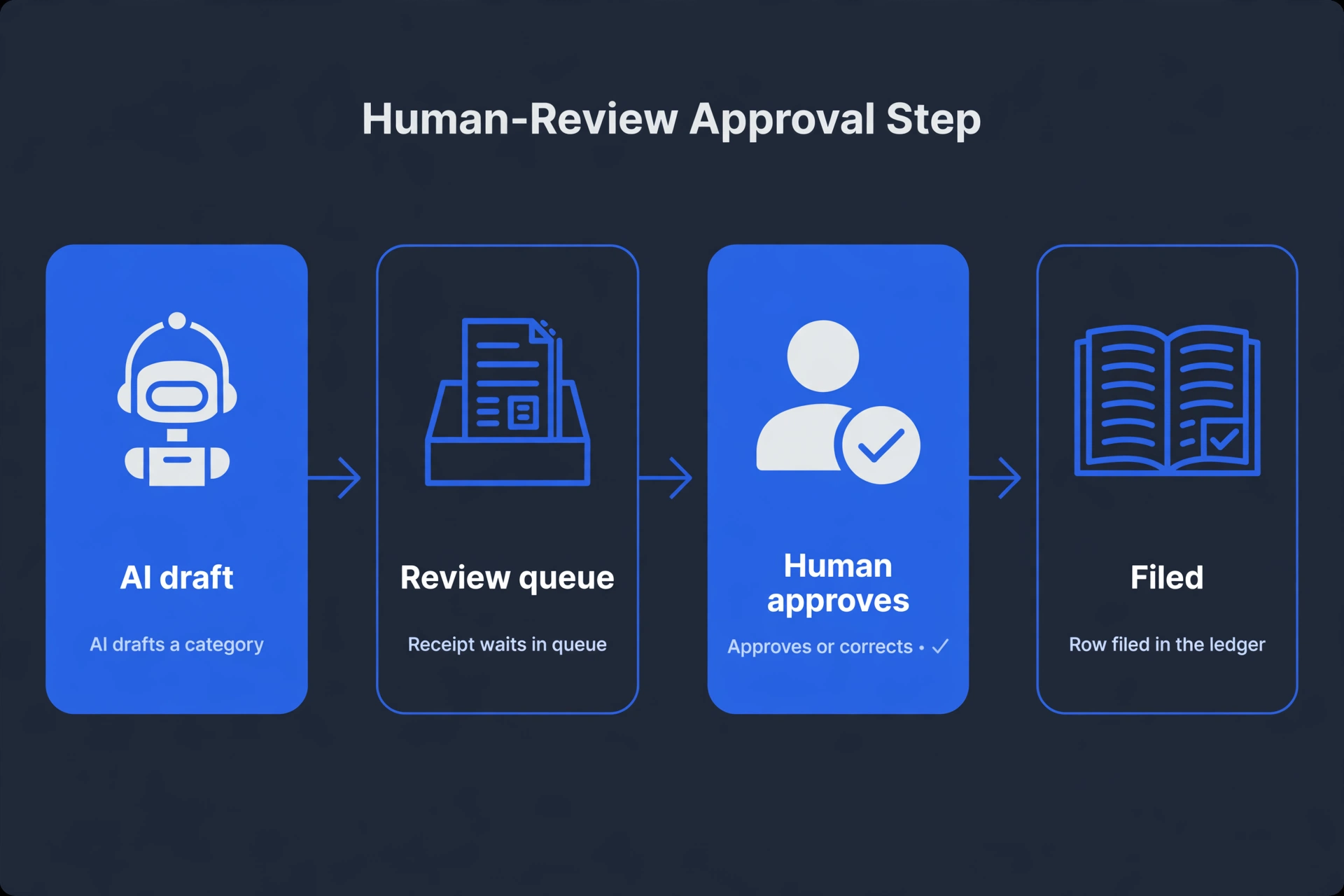
- Categorise. The system drafts a category for each receipt — software, travel, meals, supplies, and whatever categories your accountant actually wants — and holds it for a human to approve. Nothing is filed on a guess. This is the step where a mistake costs real money, because a wrong category is a wrong record, so a person approves every category before it lands in the ledger.
- File. Once approved, the receipt lands in the sheet ledger as one row: date, vendor, amount, category, a link back to the original receipt file, and a short note. The ledger is the single record of what the business spent, and the receipt file is always one click away from its row.
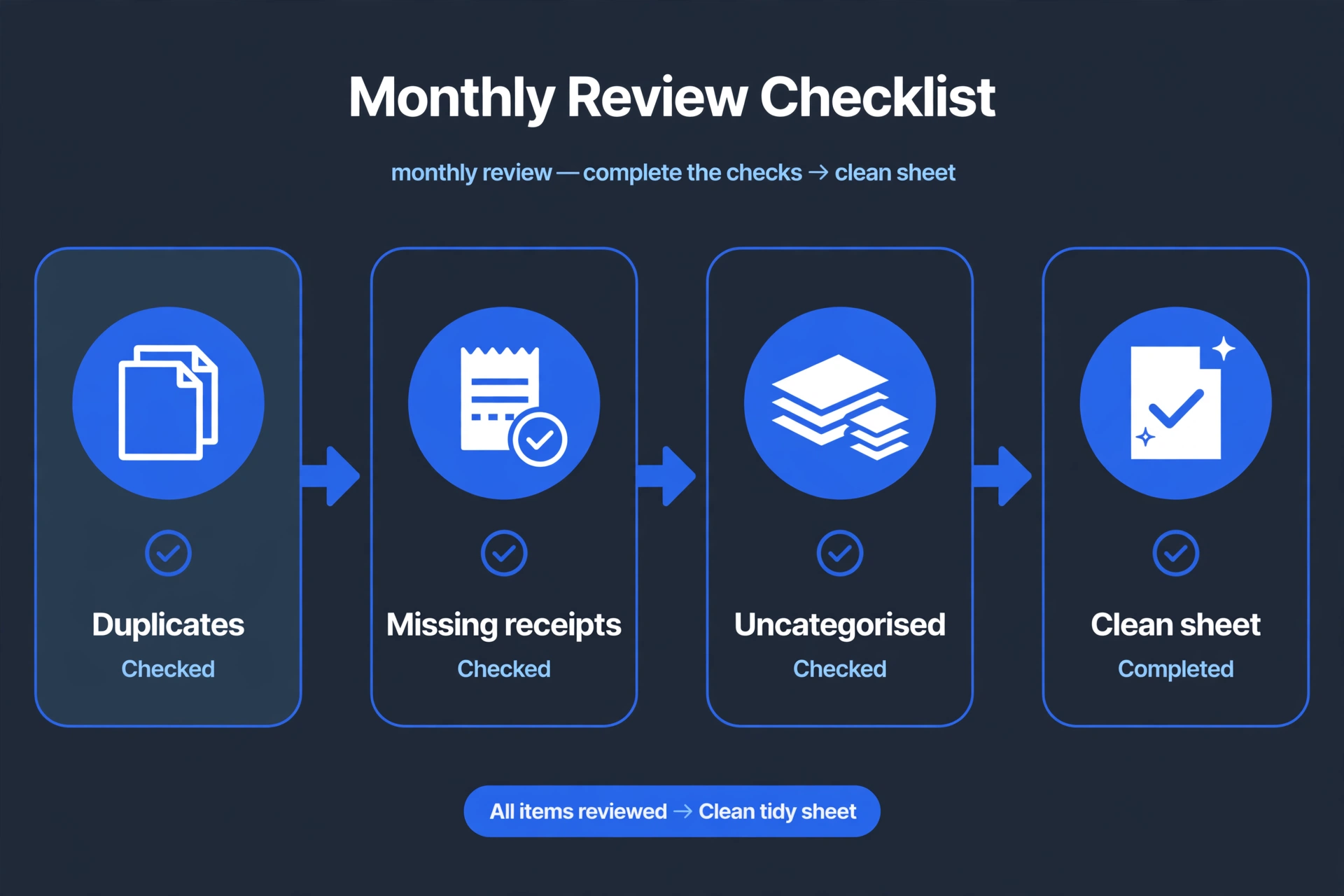
- Review. Once a month, one fifteen-minute check: duplicates, missing receipts, the uncategorised pile, and then a clean sheet. The review is the step that turns a pile of rows into a record you can stand behind.
- Handoff. The clean sheet goes to the accountant, in the shape the accountant asked for, with nothing extra and nothing missing. The handoff is the reason the other four steps exist: a ledger the accountant can use without sending it back with questions.
Here is the worked example this article carries through. Maya, a freelance designer, buys paper from a supplier on a Tuesday. She photographs the receipt with her phone before she leaves the shop, and the photo lands in her receipts folder. The system reads the photo, drafts the category “Supplies,” and holds it. That evening Maya opens the review queue, sees “Supplies — £42.50 — paper supplier,” approves it, and the row lands in her ledger with a link back to the photo. At the end of the month she runs the fifteen-minute review, finds one duplicate subscription and one receipt with no category, fixes both, and sends her accountant a sheet with thirty-odd rows, every one of them linked to its receipt. That is the whole system, and every section below is about making one of those steps work reliably — including the steps Maya never sees, like what happens when a receipt cannot be read, or when a personal expense slips into the business folder.
Two design rules run through the entire system, and they are worth stating before any building starts. First, capture first, categorise second, file only after a human approves. If the category is wrong, the row is wrong, and a wrong row filed automatically is worse than a receipt sitting unfiled, because at least the unfiled receipt is honest about being unfinished. Second, the original receipt file is never thrown away and never separated from its row. A ledger row without its receipt is a claim nobody can check, and the month you need the receipt is always the month you cannot find it. Those two rules are the same ones behind the two-layer method in No-Code Automation for Small Business: Build Your First Workflow Without Writing Code — build the plain version first, add one clever step only after the plain version works, and never let the workflow decide something a person should decide.
Start With the Capture You Already Have
The most common mistake in expense automation is buying a receipt-scanning tool before checking what you already have. Most small businesses already own a capture method — the phone in their pocket, the email inbox where receipts already arrive, or the cloud folder their phone already backs up to — and most of those already do half of this job. If yours does, you may already own the capture step, and the job is to point every receipt at one folder, not to buy a new app.
Start by answering four questions about the capture you already have, before you look at any other tool.
- Does every receipt land in one place? When a receipt arrives — paper, email, or a subscription invoice — does it end up in the same folder as the others, or does it stay where it arrived? If paper receipts live in a pocket, emailed receipts live in an inbox, and subscription invoices live in a billing portal, you do not have a capture problem in three places. You have one capture problem: there is no single place where a receipt goes, and no system downstream can fix that.
- Can you find a receipt a month later? Pick a receipt from last month and try to find it in under a minute. If you cannot, the capture is not a capture. It is a pile with a folder’s name on it, and the month-end review will be spent hunting, not checking.
- Does the capture keep the original file? A photo of a receipt is the receipt, for practical purposes. A typed-out summary of a receipt is not. If your capture method only keeps the numbers someone typed in, and throws away the image or the PDF, you have lost the evidence the accountant may ask for, and you cannot re-check a category you got wrong. The original file must survive, linked to its row.
- Can a receipt arrive without anyone remembering to move it? Email receipts should forward themselves, or be caught by a rule, and phone photos should land in the folder on their own. If every receipt depends on someone remembering to move it on a busy day, the system will have gaps, and the gaps will always be the receipts you most need — the ones from the busiest days.
The capture methods small businesses usually already have are a phone photo dropped into a Google Drive or Dropbox folder, an email receipt forwarded to the same folder, and a scanner app for the paper receipts that pile up. If a receipt arrives by email, a simple inbox rule can forward it or label it so it is never lost in the general inbox. If it arrives on paper, photograph it the same day — a receipt photographed on Tuesday is a receipt; a receipt still in a jacket pocket on Friday is a guess. And if it arrives as a subscription invoice in a billing portal, save the PDF to the folder the day the charge appears, not the day you happen to open the portal again.
Add a connector only for a step your capture genuinely cannot do. That is the same discipline as the first-workflow method in Topic 14 — use the simplest tool that does the job, and add complexity only where there is a real gap. For the connector itself, the three familiar names are the same ones covered in Make vs Zapier vs n8n for a Small Business: An Honest Comparison: Zapier for the easiest straight-line start, Make when the workflow branches, n8n when a technical person owns the system. The step-by-step versions are in How to Automate Email + Spreadsheet Work with Zapier, Step by Step for Beginners and How to Build Your First AI Workflow in n8n, Step by Step — read those instead of re-learning the connector here, and link to them rather than repeating them.
There are also tools that do one leg of this job well, and they are worth knowing about so you can judge what they do and do not do. Zapier offers expense templates that take a submitted expense and put it in a table, with a button to email finance — a form and a table, with no receipt capture, no categorisation, and no monthly review. ExpenseBot connects to Zapier and turns receipts from a Drive folder or a scheduled Gmail scan into rows in a sheet you own, and it is honest about its boundary: it is a receipts-to-ledger leg, not the accounting source of truth, and it is in public beta. PDF4me offers an AI receipt parser for Zapier that turns receipt PDFs and images into structured data for a sheet, QuickBooks, or Xero — an OCR component, not a system. And the recipe-style guides, such as the Receipt Bank plus ChatGPT recipe, send a receipt through one chain of tools into a sheet. Note two things about that recipe before you copy it: Receipt Bank is a paid subscription, and the ChatGPT step needs an OpenAI API key with billing attached, so neither leg is free, and the accuracy and time-saving figures quoted in that recipe are not repeated here because they have not been verified from the original source. Each of these tools is a component. The system in this guide is what connects them, and the connection — one capture point, a human-approved category, a ledger, a monthly review, a handoff — is the part none of them supplies on its own.
One more decision belongs in this section, because it shapes every step that follows: what counts as a business expense in your business, and who decides. Write the answer down before you build anything, in one short list, and agree it with your accountant if you have one. The list does not need to be long — software, travel, meals with clients, supplies, subscriptions, and whatever else your accountant asks for — but it needs to exist, because the category list is what the AI step drafts from, and an AI step drafting from no list will invent categories you do not want. Keep the list short on purpose: ten categories that cover almost everything are better than forty that nobody remembers, and a receipt that fits none of them belongs in the review pile, not in a guessed category.
Before you pay, check: open the tool’s own pricing page and check three things — (1) whether receipt capture, OCR reading, and AI categorisation are included on the plan you would actually use, or only on a higher plan, (2) how many receipts you can process and whether extra receipts are charged separately, and (3) what happens when you reach a limit — does it pause, queue, or stop? No price is quoted here, because plans change. Pricing pages: Zapier pricing, Make pricing, n8n pricing. Check any receipt tool’s own pricing page the same way before paying for a plan just to read receipts, and remember that the Receipt Bank step and the OpenAI API key step in the recipe guides are both paid steps, not free ones.
The cost logic, without any prices: a phone photo and a cloud folder cost effectively nothing once you have them, and a spreadsheet costs nothing. The parts that cost money are the OCR reading and the AI categorisation, and only if you add them as separate steps. So the cheapest system that still works is the one in layer 1 below — capture to a folder, type the row by hand, review monthly — and the AI step is an upgrade you add later, once the plain version has proved it works. Paying for an AI categorisation step before the capture step works is paying to categorise receipts you have not captured yet.
Build It in Two Layers
Build this system in two layers, and do not skip the first one. This is the method from No-Code Automation for Small Business: Build Your First Workflow Without Writing Code, applied to expenses, and it is the difference between a system you trust and a system you cannot explain when it does something strange. Other layered builds exist, but this one adds the gate the others skip: no category reaches the ledger without a human approving it first. That gate is what lets you automate expense tracking small business owners can trust, instead of handing the books to a tool and hoping it categorises honestly.
Layer 1 — the plain system, no AI. Build exactly this: capture → sheet, with a human typing the category. A receipt arrives in the folder, a person opens it, reads the vendor and the amount, picks a category from the short list, and types one row into the ledger. No AI drafting, no automatic filing, no smart sorting. Then let it run for a full month while you watch it. If every receipt lands in the folder, every row has a category you chose, and the month-end sheet has no holes, layer 1 works. If it does not, you have only a few steps to check, and you will find the problem quickly. That simplicity is the point. A first system should be so simple that you can explain it to a colleague in thirty seconds, and so boring that nothing surprising ever happens in it.
In Maya’s example, layer 1 is her whole month up to the review: she photographs each receipt the day it arrives, the photo lands in her folder, and in the evening she types the row herself — date, vendor, amount, category, and a link to the photo. Thirty rows, thirty photos, no cleverness. It takes a few minutes a night, and it is boring, and that is the test: if the boring version does not run for a month, the clever version will not run either, because the clever version sits on top of the same capture habit, and a habit that does not exist cannot be automated.
Layer 2 — one AI step, added later. Once layer 1 has run cleanly for a full month, add a single AI step, and make it the least risky one available: drafting the category, held for a human to approve before it is filed. The AI step reads the receipt — the vendor, the amount, the line items if they are readable — and writes a short draft: a suggested category, and the facts it read, so the human can check them. The draft is saved, not filed. A person reads it, corrects anything it got wrong, and approves it themselves. Only then does the row land in the ledger.
Notice what the AI step is not allowed to do. It is not allowed to file a row on its own, because a wrong category filed automatically is a wrong record, and a wrong record discovered at tax time is a problem that started as a convenience. It is not allowed to decide whether an expense is business or personal, because that decision needs judgment about the business, and the workflow does not have it. It is not allowed to promise a tax treatment, a deduction, or a result. And it is never allowed to delete, overwrite, or “tidy up” the original receipt file, because the original is the evidence, and the system exists to protect the evidence, not to replace it. If the AI draft is wrong — and sometimes it will be, because it is working from a faded photo and no context — the cost is thirty seconds of a person’s time to fix it, not a wrong row in the books.
The same rule applies when you want more from AI later. Add one AI step at a time, let it run for a month, and check its output before you add the next one. Summarising the month’s spending into a few lines for the owner is a reasonable second AI step, once the category drafting works — and it is the same pattern as the weekly-report step in ChatGPT + Google Sheets Weekly Reports for Small Business. Extracting line items from a long receipt is another. But each step should earn its place by working correctly for a while first. A system with three new AI steps added on the same afternoon is a system nobody can debug, and the first time it misbehaves, the whole thing will be switched off and never switched back on.
The Categorisation Rule: AI Drafts, You Approve
The category is the one field in the whole system where a small mistake becomes a real problem. A wrong date can be corrected from the receipt. A wrong amount can be corrected from the receipt. A wrong category cannot be corrected from the receipt, because the receipt does not say what the expense was for — it says what was bought. A train ticket to a client meeting and a train ticket to a weekend away look identical on paper, and only the person who took the trip knows which one it was. That is why the categorisation rule is the heart of this system, and why it is built around a human, not around the AI.
The rule is short, and it should be written on the wall above the desk where the review happens: the AI drafts, a human approves, and nothing is filed on a guess.
Here is how the rule works, in plain language.
The AI drafts from your list, not from its imagination. The category list from the capture section — software, travel, meals, supplies, subscriptions, and the rest — is the only list the AI step is allowed to use. When it reads Maya’s paper receipt, it drafts “Supplies,” because paper is on the list, and it shows the facts it read: vendor, date, amount. If the receipt is a train ticket, it drafts “Travel.” If the receipt is lunch with a client, it drafts “Meals.” It does not invent a new category, and it does not pick the closest match when none of them fits. A draft that invents a category is a draft that has quietly changed your books.
The human approves every draft before it is filed. The draft sits in a review queue, not in the ledger. Once a day, or once every few days, a person opens the queue and reads each draft the way they would read a receipt: is the vendor right, is the amount right, is the category right? If yes, approve, and the row lands in the ledger. If the category is wrong, correct it, and the corrected category is what gets filed. If the draft is wrong about the amount — a faded total, a misread digit — correct the amount from the receipt, because the receipt is the source of truth and the draft is only a suggestion. This is the same human-in-the-loop rule as in Topic 14, and it is the one step in the system that must never be switched off to save time. The thirty seconds it takes to approve a draft is the price of a ledger you can trust, and a ledger you cannot trust is not a ledger at all.
A receipt with no clear category goes to the review pile, never to a guessed category. Some receipts will not fit the list. A mixed purchase — paper and a birthday card on one receipt — has no single category. A receipt in a language the reader does not know has no readable vendor. A subscription that could be software or could be a service has no obvious home. All of those go to the review pile, and the review pile is a proper place, not a failure: it is a short list, looked at once a week, where a person decides. The worst thing the system can do with an unclear receipt is guess, because a guessed category looks exactly like a correct one in the ledger, and nobody will ever go back and check it. An unclear receipt sitting in the review pile is honest about being unfinished. A guessed category is not.
Personal expenses are flagged, never mixed in. Sooner or later a personal receipt will land in the business folder — a grocery receipt photographed by mistake, a personal subscription on the same card. The system must have a “Personal — do not file” flag, and a person must use it. A personal expense filed as a business expense is not a small error. It is a wrong record in the books, and it is the kind of error that is found at the worst possible time, by someone else, with questions. The flag exists so the mistake can be caught at capture, when it costs nothing, instead of at handoff, when it costs an awkward conversation with the accountant. If you are not sure whether an expense is business or personal, ask the accountant — that is their job, not the workflow’s, and this guide gives no tax advice.
The corrected draft teaches the system. When you correct a category, write down why, in one line, in the note field: “client lunch, not personal meal,” or “paper for the studio, not home office.” Over a month or two, those notes become a small guide of their own — the edge cases of your business, written down, instead of living in one person’s head. The next person who reviews the queue can read them. The AI step does not learn from them on its own, and this guide does not pretend it does; the notes are for the humans, and the humans are the ones who need them.
The Sheet Ledger: What Every Row Must Hold
The ledger is a spreadsheet, and it is the single record of what the business spent. It does not need to be fancy. It needs to be complete, and it needs to be checkable. Every row holds the same seven fields, in the same order, with nothing missing, because a row with a missing field is a row nobody can verify, and a ledger nobody can verify is a pile with columns.
- Date — the date on the receipt, not the date you filed it. A receipt from the 3rd filed on the 12th belongs to the 3rd, because the month the money left is the month it belongs to.
- Vendor — who you paid, written the same way every time. “Paper supplier” is not a vendor. The shop’s name, spelled the same way each month, is a vendor, and consistent spelling is what lets you add up a month of spending by vendor without guessing which spellings are the same shop.
- Amount — the total on the receipt, in the currency on the receipt, with the currency noted if you ever pay in more than one. Do not round, do not estimate, and do not split a receipt across two rows unless you say so in the note — a split receipt with no note looks like two expenses.
- Category — one category from the short list, approved by a human. Not two categories, not a guess, not a blank. A blank category is a row that has not finished its journey, and it belongs in the review pile, not in the ledger.
- Receipt link — a link back to the original receipt file, one click away from the row. This is the field that makes the whole ledger checkable. Without it, the row is a claim. With it, the row is a claim with its evidence attached, and the accountant can check any row in seconds.
- Payment method — which card or account paid, written the same way every time. This is the field that catches duplicates: the same receipt filed twice will usually show the same payment method and the same amount, and the monthly review checks for exactly that.
- Note — one short line, only when it is needed: “client lunch with Sara,” “paper for the studio,” “duplicate of the 12th — see review.” A note is not a diary. It is the one line that explains the row to a person who was not there, and the month you need it is always the month you wish you had written it.
Three rules govern the ledger, and they are worth stating plainly. First, one receipt, one row. A receipt must never appear twice, and the monthly review checks for that before the handoff. Second, the ledger is append-only in practice: if a row is wrong, correct it and note the correction, but do not quietly delete it, because a deleted row is a gap nobody can explain later. Third, the ledger lives in one place, and that place is the sheet — not in the connector, not in the receipt tool, and not in a second spreadsheet someone started on a different day. If there are two ledgers, there is no ledger.
Maya’s ledger, in the worked example, has about thirty rows a month, each one linked to its photo. At the end of the month she can filter it by category and see what the month actually cost, filter it by vendor and see who she paid most, and click any row and see the receipt it came from. That is the whole test of a ledger: can you answer “what did we spend, on what, and can you prove it” from this sheet alone? If yes, the ledger works. If the answer needs a second spreadsheet, a shoebox, or someone’s memory, it does not.
The Monthly Review: Fifteen Minutes That Keep It Clean
The monthly review is the step that turns a pile of rows into a record you can stand behind, and it takes fifteen minutes, once a month, by one named person. It is the same pattern as the weekly report in ChatGPT + Google Sheets Weekly Reports for Small Business — a short, regular check that catches small errors before they become a wrong month — applied to expenses instead of reports. Put it in the calendar as a recurring task, on the same day every month, with a named backup for holidays. A review that depends on someone remembering to do it will be forgotten on the busiest month, and the busiest month is the one with the most receipts.
The review has four checks, in order, and it is done before anything is sent to the accountant.
1. Duplicates. Sort the month’s rows by amount, and look for the same amount twice from the same vendor. A subscription charged twice, a receipt photographed twice, a row typed twice — the duplicate almost always shows up as the same number appearing twice. Check the receipt links on both rows: if they point to the same file, one of them is a duplicate, and it comes out. If they point to two different receipts for the same amount, they are two real expenses, and they both stay. The payment method field helps here too — the same card, the same amount, the same day is a duplicate until the receipts prove otherwise.
2. Missing receipts. Count the rows, and count the files in the month’s capture folder. If there are thirty rows and twenty-eight files, two receipts are missing their evidence, and the review finds them before the accountant does. The usual suspects are the subscription invoices that live in a billing portal and the emailed receipts that were never forwarded. Find the file, link it, and the row is complete. If the file cannot be found, the row stays flagged and the note says so — “receipt missing, requested from vendor” — because a flagged gap is honest, and a silent gap is a hole the accountant will find anyway.
3. The uncategorised pile. Open the review pile and clear it. Every unclear receipt gets a decision: a category, the personal flag, or a note saying what is needed to decide. The pile must be empty at the end of the review, because a pile carried into the next month becomes two piles, and two piles become a backlog nobody wants to open. If a receipt genuinely cannot be categorised — a faded photo, a vendor nobody recognises — the note says what was tried and who was asked, and the row stays out of the ledger until it is decided.
4. The clean sheet. Once the three checks are done, filter the ledger to the month, read it top to bottom as if you were the accountant, and ask the one question that matters: does every row have a date, a vendor, an amount, an approved category, a receipt link, and a payment method? If yes, the sheet is clean, and it is ready for the handoff. If any row is missing a field, the review is not finished, however short the list of problems is. A clean sheet is not a sheet with no problems. It is a sheet whose problems have all been found and fixed, and that is a different thing.
In Maya’s example, the monthly review is the evening of the last day of the month. She sorts by amount and finds her design software charged twice — one charge is a duplicate, and it comes out. She counts thirty-one rows and thirty files, and the missing file is a train ticket she photographed but never uploaded; she uploads it from her phone and the row is complete. She clears the review pile: a mixed receipt for paper and a birthday card gets split in the note, the paper half filed as supplies and the card half flagged personal. Then she reads the sheet top to bottom, and it is clean. Fifteen minutes, one evening, and the sheet she sends her accountant is one she can stand behind.
Handoff to the Accountant
The handoff is the reason the other four steps exist, and it is the step most guides skip. A ledger the accountant cannot use is not a finished system, however clean it looks to the person who built it. The handoff has three parts: the sheet, the receipts, and the questions.
The sheet, in the shape the accountant asked for. Before the first handoff, ask the accountant what shape they want the sheet in — which columns, which categories, and whether they want one sheet per month or one sheet per quarter. Then send it in that shape, every time. An accountant who asked for one sheet per month and receives a single sheet with three months mixed in will spend their time splitting it, and that time is billed, or it is goodwill spent. The sheet must contain the seven fields from the ledger section, and nothing extra: date, vendor, amount, category, receipt link, payment method, note. If the accountant uses QuickBooks or Xero, ask whether they want the sheet imported, or whether they want the receipts and the sheet and will do the import themselves. Do not assume, and do not export from a tool into their system without asking, because an import done wrong is harder to undo than a sheet sent by hand.
The receipts, reachable from the sheet. Every row’s receipt link must work when the accountant clicks it. Before the handoff, click five links at random and check they open the right file. If the links only work when you are signed in to your own account, the accountant cannot open them, and the handoff has failed before it started. Share the folder properly, or export the receipts with the sheet, in whatever way the accountant can actually open. A receipt the accountant cannot open is a receipt you do not have.
The questions, asked in the handoff, not after it. Every handoff should carry a short list of the questions the month raised: the expense you were not sure was business or personal, the category you had to guess at, the receipt that is still missing. Ask them in the same message as the sheet, while the month is fresh, instead of waiting for the accountant to find the problems and ask you. An accountant who receives a clean sheet and three honest questions will answer the questions. An accountant who receives a sheet with silent gaps will send it back with ten questions of their own, and the month starts again.
One more thing belongs in this section, because it is the line this guide will not cross: this article gives no tax advice. It does not tell you what is deductible, what counts as a business expense in your country, or how long to keep your receipts. Those answers depend on your country, your business structure, and your accountant, and a guide that guesses at them is guessing with your money. What this system does is simpler and safer: it keeps every receipt, linked to its row, in a ledger you can show your accountant, so that when you ask them the tax questions, you are asking with the evidence in front of you. The ledger is not tax advice. It is the record that makes good tax advice possible.
Copy-Paste Templates: The Category Prompt and the Monthly Checklist
Competitors give example prompts and checklists, and this guide should too. Copy these two, change only the facts in the brackets, and keep the shape. They use the category list from the capture section and the review from the monthly section, so nothing in them is invented on the spot.
Template 1 — the category prompt for the AI step.
This is the prompt the AI step uses when it drafts a category. Paste it as it is, with your own category list in place of the brackets, and do not add instructions it does not need. The prompt’s job is narrow on purpose: read the receipt, suggest one category from the list, and show its work. It must never file anything, and it must never guess.
Read this receipt and suggest ONE category from this list only: [Software, Travel, Meals, Supplies, Subscriptions, and the rest of your list]. Do not invent a category. If none of them clearly fits, answer “Unclear” and say why in one line.
Receipt details: vendor [vendor name as read], date [date as read], amount [amount as read, with currency].
Answer in this shape, and nothing else:
- Suggested category: [one category from the list, or “Unclear”]
- Vendor as read: [vendor]
- Amount as read: [amount]
- Why: [one line — what on the receipt supports this category]
If the amount or the vendor is not readable, say so instead of guessing. Never file this draft. A human will approve it.
Two rules for this prompt. First, the category list in the prompt is the same list from the capture section, and it changes only when the list changes — if the prompt and the list disagree, the AI step will draft categories the ledger does not have, and the review queue will fill with corrections. Second, the “why” line is not decoration. It is how the human checks the draft in seconds: if the reason says “paper and ink from a stationery shop” and the category says “Supplies,” the draft is easy to approve. If the reason says “amount not readable,” the human knows to open the receipt instead of trusting the draft. A draft without a reason is a guess wearing a category’s name.
Template 2 — the monthly review checklist.
Copy this into a document, print it if that helps, and work through it in order on the same day every month. Do not skip a step because the month looked quiet — the quiet months are the ones where a duplicate hides, because nobody was looking for it.
Monthly expense review — [month and year]
- Duplicates: sort the month’s rows by amount. Same vendor, same amount, same day — check the receipt links. Same file twice means one row comes out.
- Missing receipts: count the rows, count the files in the month’s folder. Every row needs its receipt link working. A missing file gets found, or the row gets flagged with a note.
- The review pile: open it and clear it. Every unclear receipt gets a category, the personal flag, or a note saying what is needed to decide. The pile must be empty when the review ends.
- The clean sheet: read the month’s rows top to bottom. Every row needs a date, a vendor, an amount, an approved category, a receipt link, and a payment method. If any row is missing a field, the review is not finished.
- The handoff: send the sheet in the shape the accountant asked for, with the receipts reachable, and the month’s questions listed in the same message.
The Stop Rule: Reviewed Equals Filed
The stop rule is the most important section in this guide, and the one competitors treat most briefly: a receipt is filed once, and only after a human has approved its category. The same way a paid invoice stops reminders in Automate Invoice and Payment Reminders for a Small Business, a reviewed receipt stops being processed. That is how you stop an expense from being filed twice, or filed on a guess — not by checking at the end of the month, but by the system refusing to file it until the review has happened. If it does not, the ledger fills with rows nobody approved, and the monthly review becomes an argument about rows nobody remembers.
Here is how the rule works, in plain language, and how to test that it works before you trust it.
Reviewed equals filed, and filed equals done. When Maya approves the category on her paper receipt, three things must happen at once. First, the row lands in the ledger, with the approved category and the link to the photo. Second, the receipt leaves the review queue, so it cannot be approved a second time. Third, the receipt is marked as filed, in the folder or the queue, so a second capture of the same receipt — a re-photographed copy, a forwarded email of the same invoice — is recognised as a duplicate instead of a new expense. If your tool cannot do all three, it does not really support review. It supports looking at a draft while the filing happens somewhere else, and you will find out about that from a duplicate row, not from the tool.
A receipt that has not been reviewed is not in the ledger. The review queue and the ledger are two different places, and a receipt lives in one or the other, never both. A draft sitting in the queue is not an expense yet, however good the draft looks. A row in the ledger is an expense, and it got there because a human approved it. If the two places ever mix — if a draft appears in the ledger before approval, or an approved row stays in the queue — the system is not finished, however good the rest of it looks.
A reply, a correction, or a question pauses the filing. If the human reviewing a draft is not sure — the category could be two things, the amount is unclear, the vendor is unfamiliar — the filing pauses, and the receipt goes to the review pile. The workflow does not file it anyway. It does not send it to the ledger with a guessed category and hope the monthly review catches it. It holds, and a person decides. This is the same guardrail as the human-in-the-loop rule in Topic 14: the workflow prepares the work, and a person handles the case that needs judgment. A receipt the reviewer was unsure about has already told you it needs a person. Filing it anyway tells the ledger that nobody was listening.
The dedupe guard. A receipt must never be filed twice — the same photo uploaded twice, the same emailed invoice forwarded twice, the same subscription invoice saved from the portal and forwarded from the inbox. The fix is a single rule in the workflow: one receipt file, one row. When a receipt arrives, the system checks whether a row with the same vendor, amount, and date already exists, and whether the file it points to is the same file. If it is, the new arrival is flagged as a possible duplicate and held for a human, not filed. When you test this, test it with your own receipt: photograph the same receipt twice, and count the rows. If you get two rows for one receipt, the guard is missing, and you must fix it before a real month of receipts doubles itself.
This is also why the capture test, in the earlier section, matters so much. Many tools handle the folder correctly and the filing wrongly: the photo is in the folder, and the row is in the ledger twice, or the row is in the ledger before anyone approved it. That is not a small bug. It is the system telling two different stories, and the accountant will believe the ledger, not the folder. Test the rows, not just the folder, and do not go live until the rows are right.
When a Receipt Is Unreadable or a Category Is Unclear
Two failures need a human answer, and neither of them is fixed by letting the AI guess harder.
When the receipt cannot be read. The photo is blurred, the thermal paper has faded, the email is a confirmation with no amount on it, or the scan cut off the total. The next step is not a better guess. It is a human going back to the source: re-photograph the paper receipt in better light, open the billing portal and download the invoice, or ask the vendor for a copy. If the source cannot be recovered, the row stays out of the ledger, with a note saying what was tried and what is missing. A receipt you cannot read is not an expense you can file, and filing it with a guessed amount is inventing a number in your own books. The original file, however poor, is kept and linked anyway, because a faded photo is still evidence that the expense happened, and the month you need it is always the month you wish you had kept it.
When the category is unclear. The receipt is readable, but the category is not: a mixed purchase with paper and a birthday card on one receipt, a subscription that could be software or a service, a meal that could be a client lunch or a personal dinner. The next step is not a guess. It is the review pile, and a person deciding. A mixed purchase gets split in the note, with each half filed under its own category, or the whole receipt flagged if it cannot be split honestly. A subscription that could be two things gets decided once, written down in the note, and decided the same way every month after that, so the ledger stays consistent. A meal that could be personal gets flagged personal unless there is a reason to file it as business — and if you are not sure, ask the accountant, because that decision is theirs, not the workflow’s. What the business must not do is file an unclear receipt under the most convenient category and move on. A convenient category looks exactly like a correct one in the ledger, and nobody will ever go back and check it.
Measure It Monthly: Five Numbers Worth Watching
Counting receipts filed is not measuring the system. Measure five numbers, once a month, from the same ledger you already have, and write them down in the same place every month — a line in a spreadsheet is enough — so you can see whether the system is getting better or worse, instead of guessing from memory.
- Receipts captured — how many receipts landed in the folder this month. If the number drops sharply from one month to the next, the capture has a gap, not the business. A quiet month in the folder is usually a busy month in the jacket pocket.
- Rows filed — how many rows landed in the ledger this month. Compare it with the receipts captured: if thirty receipts were captured and twenty-eight rows were filed, two receipts are still in the review pile or missing, and the monthly review should have found them.
- Review pile cleared — how many receipts were in the review pile at the start of the review, and how many were left at the end. The second number should be zero, every month. A pile that grows month to month is a system that is filing the easy receipts and avoiding the hard ones, and the hard ones are the ones that matter.
- Duplicates caught — how many duplicates the review found this month. A duplicate caught is a success, not a failure: it means the check worked. A month with no duplicates found is either a clean month or a month where nobody looked, and the review checklist is what tells you which one it was.
- Days to handoff — how many days after the end of the month the sheet reached the accountant. If the handoff took three weeks last month and three days this month, the system got faster. If it took three days last month and three weeks this month, something in the review broke, and the number will tell you before the accountant does.
Check them monthly, not quarterly, because a monthly check catches a broken capture after thirty days of damage, not ninety. And do not compare your numbers with anyone else’s: a freelancer, a small shop, and a two-person service business will never have the same receipt count, and a number from another guide is not your target. Your target is your own number from last month, beaten by a little, every month. The one number that should never change is the review pile at the end of the review: zero, every month, without exception.
Test Before Going Live
Testing is not a formality. It is the step that separates a system that works from a system that worked once, in a demo, and then failed on the first real month. Test with real receipts, not with the sample data the tool offers you, because sample data is always clean and your receipts never are. The full testing method is in How to Test an Automation Before It Goes Live — this is the expense version of it, and it takes an afternoon.
- Capture a real receipt three ways. Photograph a paper receipt with your phone, forward an emailed receipt to the folder, and save a subscription invoice as a PDF. Check that all three land in the same folder, and that you can find each one in under a minute a day later. If one of them does not land, the capture is not finished.
- File a real row by hand. Type one row into the ledger yourself — date, vendor, amount, category, receipt link, payment method, note — and click the receipt link to confirm it opens the right file. Then file a second receipt from the same vendor, and check that it creates a second row and does not overwrite the first.
- Test the AI draft, then correct it on purpose. Let the AI step draft a category for a receipt, and check that the draft shows the vendor, the amount, and a reason. Then deliberately correct the category to a different one, and confirm that the corrected category is what lands in the ledger, not the draft. If the draft’s category lands instead of your correction, the approval step is not connected to the filing step, and the system is not finished.
- File the same receipt twice. Photograph the same receipt twice, or forward the same emailed receipt twice, and count the rows. You should get one row and one duplicate flag, not two rows. If you get two rows, the dedupe guard is missing, and you must fix it before a real month of receipts doubles itself.
- Put an unclear receipt in the review pile. Take a mixed receipt, or a faded photo, and confirm that it lands in the review pile and not in the ledger. Then clear the pile by deciding it, and confirm the row that lands carries the decision and the note. If an unclear receipt lands in the ledger on a guessed category, the categorisation rule is broken.
- Flag a personal expense. Put a personal receipt in the folder, flag it personal, and confirm it never reaches the ledger. If it reaches the ledger, the flag is not connected to the filing step.
- Break it on purpose once. File a receipt with a blank field, and again with an unusually long note. Check that the row is still saved and the receipt link still works. A system that stops on a blank field will stop on the first real receipt that is missing a detail.
- Run the monthly review on a test month. Take a month of test rows, run the four checks — duplicates, missing receipts, review pile, clean sheet — and confirm you can find a duplicate you planted, a missing receipt you removed, and a pile you left unclear. If the review does not find the problems you planted, it will not find the real ones either.
- Check the handoff before you trust it. Send the test sheet to yourself as if you were the accountant, and click five receipt links at random. If any link does not open the right file, fix the sharing before the real handoff, not after it. A receipt the accountant cannot open is a receipt you do not have.
Keep a short note of what you tested and when — a few lines in a document is enough. In a month’s time, when something changes in one of your apps and the system stops, that note is what lets you work out whether the problem is in your system or in the app that changed.
What to Automate Second
Once this system has run cleanly for one full month — receipts captured every time, categories approved, rows filed once, the review pile empty, the handoff sent on time — you have earned the right to pick a second task. Use the same discipline: one task at a time, mapped on paper, built in two layers, tested with real receipts, checked monthly, with a human approving anything that touches the books.
Good second tasks are usually close relatives of the first. If your first system handled expenses going out, your second might be the money coming in — the invoice reminders for the same customers, which are covered in Automate Invoice and Payment Reminders for a Small Business, where the same stop rule already exists in a different shape: a paid invoice stops its reminders, the way a reviewed receipt stops being processed. Or it might be the weekly report that turns the ledger into a few lines the owner can actually read, which is covered in ChatGPT + Google Sheets Weekly Reports for Small Business, where the monthly review in this guide becomes a weekly habit. Or it might be the onboarding workflow for a first-time customer, which is covered in How to Automate Customer Onboarding for a Small Business (Without Losing the Personal Touch). Each of these reuses something you already built: the same sheet, the same categories, the same review habit. That reuse is what makes the second system faster to build than the first, and it is how a small business builds a system instead of a collection of disconnected automations.
Resist the temptation to automate everything at once after the first success. The first success proves that the method works. It does not prove that every task in the business is ready. After three or four systems built this way, you will have something more valuable than any single automation — a business where the routine work happens reliably, the owner spends their time on customers instead of chasing receipts, and nobody has to remember the boring jobs, because the system remembers them.
Checklist: Your Expense System in an Afternoon
Use this list in order, and do not skip a step because it looks obvious. The obvious steps are the ones that get skipped and then cause the failure.
- Map the five steps on paper for your own business: capture, categorise, file, review, handoff — using one real example, the way Maya’s paper receipt is used in this guide.
- Write the category list down, short on purpose, and agree it with your accountant if you have one. Ten categories that cover almost everything beat forty that nobody remembers.
- Check the capture you already have against the four questions: does every receipt land in one place, can you find one a month later, does it keep the original file, and can a receipt arrive without anyone remembering to move it?
- Add a connector only for a step your capture cannot do. Choose it from Make vs Zapier vs n8n for a Small Business: An Honest Comparison, and check the tool’s own pricing page before paying. Remember that Receipt Bank and the OpenAI API key are paid steps, not free ones.
- Build layer 1 only: capture → sheet, with a human typing the category. No AI yet. Every row must hold the seven fields: date, vendor, amount, category, receipt link, payment method, note.
- Build the stop rule first, not last: reviewed equals filed, a receipt that has not been reviewed is not in the ledger, a correction pauses the filing, and one receipt has one row.
- Add layer 2 only after one clean month: one AI step, drafting the category, held for human approval before filing. Never let it file on its own, decide business versus personal, or promise a tax treatment.
- Test with real receipts: capture three ways, file a row by hand, correct a draft on purpose, file the same receipt twice, put an unclear receipt in the review pile, flag a personal expense, break it on purpose with a blank field.
- Put the fifteen-minute monthly review in one named person’s calendar, with a named backup: duplicates, missing receipts, the review pile cleared to zero, and the clean sheet read top to bottom.
- Only after one clean month, pick the second task from your shortlist, using the same method.
7 Mistakes That Break an Expense System
1. Capturing in four places. If paper receipts live in a pocket, emailed receipts live in an inbox, and subscription invoices live in a billing portal, there is no system. There are four piles, and the month-end review will be spent hunting, not checking. One capture point, or nothing downstream works.
2. Filing on a guessed category. A wrong category filed automatically looks exactly like a correct one in the ledger, and nobody will ever go back and check it. If the category is unclear, the receipt goes to the review pile. A guessed category is not a shortcut. It is a wrong record.
3. Letting a receipt be filed twice. One receipt, one row. A system without a dedupe guard will double-count the subscription that was photographed and forwarded, and the month’s total will be wrong in a way that looks right. Test it with your own receipt before a real month doubles itself.
4. Mixing personal expenses into the business sheet. A personal receipt filed as a business expense is not a small error. It is a wrong record in the books, and it is found at the worst possible time, by someone else, with questions. Flag it personal at capture, when it costs nothing.
5. Throwing away the original receipt. A ledger row without its receipt is a claim nobody can check. Keep the original file, linked to its row, and never let a tool delete, overwrite, or “tidy up” the evidence. The month you need the receipt is always the month you cannot find it.
6. Adding AI before the plain system works. If layer 1 does not capture and file reliably, layer 2 will draft categories for receipts the system has already lost. Simple first, clever second — and never let AI file a row on its own, decide business versus personal, or promise a tax treatment.
7. Having no owner and no monthly review. A system that nobody reviews will fail silently, and silent failure is the only failure that loses receipts without anyone noticing until the accountant sends the sheet back with questions. One named person, one fifteen-minute review, every month, with a named backup.
FAQs
Do I need to know any code at all?
No. This system is built with the capture you already have — a phone, an inbox, a cloud folder — and, only where that capture has a gap, a no-code connector such as Zapier, Make, or n8n, which works by picking a trigger and adding actions as boxes on a canvas. What you do need is a clear map of what should happen, in what order, and what to do when something goes wrong — and this guide walks through that map step by step. If you can explain your expense process to a colleague in one sentence, you can build it.
Phone photo, email forward or scanner — which capture for which receipt?
Use a phone photo for paper receipts, taken the day the receipt arrives, before it fades or gets lost. Use an email forward, or an inbox rule that forwards automatically, for receipts that arrive by email — those should never sit in the general inbox. Use a scanner app only for the paper receipts that pile up, such as a week’s worth from a trip, and photograph them the same day if you can. And save subscription invoices as PDFs from the billing portal the day the charge appears, not the day you happen to open the portal again. The method matters less than the rule: every receipt, whatever its shape, lands in the same folder, the day it arrives.
Can AI categorise receipts reliably?
It can draft a category reliably enough to save time, and it cannot file one reliably enough to be trusted on its own. That is the whole design of this system: the AI step drafts from your short list and shows its reason, and a human approves every draft before it is filed. The drafts that are right save thirty seconds each. The drafts that are wrong cost thirty seconds to correct. What AI cannot do, and must never be asked to do, is decide whether an expense is business or personal, or promise a tax treatment — those need judgment about the business, and the workflow does not have it. No accuracy figure is quoted here, because the numbers circulating in other guides have not been verified from their original source, and a percentage you cannot stand behind is worse than no percentage at all.
What if a receipt is unreadable or a category is unclear?
If the receipt cannot be read, go back to the source: re-photograph it in better light, download the invoice from the billing portal, or ask the vendor for a copy. If the source cannot be recovered, the row stays out of the ledger, with a note saying what was tried. If the receipt is readable but the category is unclear, it goes to the review pile, and a person decides — a mixed purchase gets split in the note, a subscription that could be two things gets decided once and the same way every month after that, and a meal that could be personal gets flagged personal unless there is a reason to file it as business. Never guess. A guessed category looks exactly like a correct one, and nobody will ever go back and check it.
What if a personal expense slips in?
Flag it personal at capture, and it never reaches the ledger. The system has a “Personal — do not file” flag for exactly this, and a person must use it. If a personal receipt is found in the ledger later, correct it and note the correction, but do not quietly delete the row — a deleted row is a gap nobody can explain later. If you are not sure whether an expense is business or personal, ask the accountant. That is their job, not the workflow’s, and this guide gives no tax advice.
How long should I keep the receipts?
Ask your accountant, because the answer depends on your country, your business structure, and your tax authority, and a guide that guesses at it is guessing with your money. What this system guarantees is the part that makes the answer easy to follow: every receipt is kept as its original file, linked to its row, in one folder, so that however long your accountant says to keep them, you can. Do not delete receipt files to save space — storage is cheap, and a missing receipt at the wrong moment is expensive.
When should a human (or an accountant) take over instead of automating?
Whenever the right answer needs judgment: a receipt with no clear category, a personal expense that slipped in, a missing receipt, a duplicate nobody can explain, or any question about whether an expense is business or personal and what it means for tax. Automate the capture, the drafting of the category, and the filing of approved rows — and let a person decide, approve, and send whenever a case needs judgment. If a case cannot be handled by a fixed rule, it is not ready to automate yet.
Can I do this with just Google Sheets and a phone, no connector at all?
Yes — and that is layer 1. A phone photo into a Drive folder, and a row typed into a sheet by hand, is the whole plain system, and it works. You lose the automatic drafting of the category, so every row is typed by a person, and you lose the automatic duplicate check, so the monthly review has to catch duplicates by sorting. Use it as the start, not as the final system: run it for a month, prove the capture habit works, and then add the one AI step and the connector only for the steps that cost you real time. A system that works by hand for a month is a system worth automating. A system that never worked by hand will not work with a connector either.
What if my accountant uses QuickBooks or Xero?
Ask them whether they want the sheet imported, or whether they want the receipts and the sheet and will do the import themselves. Do not assume, and do not export from a tool into their system without asking, because an import done wrong is harder to undo than a sheet sent by hand. The ledger in this guide is built so that either answer works: the sheet holds the seven fields, and every row links to its receipt, so an accountant can import it, or read it, or ask questions from it, without needing anything else. And the OCR tools mentioned in this guide — such as the PDF4me receipt parser — can send structured receipt data to QuickBooks or Xero, but they are a component, not the system, and the human approval step still comes first.
Do I need Receipt Bank or an OCR tool, or is a phone photo enough?
A phone photo is enough to start, and it is enough for layer 1. Receipt Bank and OCR tools do one thing the phone cannot: they read the numbers off the receipt so nobody has to type them. That saves typing time, and it is worth adding once layer 1 has run cleanly for a month. What they do not do is decide the category, file the row, or run the monthly review — and the recipe guides that chain them together still need the human approval step this guide builds in. Two warnings before you pay for either: Receipt Bank is a paid subscription, and the ChatGPT step in those recipes needs an OpenAI API key with billing attached, so neither leg is free. Check both tools’ own pricing pages before paying, and quote no plan limits from memory.
Conclusion
An expense system is not a receipt-scanning tool. It is the whole journey from the moment money leaves the business to the moment the accountant receives a sheet they can work with: the capture that puts every receipt in one place, the category drafted by AI and approved by a human, the ledger that holds every row with its evidence one click away, the fifteen-minute monthly review that catches the duplicate and the missing receipt, and the handoff that arrives in the shape the accountant asked for, with the month’s questions asked in the same message — and then silence until next month. Built in two layers, tested with real receipts, and checked once a month by a named person, it removes the lost receipts without removing the human from the books.
That is how you automate expense tracking small business owners will actually trust: not with more cleverness, but with fewer, better steps — each receipt captured once, each category approved, each row checkable, each month reviewed. Build layer 1 this afternoon, let it run cleanly for a full month, and then add the one AI step that earns its place. After that, build the next system the same way. After three or four, you will not have a collection of clever tools. You will have a business where the money going out is recorded as reliably as the money coming in, and your time goes back to the customers.
For the bigger picture, return to 25 AI Automation Examples for Businesses in 2026. For the two-layer method this system is built on, see No-Code Automation for Small Business: Build Your First Workflow Without Writing Code. For the money-in side of the same books, see Automate Invoice and Payment Reminders for a Small Business. For the weekly-report pattern the monthly review reuses, see ChatGPT + Google Sheets Weekly Reports for Small Business.

Flowmez publishes practical AI workflow guides, tested steps and honest tool reviews to help small businesses save time.