

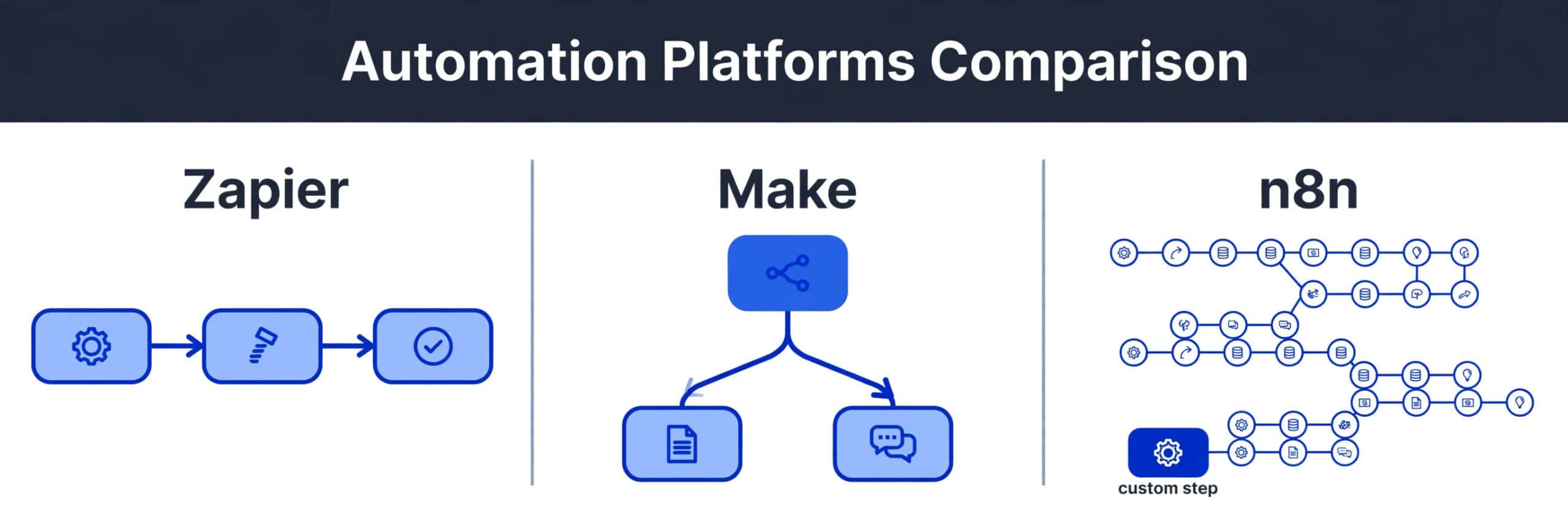
Every small business owner who looks into automation meets the same three names: Zapier, Make, and n8n. Every comparison article then gives a different winner. One says Zapier is best. Another says Make is best. A third says n8n wins. They cannot all be right, and in a way, they are all answering a different question.
The honest answer is that none of these tools is best in general. Each one is built for a different shape of problem, a different level of technical comfort, and a different way of paying for work. Pick the wrong shape and you will pay too much, rebuild too soon, or hand a system to a team that cannot maintain it. Pick the right shape and the tool almost disappears into the background, which is exactly what a good automation tool should do.
This guide gives you that choice in plain language, without code. You will learn what each tool is best at, how easy each one is for a beginner, how much complexity each one handles well, how AI fits into each one in general terms, how their billing logic differs, and who should own each one after launch. Then you will get a decision framework you can use in about ten minutes, a checklist to run before you pay, and the mistakes that cause most small businesses to switch tools within a year.
For the bigger picture, see 25 AI Automation Examples for Businesses in 2026 (https://flowmez.com/ai-automation-examples/). For the simplest automation starting point, see How to Automate Email + Spreadsheet Work with Zapier, Step by Step for Beginners (https://flowmez.com/automate-email-spreadsheet-zapier-beginners/). For a longer workflow, see How to Build Your First AI Workflow in n8n, Step by Step (https://flowmez.com/build-first-ai-workflow-n8n-beginners/).
Make vs Zapier vs n8n at a Glance
| Zapier | Make | n8n | |
|---|---|---|---|
| Best for a beginner | A few simple, repeatable automations this week | Visual, branching workflows once you are comfortable with filters and logic | Longer, custom workflows when a technical person owns the system |
| How you build it | A guided, step-by-step list: trigger, then actions in order | A visual canvas: boxes joined by lines, with branches, filters, and loops visible at once | A visual canvas of nodes, with room for custom logic and code when needed |
| Complexity it handles well | Low to medium: straightforward, mostly linear work | Medium to high: branching, routing, and reshaping data | High: long, custom, and data-heavy work |
| Who should own it | The owner or a team member who uses it daily | A tech-comfortable operator who can read the canvas and fix a failed run | A technical owner or partner who handles hosting, updates, and failures |
| Hosting in general terms | Cloud only | Cloud only | Cloud or self-hosted, depending on the option you choose |
| What you are billed for, in principle | Each action step that runs | Each module or operation that runs | Each full workflow run on cloud plans; self-hosting shifts the cost to your own server and time |
| AI use in general terms | AI steps inside a workflow, plus agent-style features offered by the vendor | AI steps inside a visual workflow, plus agent-style features offered by the vendor | AI steps and agent-style workflows built from nodes, with more room for custom AI logic |
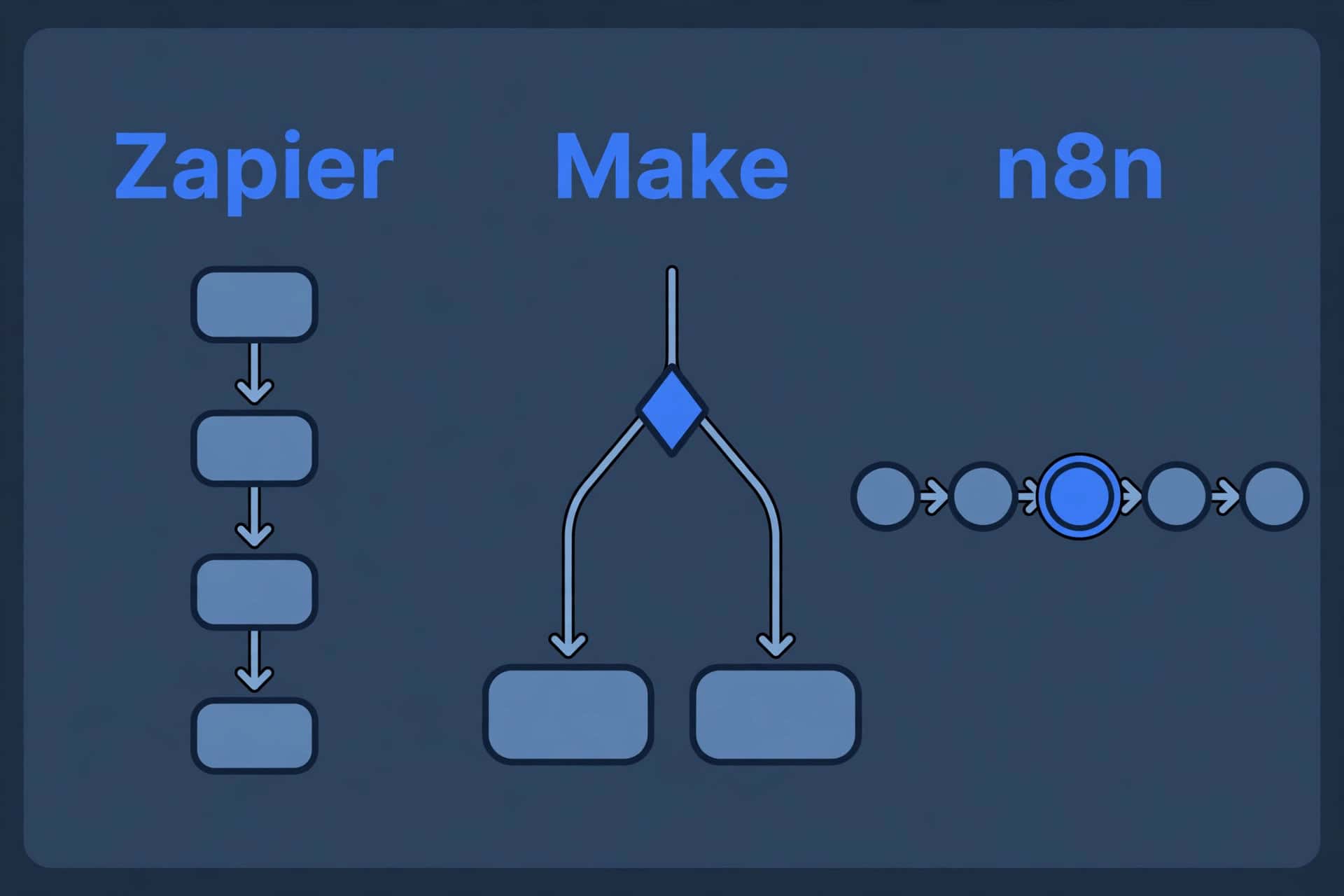
Read that table as a starting point, not a verdict. The rest of this guide explains why each row matters, and where each tool starts to feel wrong for a particular business.
Zapier: The Easiest Place to Start
Zapier is the gentlest first step for most non-technical owners, and that is a real strength, not a polite way of calling it simple. Its builder walks you through one step at a time: when this happens, do that, then do the next thing. You do not need to draw a flowchart first. You do not need to learn what a router, an iterator, or a bundle is. You pick an app, pick a trigger, pick an action, test it, and turn it on.
That guided style has two practical advantages. First, you can get a first automation running in an afternoon, even if you have never built one before. Second, it is easy to hand to someone else on your team, because the workflow reads top to bottom like a checklist. If a step fails, the run history usually points to that step in plain terms.
Zapier is also widely known for a large library of app connections. For a small business that uses common tools for email, forms, spreadsheets, calendars, and customer records, that breadth matters: the app you need is very likely already connected, which removes a whole category of setup work.
Where Zapier starts to feel tight is when work stops being linear. A workflow that needs many branches, repeated loops over a list, or heavy reshaping of data can still be built, but it becomes harder to read and harder to maintain, because the builder was designed for steps in order, not for a map of paths. Volume is the other pressure point. Because Zapier bills in principle per action step that runs, a long workflow that runs often uses up its allowance faster than a short one. A five-step workflow running hundreds of times a month is not five hundred units of work on this billing logic; it is the sum of every step that runs. That is not a trick, but it is the detail most beginners miss when they compare monthly prices across tools.
Choose Zapier first when you need something working this week, your team is non-technical, your workflows are mostly straightforward, and your volume is modest. If you later outgrow it, that is not a failure. It means the business learned what it actually automates, which is valuable information for the next choice.
Make: The Visual Middle Ground
Make, formerly Integromat, sits in the middle in the best sense of that phrase. It is still a no-code tool, but it shows you the whole workflow at once as a visual canvas. Each step is a box, or module, joined by lines. Branches split off visibly. Filters sit on the lines between steps. Loops and data reshaping are first-class parts of the picture, not workarounds.
That visibility is why many tech-comfortable operators prefer Make once their workflows get longer. When a workflow branches — for example, new orders go one way, refunds go another way, and VIP customers go a third way — you can see all three paths on one screen. When a step fails, you can usually see which branch it failed on and what data was passing through at that point. For a business that has outgrown simple trigger-then-action work but does not want to manage a server or write code, that canvas is a genuine step up.
Make takes a little longer to learn than Zapier. Expect to spend a few evenings getting comfortable, not a few minutes. Concepts like filters, routers, and data mapping need to be understood, not just clicked through. The canvas can also look busy at first, especially for a long workflow. That is the trade-off for seeing everything: more power on screen means more to read.
On billing logic, Make bills in principle per module or operation that runs, rather than per whole workflow. That distinction matters in both directions. A long workflow with many modules uses more units than a short one, but the units are not the same unit as Zapier’s tasks, so you cannot compare the two numbers directly. A module that processes a list may also run once per item in that list, which is another detail beginners miss: the same workflow can use very different amounts of work depending on how much data each run carries.
Choose Make first when you already understand filters and spreadsheet logic, your workflows branch or reshape data, you want a visual map you can maintain yourself, and you do not want to manage hosting. If your team finds the canvas confusing after a fair trial, that is useful evidence too — it may mean your workflows are still simple enough for Zapier, or that you need a simpler first workflow, not a more powerful tool.
n8n: The Most Control, With the Most Ownership
n8n is the most flexible of the three, and the one that asks the most of its owner. Like Make, it uses a visual canvas of nodes joined by lines. Unlike Make, it is built to go further: longer workflows, custom logic, code steps when a no-code step is not enough, and AI workflows built from nodes rather than bolted on as an afterthought. If you need a workflow that no standard template covers, n8n is the tool most likely to let you build it without switching platforms.
n8n is also the only one of the three that can be self-hosted in the usual sense: you can run it on your own server instead of only in the vendor’s cloud. For some businesses that is the deciding factor. It can mean more control over where data passes through and is stored, and it can change the cost shape for high-volume work, because self-hosting shifts the cost from per-run billing to server upkeep and your time. It does not make automation free. A server still needs setup, updates, backups, monitoring, and someone who fixes it when it stops. “Free to run” and “free to own” are different statements, and the second one is the one that matters.
That ownership question is the real test for n8n. Before you choose it, you should be able to name the person responsible for hosting, updates, backups, security, and failures. If that person is you and you are comfortable with that list, n8n can be an excellent long-term choice. If that person is nobody yet, or “we will figure it out,” n8n will punish that gap sooner than the other two tools will. A cloud option exists for n8n as well, which removes the server question, but it does not remove the technical comfort question: n8n still assumes you are comfortable with data structures, expressions, and occasional code, and it is the least beginner-friendly of the three to run entirely on your own.
On billing logic, n8n cloud plans bill in principle per full workflow run, not per step inside it. That makes long workflows relatively cheaper to run than they would be under per-step billing, because a twenty-step workflow and a two-step workflow each count as one run. That advantage grows with workflow length and volume, which is why n8n appeals to businesses with long or high-volume workflows. It does not automatically make n8n cheapest for a small business with a few short workflows, where the other tools’ simplicity may matter more than the billing unit.
Choose n8n first when you have a technical owner or partner, your workflows are long or custom, you need control over hosting or data flow, or your volume is high enough that per-step billing hurts. Do not choose it only because it is the most powerful. Power you cannot maintain becomes fragility, not capability.
Ease of Use, Honestly Ranked
For a complete beginner, the ranking is clear, and every serious comparison agrees on it in substance, even when their verdicts differ:
- Zapier is easiest. A guided list, plain prompts, and a short path to a first working automation. Most owners can build a simple two-step automation in an afternoon without help.
- Make is next. The canvas is intuitive once you learn it, but it takes a few evenings to get comfortable with branches, filters, and data mapping. The first hour feels busier than Zapier.
- n8n is hardest for a beginner. The canvas is powerful, but it assumes comfort with data structures, expressions, and occasional code, plus ownership of hosting and maintenance if you self-host.
Ease of use is not the same as capability, and it is not a permanent ranking. A tool that feels hard in week one can feel natural in month three, once you understand the concepts. The question to ask is not “which tool is easiest forever?” but “which tool can the person who will actually maintain this system learn and keep running?” If that person is you and you have an afternoon, Zapier wins. If that person is a tech-comfortable operator who will build ten workflows, Make’s learning curve pays off quickly. If that person is a developer or a technical partner, n8n’s learning curve is simply part of the job.
Also ask how easy it is to fix a failure, not just to build the workflow. A tool that is easy to build but hard to debug will cost you more time over a year than a tool that takes longer to learn but shows you exactly which step failed and what data it was carrying. On that measure, the visual canvases of Make and n8n have an advantage for longer workflows, because you can see the path that failed. For short workflows, Zapier’s step-by-step run history is usually clear enough.
How Much Complexity Each Tool Handles Well
Think of complexity in three layers: simple, branching, and custom.
Simple work means one trigger and one or two actions in order: a form submission creates a contact and sends an email. All three tools handle this easily. Choosing n8n for only this kind of work is like buying a workshop to hang a picture: it works, but you are paying in learning time and maintenance for power you do not use.
Branching work means the path changes depending on the data: orders under a certain amount go one way, refunds go another way, VIP customers get a personal reply, and everything else gets a standard reply. Make handles this naturally, because branches are visible on the canvas. Zapier can handle branching, but longer branching work becomes harder to read. n8n handles it easily as well, with more room for custom rules.
Custom work means the workflow needs logic no standard step covers: combining data from several sources in a specific way, transforming a messy list into a clean table, running a long sequence with sub-workflows, or building an AI workflow that gathers facts, reasons about them, and then acts. This is where n8n pulls ahead, because it allows custom code steps and deeper control. Make can go a long way here too, but it will hit its ceiling sooner. Zapier will hit its ceiling first, not because it is a bad tool, but because it was not designed for this layer.
A useful rule: choose the tool whose comfortable layer matches the most complex workflow you plan to build in the next six months, not just the simplest one you plan to build this week. If all your planned work is simple, choose the simplest tool. If one planned workflow is branching, choose the tool that handles branching comfortably. If one planned workflow is custom, be honest about who will own it before you choose the custom tool.
AI Capabilities in General Terms
All three tools can use AI inside a workflow. None of them should be chosen on AI marketing alone, because AI features change fast and because the important question is not “does it have AI?” but “where does AI sit in the workflow, and who checks its output?”
In general terms, Zapier and Make offer AI steps inside their workflows and agent-style features offered by each vendor: an AI step can read, sort, summarize, or draft, and the workflow around it decides where that output goes and who approves it. That pattern — a workflow with one AI step — is the safest and most useful pattern for most small businesses, as explained in AI Agent vs AI Workflow: When to Use Which (Beginner Guide for Small Businesses) (https://flowmez.com/ai-agent-vs-ai-workflow-when-to-use-which/). You get AI judgment where it helps, and workflow predictability everywhere else.
n8n goes further in the same direction. Its node-based design lets you build AI workflows from nodes, combine AI steps with custom logic, and build agent-style workflows that gather facts from several sources before acting. If your AI work is open-ended — for example, researching a problem across several records before drafting a summary — n8n gives you more room to build it properly. It also gives you more room to build it badly, which is why the guardrails matter even more here: narrow permissions, a step cap, human approval before consequential actions, a full log, and a named owner.
One cost warning applies to all three tools and is easy to miss: AI use can add costs beyond the workflow tool’s own billing. An AI step typically involves a separate AI service, and that service may charge by usage. A workflow that calls an AI step on every run can therefore cost more than the same workflow without AI, even if the workflow tool’s own price does not change. Before you build an AI-heavy workflow, check how the AI service is billed in general terms, keep AI steps to the places where judgment is actually needed, and always put human review before any customer message, record change, payment, or publication that an AI step touches.
Billing Logic: The Comparison Most Articles Get Wrong
This is the section most comparison articles rush, and it is where small businesses lose the most money. The three tools do not bill for the same unit of work, so their monthly prices cannot be compared number to number.
- Zapier bills in principle per action step that runs. A trigger itself is generally not the billed unit; each action step that runs is. A longer workflow therefore uses more billed units per run than a shorter one.
- Make bills in principle per module or operation that runs. A module that processes a list may run once per item, so the amount of work depends on both the number of modules and the amount of data each run carries. Trigger checks can also use units, even when nothing new has arrived, depending on how the workflow is set up.
- n8n cloud plans bill in principle per full workflow run. A long workflow and a short workflow each count as one run. Self-hosting removes per-run billing from the vendor, but replaces it with server costs and your time.
Because the units differ, a price table that lists three monthly prices side by side tells you almost nothing on its own. What you need instead is a small calculation for your own work: pick one real workflow, count its steps, estimate how many times it will run in a month, and work out the billed units under each tool’s logic. Do that for your longest workflow and your highest-volume workflow, not just your simplest one. Those two workflows are the ones that decide your bill.
Also remember that prices and plan limits change. This guide deliberately quotes no specific prices, plan limits, or app counts, because any number printed here could be out of date by the time you read it, and because the competitor price tables that do quote numbers often disagree with each other for exactly that reason. Before you pay, check each vendor’s current pricing page, confirm the billing unit, and confirm whether the plan you are looking at includes the features you need — such as branching, multi-step workflows, or AI steps — rather than assuming the cheapest plan includes everything.
A final billing trap: free tiers are for learning, not for running a business on. A free tier that allows only very short workflows, or a small amount of monthly work, is useful for testing whether you like the tool. It is not evidence that the paid plan will be cheap for your real volume. Test on a free tier, decide on your real workflow’s math, and only then pay.
Data Control, Hosting, and What Passes Through the Tool
For most small businesses, data control is not the first question, but it should be an early one, because it is expensive to change later. Ask three questions before you commit:
- Where does your customer data pass through? Every automation tool sits between your apps. Customer names, email addresses, order details, and messages may pass through the tool’s servers on their way from one app to another. That is normal for a cloud automation tool, but you should know it is happening and be comfortable with it, especially for sensitive data.
- Can you keep data in-house if you need to? Only n8n, among these three, offers a self-hosted option in the usual sense. Zapier and Make are cloud-only. If a customer, a contract, or a regulation ever requires you to keep certain data on your own systems, that requirement alone may decide the tool for that workflow, even if another tool is easier to use.
- Who can see the run history, and for how long? Run histories and logs often contain the actual data that passed through a workflow. That is useful for debugging, and it is also a reason to treat log access as seriously as app access: limit who can view runs, and do not paste customer personal data into test workflows or AI prompts.
None of this means a cloud tool is unsafe for a normal small business. It means you should not send sensitive customer data through any automation tool without thinking about it first, and you should never put customer personal data into a test workflow, a shared example, or an AI prompt. The same discipline applies on all three tools.
Error Handling, Maintenance, and Ownership
A workflow that works on day one and breaks silently on day thirty is worse than no workflow at all, because the business stops checking the work it assumed was handled. Before you choose a tool, ask how each one handles the unglamorous parts:
- When a step fails, what happens? Does the workflow stop, retry, or continue? Does someone get alerted, and does the failed item wait somewhere visible? All three tools offer error handling in some form, but the details — how retries are set, how alerts are delivered, and how easy it is to find a failed run — differ, and they matter more than the feature list suggests.
- Who fixes it? Name one owner for each workflow, not just for the tool. That owner checks failures, updates the workflow when an app changes, and knows how to pause it fast. A workflow with no owner is a workflow nobody is watching, on any platform.
- What changes break it? Apps change their fields, permissions, and limits. A workflow that depends on a specific field will break when that field changes, on any tool. The fix is the same on all three: a regular check of failures, a test run after any change to a connected app, and a manual fallback so the business can still do the work by hand while the workflow is fixed.
- How do you pause it? Before launch, know how to pause or switch off each workflow, and test that you can. “We would ask the vendor” is not a pause button.
Ownership is also where the self-hosting question returns. On Zapier and Make, the vendor owns the servers, updates, and uptime, and you own your workflows. On self-hosted n8n, you own both. That can be the right trade for control or volume, but only if the owner is real and the time is budgeted. If the owner is “whoever is free this week,” choose a cloud tool and spend the saved time on the business instead.
The Decision Framework: Five Questions
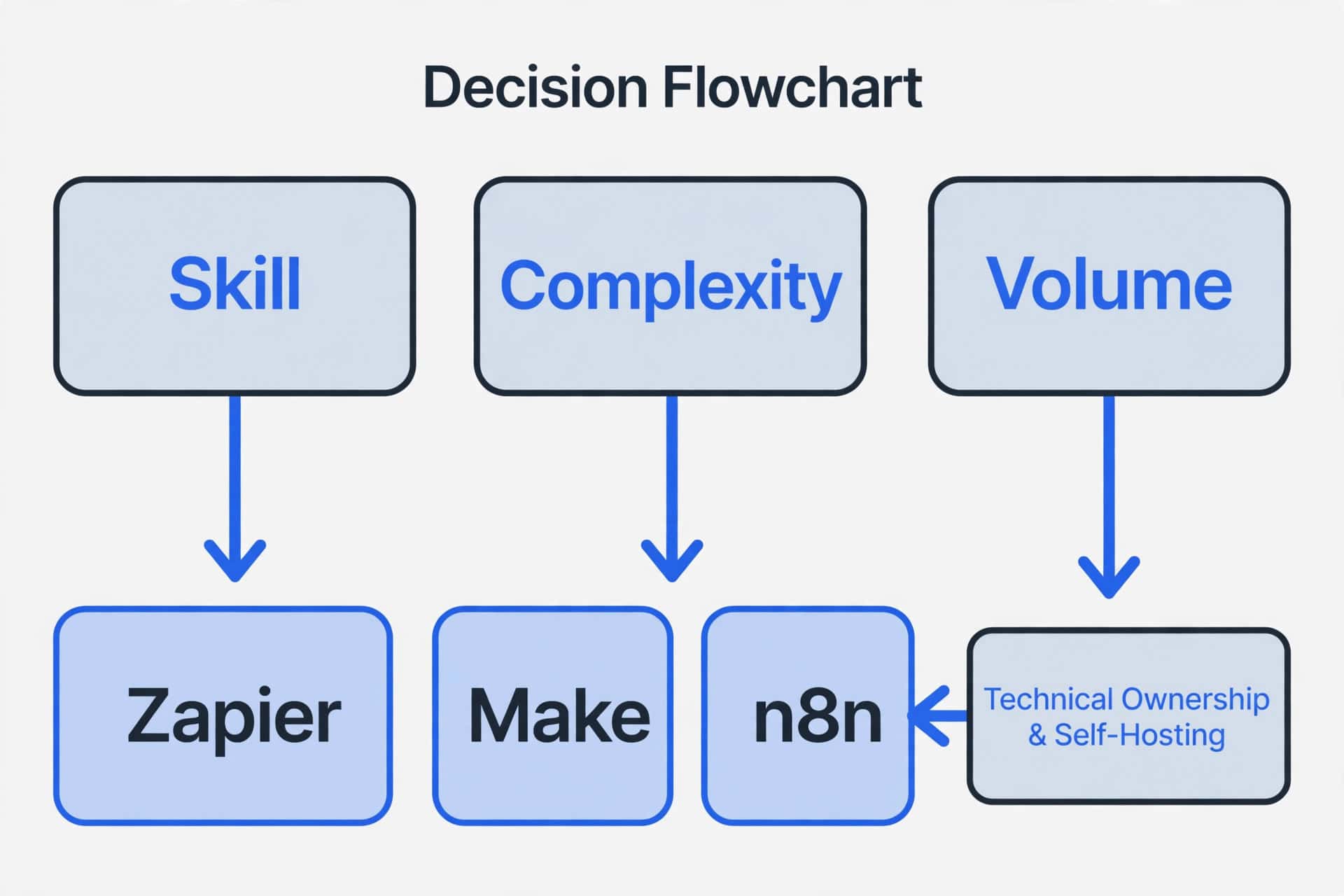
Answer these five questions honestly, in order. Your answers will point to a tool more reliably than any feature table.
1. Who will build and maintain this, really?
Not who could learn it in theory, but who will actually own it week to week. If the answer is a non-technical owner with no technical help, start with Zapier. If the answer is a tech-comfortable operator, Make is a strong default. If the answer is a developer, a technical partner, or a named technical owner, n8n becomes a realistic choice. If the answer is nobody yet, do not pick the tool that needs the most ownership. Pick the simplest tool, build one workflow, and let the ownership question answer itself as the business grows.
2. How complex is your most complex planned workflow?
Simple and mostly linear? Any tool works, so choose the easiest. Branching, with different paths for different kinds of customers or orders? Make or n8n will feel natural; Zapier will feel cramped as branches multiply. Custom, with data reshaping, sub-workflows, or AI logic that no standard step covers? n8n is the honest choice, provided question 1 also points there. Do not let a single simple workflow decide a tool for a complex future, and do not let a single complex idea force a complex tool onto a team that only needs simple work.
3. How much work will actually run each month?
Estimate runs, then steps per run, then billed units under each tool’s logic. A few short workflows running a few hundred times a month will not punish any tool’s billing. A long workflow running thousands of times a month will punish per-step billing far more than per-run billing. A workflow that processes lists will punish per-module billing in proportion to the list size. Run this math for your real workflows, not for a demo. If you cannot estimate volume yet, start with the easiest tool and measure for a month before committing to a paid plan for volume.
4. Does data need to stay on your own systems?
If the answer is no for your normal business data, all three tools are viable, and you can choose on ease, complexity, and cost. If the answer is yes for a specific workflow — because of a customer requirement, a contract, or a sensitivity judgment — that workflow points to self-hosted n8n, even if your other workflows live elsewhere. Running two tools for different jobs is normal, and it is better than forcing a sensitive workflow onto a tool that cannot meet its data requirement, or forcing your whole business onto a self-hosted tool for one workflow’s sake.
5. What happens if this tool stops working tomorrow?
This is the question competitors almost never ask, and it is the one that separates a tool choice from a business risk. Can your team do the work by hand for a week? Do you know how to pause the workflow? Do you have a record of what each workflow does, in plain language, outside the tool itself? If the answer to all three is yes, you are choosing a tool. If the answer is no, you are depending on a tool, and no tool — easy or powerful — fixes that. Write the plain-language record first, keep a manual fallback, and then choose.
The framework in one line: choose the simplest tool that comfortably handles your most complex planned workflow, owned by a real named person, at a volume whose billing logic you have actually calculated.
Which Tool for Which Kind of Business or Job
Use these examples as starting points, not as rules. Your specific workflows matter more than your business type.
- A solo owner who wants a form to feed a spreadsheet and an email. Start with Zapier. The work is simple, the setup is fast, and the owner can maintain it alone.
- A small shop with branching order handling. Orders, returns, and VIP customers follow different paths, and the owner is comfortable with filters. Start with Make. The canvas will make those branches visible and maintainable.
- A service business with long client onboarding. Intake, document collection, follow-ups, and internal handoffs form a long sequence with several decision points. Make or n8n, depending on who owns it. If the owner is technical, n8n’s longer reach helps. If not, Make’s canvas is the safer middle ground.
- A business with high-volume, long workflows. Thousands of runs a month, each with many steps. Calculate the billing logic carefully. n8n’s per-run logic and self-hosting option deserve a serious look here, provided a technical owner exists.
- A business handling sensitive customer data for one workflow. Keep that workflow on self-hosted n8n if the data requirement demands it, and keep your simpler workflows wherever they are easiest to run. You do not need one tool for everything.
- A business that wants AI summaries or sorting inside a fixed workflow. Start with the workflow-with-one-AI-step pattern on whichever tool your team already uses comfortably. Do not switch tools just to add one AI step, and do not let an AI step act without human review on anything customer-facing, financial, or public.
Running two tools at once is not a failure. Many small businesses run Zapier for simple work a non-technical team member owns, and Make or n8n for longer work a technical person owns. The cost of two tools is real, but it is often smaller than the cost of forcing every workflow onto one tool that fits only half of them.
The Same Workflow, Tested on Each Tool
Before you pay for a year of any tool, run the same real workflow on each candidate for a short trial, using the same test cases. This is the single most useful step in this whole guide, and it is the step most comparisons skip in favor of a feature table.
Pick one workflow you actually need — for example, the lead follow-up workflow from Automate Lead Follow-Up: From Form to CRM to Email, Without Losing Leads (https://flowmez.com/automate-lead-follow-up-form-crm-email/): a form submission creates a contact and sends an acknowledgment. Build it on each tool you are considering, using test data, and check the same things on each one:
- How long did it take to build, including the time spent learning the tool?
- How easy is it to read the finished workflow a week later, without the builder’s help?
- What happens on a duplicate submission, a missing field, and a failed step? Does the failure show up clearly, and does the item wait somewhere visible?
- How many billed units did a realistic month of runs use, under each tool’s logic?
- Who on your team could fix it if it broke while you were away?
The tool that wins that test for your team is the right tool, even if a comparison article says otherwise. A tool that looks best in a table but feels confusing to your team in a trial will cost you more over a year than a tool that looks ordinary in a table but is easy for your team to maintain.
Do not standardize your whole business on day one. Build one workflow, prove the result, measure the volume and the maintenance effort for a month, and only then decide whether to build the next five workflows on the same tool. That discipline is what prevents the most common small-business automation regret: a year-long plan for a tool the team stopped using in month two.
Switching Considerations: What It Actually Costs to Change Tools
Switching tools is possible, and it is not free. Knowing the costs in advance makes the first choice less frightening, because you are not locked in forever, and it makes a switch less painful when one is genuinely needed.
- Workflows must usually be rebuilt, not moved. There is no universal export that carries a workflow perfectly from one tool to another. Expect to rebuild each workflow by hand, using the original as a specification. Keep a plain-language record of each workflow — trigger, steps, branches, and fallbacks — outside the tool, so a rebuild is a translation, not a rediscovery.
- Connections must be re-authorized. Each app connection will need to be connected again on the new tool, with its own permissions. Plan that time, and check that each required app is actually connected on the new tool before you switch a live workflow off.
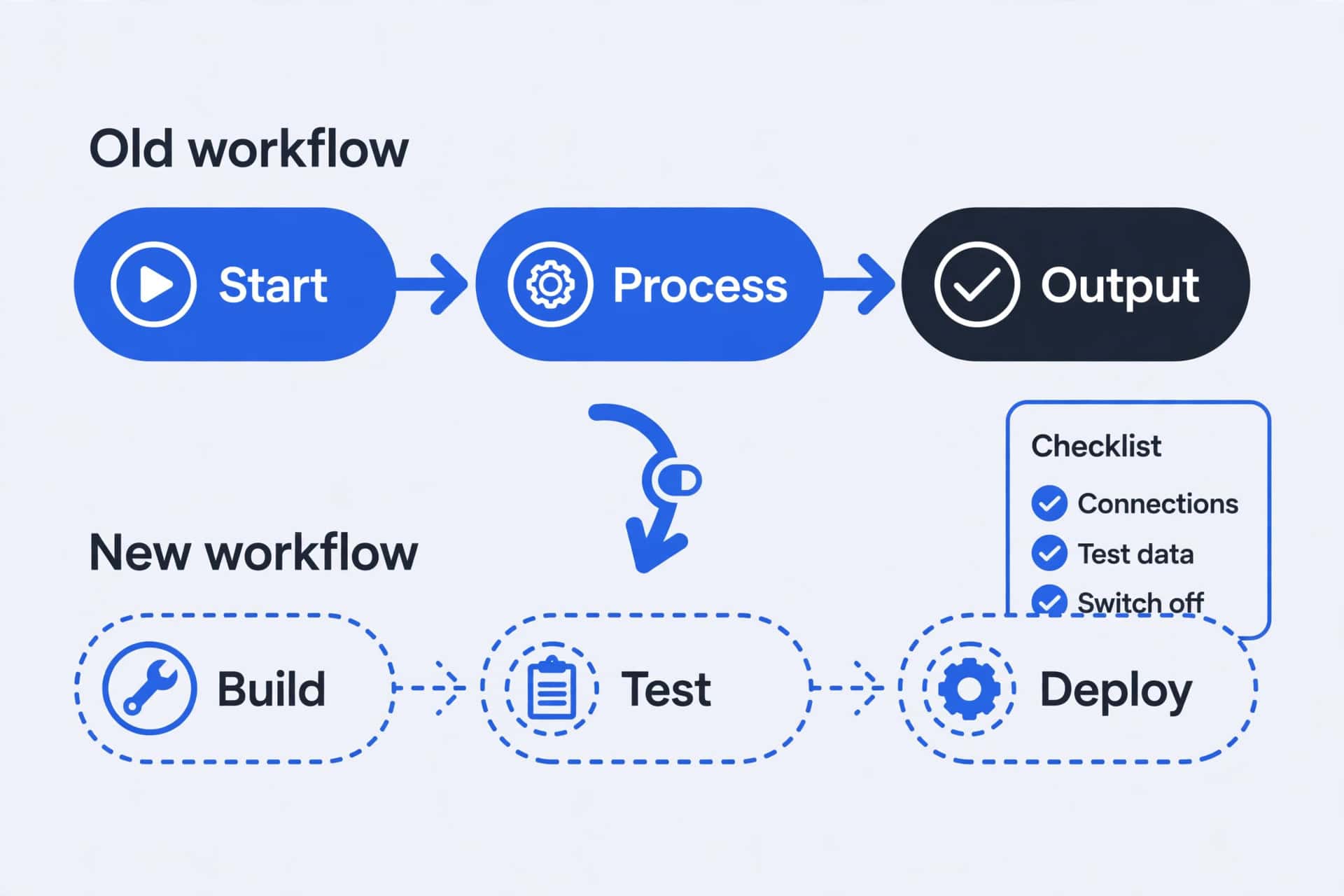
- Run it in parallel first. Build the workflow on the new tool, run it on test data, then run it alongside the old workflow for a short period before switching off the old one. Never switch a customer-facing or money-related workflow in one jump without a parallel test.
- Keep the old tool running until the new one proves itself. A month of overlap on one or two workflows costs a little extra, but it is far cheaper than a failed switch that leaves the business doing manual work while a new system is debugged.
- Watch for hidden dependencies. Scheduled triggers, polling intervals, and error alerts may behave differently on the new tool. A workflow that checked for new items every few minutes on one tool may check at a different interval on another, which changes how fast customers get a reply.
Switch when the reason is specific and measurable: volume has grown past the point where the billing logic hurts, complexity has grown past the point where the builder stays readable, or a data requirement has changed. Do not switch because a new tool is fashionable, because a competitor article ranked it first, or because a single workflow felt hard on a bad day. And do not switch all workflows at once. Move one workflow, prove it, then move the next.
Decision Checklist
Use this checklist before you pay for any of the three tools:
- [] One named person owns the tool and each workflow, including failures and updates.
- [] Your most complex planned workflow, not just your simplest one, fits the tool comfortably.
- [] You have estimated monthly runs and billed units under each tool’s billing logic for your longest and highest-volume workflows.
- [] You have checked the vendor’s current pricing page and confirmed the billing unit and which features the plan you are considering actually includes.
- [] Each required app is connected, or you have confirmed it can be connected, on the tool you are considering.
- [] You have answered the data question: where customer data passes through, and whether any workflow needs to stay on your own systems.
- [] You have tested the same real workflow on each candidate tool with test data, including a duplicate, a missing field, and a failed step.
- [] You know how to pause each workflow fast, and you have a manual fallback for customer-facing or money-related work.
- [] AI steps, if any, are limited to places where judgment is needed, and a human reviews output before any customer message, record change, payment, or publication.
- [] You are starting with one workflow and a one-month measurement period, not standardizing the whole business on day one.
- [] You have a plain-language record of each workflow outside the tool, so a future rebuild or switch does not start from scratch.
- [] You can say, in one sentence, why this tool fits this business, without mentioning a price table.
If you cannot tick the owner, complexity, and volume boxes, do not pay for a year yet. Run a trial on one workflow first, and let the trial answer those boxes for you.
Common Mistakes
Choosing by price table alone
A price table compares numbers that measure different things. Zapier’s tasks, Make’s operations, and n8n’s executions are not the same unit, and a plan that looks cheapest for a short workflow can be the most expensive for a long, high-volume one. Calculate your own workflows first, then look at prices.
Choosing the most powerful tool for simple work
Power you cannot maintain becomes fragility. If your workflows are simple and your team is non-technical, the most powerful tool is the wrong tool, no matter how impressive its feature list looks. Simplicity that your team can maintain beats capability that nobody owns.
Standardizing the whole business before testing one workflow
A year-long commitment made on day one, before any workflow has run in production, is a gamble, not a strategy. Build one workflow, measure it for a month, and only then decide whether to standardize.
Ignoring who owns hosting, updates, and failures
This is the mistake that hurts n8n adopters most, but it applies to every tool. A workflow with no owner, no failure alert that someone actually reads, and no pause button is not automation. It is an unattended process waiting to fail quietly.
Sending sensitive data through a tool without thinking about it
Every automation tool sits between your apps, and customer data passes through it. That is normal for cloud tools, but it should be a conscious choice, especially for sensitive data. Never put customer personal data into a test workflow, a shared example, or an AI prompt.
Letting an AI step act without human review
An AI step that drafts, sorts, or summarizes is useful. An AI step that sends a customer message, changes a record, moves money, or publishes content without a human check is a risk on any platform. The guardrails belong in the workflow, not in a hope that the AI step will be right every time.
Switching tools because one workflow felt hard
A single difficult workflow is usually a sign that the workflow itself needs to be simplified, broken into smaller steps, or tested with better cases — not that the whole platform is wrong. Fix the workflow first, then judge the tool. Switch only for a specific, measurable reason, and move one workflow at a time.
Forgetting the manual fallback
If the tool stops, the app changes, or the workflow breaks, the business still has customers to serve. Every customer-facing or money-related workflow needs a manual way to do the job, even if more slowly. An automation with no manual fallback leaves the business stuck when it breaks, on any platform.
Frequently Asked Questions
Which tool is best for a complete beginner?
Zapier, for most complete beginners. Its guided, step-by-step builder and plain prompts make a first simple automation the fastest to build and the easiest to hand to a team member. Make is the next step once you are comfortable with filters and branching logic. n8n is the step after that, when a technical owner is involved.
Is Make cheaper than Zapier?
Not automatically, and not in a way a price table can prove, because they bill for different units of work. Make’s billing logic often works out cheaper for longer or branching workflows, and Zapier’s logic often works out fine for short, low-volume workflows. The only honest answer for your business comes from calculating your own workflows: steps per run, runs per month, and billed units under each tool’s logic, checked against each vendor’s current pricing page.
Is n8n really free?
Self-hosted n8n does not charge a per-run license fee in the usual sense, but it is not free to own. You still pay for a server, and you still spend time on setup, updates, backups, security, and fixing failures. Cloud n8n bills per workflow run. For a small business, the right question is not “is it free?” but “who owns it, and what does that ownership cost in time?”
Can I use more than one of these tools?
Yes, and many small businesses do. A common pattern is Zapier for simple work a non-technical team member owns, plus Make or n8n for longer work a technical person owns. The cost of two tools is real, but it is often smaller than forcing every workflow onto one tool that fits only half of them. Keep a plain-language record of each workflow so the split stays maintainable.
Which tool is best for AI workflows?
It depends on what kind of AI work you mean. For a fixed workflow with one AI step — reading, sorting, drafting, or summarizing — any of the three tools works, and you should choose on ease, complexity, and ownership, not on AI marketing. For open-ended AI work that gathers facts from several sources and reasons about them before acting, n8n’s node-based design gives you more room to build it properly, provided a technical owner and human-review guardrails are in place. For more on that distinction, see AI Agent vs AI Workflow: When to Use Which (Beginner Guide for Small Businesses) (https://flowmez.com/ai-agent-vs-ai-workflow-when-to-use-which/).
Do I need to know how to code to use n8n?
Not for every workflow, but you should be comfortable with data structures, expressions, and the occasional code step, or have a technical partner who is. n8n is the least beginner-friendly of the three to run entirely on your own, and that gap grows if you self-host. If no one on your team is comfortable there yet, start with Zapier or Make and grow into n8n only when a real workflow demands it and an owner exists.
When should I switch from one tool to another?
Switch for a specific, measurable reason: volume has grown past the point where the billing logic hurts, complexity has grown past the point where the builder stays readable, or a data requirement has changed. Move one workflow at a time, run it in parallel first, keep the old tool running until the new one proves itself, and keep a plain-language record of each workflow so the rebuild is a translation, not a rediscovery.
Conclusion
There is no single winner in Make vs Zapier vs n8n, and any guide that names one without asking about your team, your workflows, and your volume is selling a verdict, not a decision. Zapier wins on ease and speed for simple work. Make wins on visual branching and maintainable complexity for a tech-comfortable operator. n8n wins on control, long workflows, and data flexibility for a technical owner who can actually own it.
Run the five-question framework once, honestly. Name the owner. Match the tool to your most complex planned workflow. Calculate your own volume under each billing logic. Answer the data question. Keep a manual fallback. Then build one workflow, measure it for a month, and let that evidence — not a price table — decide whether to build the next one on the same tool.
That discipline is what turns a tool choice from a gamble into a business decision. For the bigger picture, return to 25 AI Automation Examples for Businesses in 2026 (https://flowmez.com/ai-automation-examples/).

Flowmez publishes practical AI workflow guides, tested steps and honest tool reviews to help small businesses save time.
1 thought on “Make vs Zapier vs n8n for a Small Business: An Honest Comparison”
Comments are closed.