

Most late payments are not refusals. They are forgotten invoices, invoices sent to the wrong inbox, or invoices with no clear due date and no clear way to pay. Chasing them by hand takes time, feels awkward, and is easy to put off — which is exactly how a small delay becomes a cash-flow problem.
This guide fixes that with one workflow. It sends polite, on-time reminders, stops the moment payment lands, and leaves disputes to a human. The rule behind it is simple: automation sends the reminder; a human handles the relationship.
For the bigger picture, see 25 AI Automation Examples for Businesses in 2026. For the simplest automation starting point, see How to Automate Email + Spreadsheet Work with Zapier, Step by Step for Beginners. For a longer workflow, see How to Build Your First AI Workflow in n8n, Step by Step.
What This Workflow Does, in Plain Language
An invoice is a request for payment for work already done or goods already delivered. It has an amount, a due date, and a way to pay. A reminder is a short message that brings that invoice back to the customer’s attention before or after the due date.
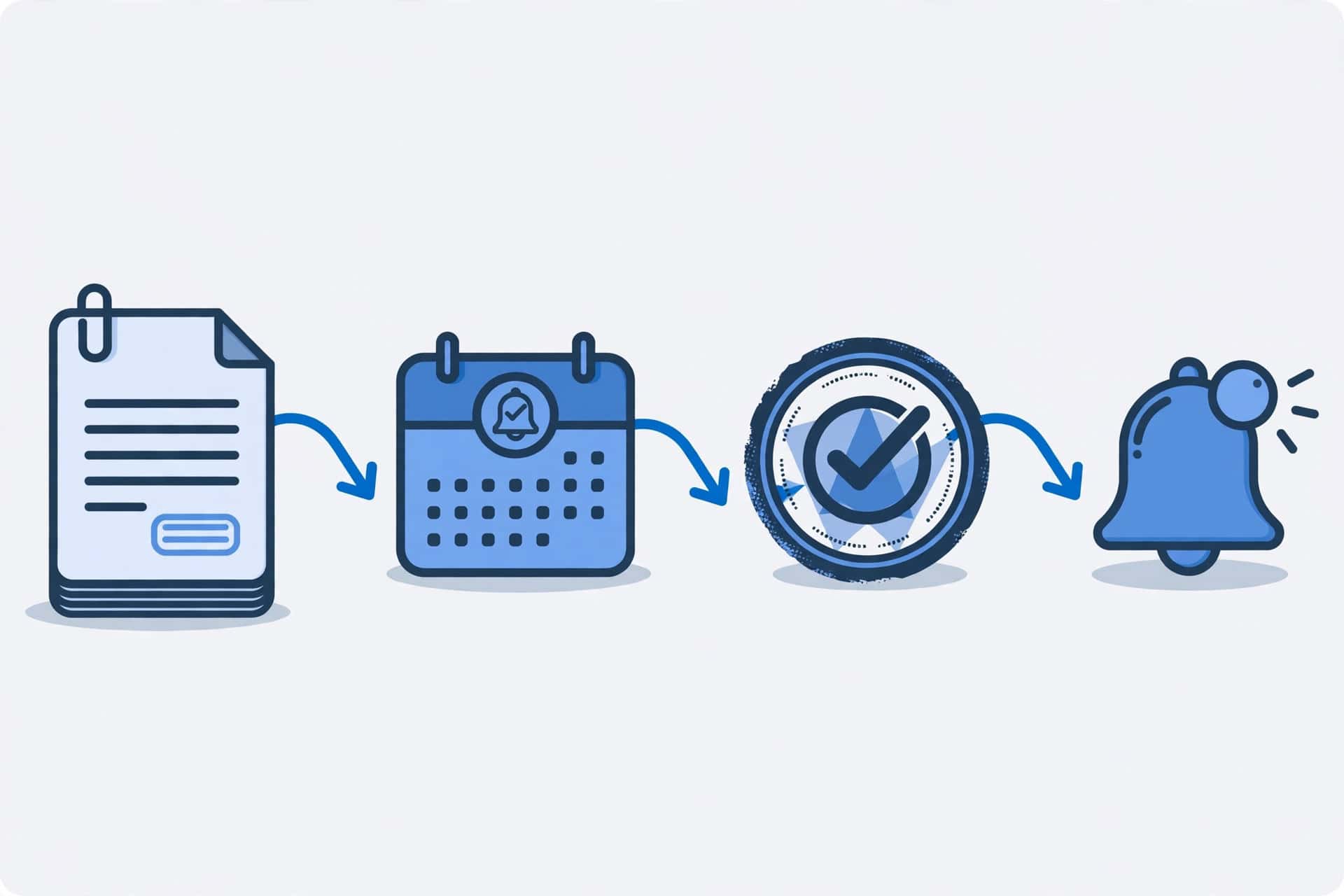
The chain is:
- An invoice is created with a clear due date.
- The workflow watches the due date, not your memory.
- It sends a friendly nudge before the due date.
- If the invoice is still unpaid, it sends a firmer reminder after the due date.
- The moment payment lands, all reminders stop.
- A human reviews the overdue list once a week.
Before You Build: Choose One Invoice Source, One Owner, One Rule
Do not connect three invoicing tools, two spreadsheets, and a shared inbox at once. Decide these three things first:
- One invoice source: the single tool or list where an invoice’s status is true. If payment is recorded somewhere else, the workflow must read that same source.
- One owner: one named person responsible for overdue invoices. A shared inbox with no owner is not an owner.
- One sequence: the exact reminders you will send, written down before you switch the workflow on. The sequence in Step 2 is a good starting point; adjust the timing to fit your customers, then stick to it.
This pattern will feel familiar if you have read Automate Lead Follow-Up: From Form to CRM to Email, Without Losing Leads: one owner, one list, and one manual check so automation failure cannot silently cause harm.
Step 1: When a Reminder Fires — Due-Date Triggers, Not Random Chasing
A reminder must fire because a date arrived, not because someone remembered to chase. Set the workflow to check invoice due dates on a schedule, for example once a day, and to act only when a trigger date is reached.
A practical starting sequence is: a friendly nudge a few days before the due date, a reminder on the due date itself if still unpaid, a firmer reminder a few days after due, and a final reminder after which a human takes over. Choose the exact gaps to suit your payment terms and write them down. Predictable timing matters: a customer on a fixed schedule can plan around it.
Never send a reminder for an invoice with no due date, or one still being corrected. Fix the invoice first.
Step 2: The Reminder Sequence — Friendly Nudge, Firm Reminder, Stop Rule
Automation can remind. It should not chase a customer forever. Agree the sequence before you switch the workflow on:
- Friendly nudge before due: short, polite, and helpful. Assume the customer intends to pay and may simply need the details again. Thank them, state the amount and due date, and include the payment link or instructions.
- Reminder on or just after due: still polite, but direct. State that the due date has arrived or passed, repeat the amount and due date, and ask the customer to pay or reply if something is wrong.
- Firmer reminder after due: brief and factual. State how many days overdue the invoice is, what is owed, and what happens next — for example, that a human will contact them to discuss it.
- Stop rule: after the final reminder, stop automated messages. Move the invoice to a “human follow-up” list. Any further contact is a human decision, not another automated email.
Example schedule you can adapt
This is one example schedule, not a universal rule — adapt it to your own payment terms:
- 3 days before due: friendly nudge with the amount, due date, and pay-now link.
- On the due date: short note if still unpaid, repeating the amount and how to pay.
- 3 days past due: firmer reminder, still polite, asking the customer to pay or reply if something is wrong.
- 10 days past due: firmer reminder stating how many days overdue the invoice is.
- 21 days past due: final automated reminder, stating that a human will follow up next.
- 30 days past due: no more automated messages — the case moves to personal human follow-up.
If a customer’s terms are different, shift the days to match them, but keep the same shape: friendly first, firmer later, and a human at the end.
Treat different customers differently
Not every customer needs the same reminder. Use the same sequence, but adjust the touch:
- On-time payers: keep it light — a single friendly nudge is usually enough, and there is no need for firmer wording.
- Repeat late payers: watch more closely and move to firmer timing sooner, while still staying polite and factual.
- High-value or VIP customers: use a softer tone, allow a longer grace period, and bring in human contact sooner rather than letting automation run to the final reminder.
In every case, never auto-escalate a disputed invoice — a dispute always pauses the sequence and goes to a human, whatever the customer’s group.
The stop rule matters as much as the first nudge. Without it, a workflow keeps emailing a customer who may have a genuine dispute or a payment already on its way. Record every reminder sent, so the human who picks up the case can see what the customer already received.
Step 3: What Each Message Contains — Amount, Due Date, How to Pay, Who to Contact
Every reminder, friendly or firm, must answer four questions in the first few lines:
- What is owed? The exact amount, and the invoice number.
- When is it due? The due date, or how many days overdue it is.
- How do I pay? One single, obvious pay-now link or button on every invoice and every reminder. Offer card and bank-transfer options where available, and allow partial payments where helpful, so a willing customer never has to hunt for how to pay. Do not list five options and make the customer choose.
- Who do I contact? A named person or a monitored email address, for questions, disputes, or payment problems.
A short example you can adapt for the friendly nudge:
Hi, a quick reminder that invoice INV-104 for $450 is due on Friday, 14 November. You can pay here: [payment link]. If anything looks wrong, or you have already paid, please reply to this email and we will check it straight away.
Keep the tone human. Avoid threatening language, and never add late fees, interest, or penalties unless they were clearly agreed in advance and you are certain they apply. If unsure, leave the charge out and let a human decide.
Step 4: Paid = Stop — The Workflow Must Stop the Moment Payment Lands
This is the step that protects your reputation. The workflow must check payment status before every single reminder, not just at the start of the sequence. The check is simple: if the invoice is marked paid in your single invoice source, send nothing.
To make this work:
- Record payments in the same source the workflow reads. If a payment is recorded only in a bank statement or a chat message, the workflow cannot see it.
- Give payments a short processing window if your payment method needs one, so a customer who paid today is not reminded tomorrow about a payment still clearing.
- Test the stop rule deliberately: mark a test invoice as paid after the first reminder and confirm that no further reminder is sent.
- If a customer says they have paid but the invoice still shows unpaid, pause reminders for that invoice and let a human check, rather than sending another automated message.
A reminder sent after payment is worse than no reminder at all: it creates a dispute where none existed.
Step 5: Disputes and Partial Payments — Route to a Human, Never Auto-Escalate
Not every unpaid invoice is a late payment. Sometimes the work is disputed, the amount is wrong, or the customer paid part of it. Automation cannot judge these, so it must not escalate them.
Set these rules before going live:
- Any reply to a reminder goes to a human. Do not auto-reply to a customer who says something is wrong.
- A dispute pauses reminders. If a customer questions an invoice, stop the sequence for that invoice until a human has reviewed it.
- A partial payment pauses the sequence too. Record the partial payment, recalculate what is still owed, and let a human decide the next message. Do not let the workflow keep demanding the original full amount.
- Never auto-escalate. Do not let the workflow send threats, add charges, suspend service, or contact anyone else about the debt. Those are human decisions, with context the workflow does not have.
Write down who handles disputes and how quickly they should respond.
Step 6: The Weekly Check — An Overdue List a Human Reviews
Automation handles the routine; a human handles the exceptions. Once a week, the owner reviews one list: overdue invoices at the end of the automated sequence, plus any flagged as disputed, partially paid, or “customer says already paid”.
Weekly check, fifteen minutes:
- Open the overdue list and confirm each invoice is genuinely unpaid and correctly addressed.
- Contact the human follow-up cases personally, starting with the largest or oldest amounts.
- Fix any wrong invoices, wrong addresses, or wrong amounts, and restart the sequence only if the corrected invoice genuinely needs it.
- Check the workflow’s run history for failures, such as reminders that did not send or payments that did not register.
- Note any pattern: the same customer always late, the same invoice type always disputed, or reminders always ignored. Fix the pattern, not just the invoice.
Put this check in one person’s calendar. The weekly check is part of the workflow, not optional extra work.
Step 7: Testing — A Test Invoice End to End Before Going Live
Do not switch this workflow on for real customers until you have watched one test invoice travel the whole chain:
- Create a test invoice with a small amount, a due date a few days away, and an email address you control.
- Confirm the friendly nudge arrives on schedule, with the right amount, due date, payment instructions, and contact details.
- Leave the test invoice unpaid and confirm the firmer reminder arrives after the due date.
- Mark the test invoice as paid and confirm that no further reminder is sent.
- Test the dispute path: reply to a reminder and confirm the sequence pauses and a human is notified.
- Test a partial payment: record part of the amount and confirm the workflow does not keep demanding the full amount.
- Only then switch the workflow on for real invoices, and watch the first real reminders the same way.
If any step fails, fix it and test again before going live.
Testing Checklist
Use this checklist every time you change the invoice tool, payment method, or workflow:
- Every invoice has a due date, an amount, and one clear way to pay.
- Reminders fire on due-date triggers, on a written, predictable schedule.
- Each message states the amount, due date, how to pay, and who to contact.
- A test invoice marked as paid receives no further reminders.
- A disputed invoice pauses the sequence and reaches a human.
- A partial payment is recorded and the workflow does not demand the original full amount.
- The sequence has a stop rule, after which a human takes over.
- The weekly overdue review has a named owner.
- One full end-to-end test invoice worked before the workflow went live.
If you can tick all nine, you can trust the workflow day to day.
Common Mistakes
Reminding customers about invoices they already paid
This happens when payments are recorded somewhere the workflow cannot see. Keep one invoice source and test the paid-equals-stop rule before going live.
Chasing at random times
Reminders sent whenever someone remembers feel like harassment. Use due-date triggers and a written schedule, so customers know what to expect.
Sending vague reminders
A message that says “payment overdue” without an amount, due date, or payment link creates work for the customer. Include all four essentials in every message.
Letting the sequence run forever
No stop rule means endless nudges to customers who may have a dispute or may simply never reply. Stop after the final reminder and hand the case to a human.
Auto-escalating a dispute
Threats, charges, or suspensions sent by automation can damage a relationship. Pause the sequence and let a human decide.
Ignoring partial payments
Demanding the full amount after a customer has paid part of it looks careless and starts an argument. Record the partial payment and let a human set the next step.
Building everything before the first test
An invoice source, reminder sequence, stop rule, and weekly check built all at once is hard to debug. Build one step, test it, then add the next.
What to Automate Next
Once this workflow has run reliably for a few weeks, reuse the pattern elsewhere: trigger on a date, send a clear message, stop when the condition is met, and check exceptions weekly. For a broader view, return to 25 AI Automation Examples for Businesses in 2026.
Frequently Asked Questions
How many reminders are too many?
For most small businesses, three or four automated reminders are enough: a friendly nudge before due, a reminder on or just after due, a firmer reminder after due, and a final reminder before a human takes over. After that, a personal message from a human is far more effective than a fifth automated email.
What if a customer says they already paid?
Pause reminders for that invoice immediately and check your single invoice source, then recent payments that may not have been recorded yet. If the payment is found, record it and confirm with the customer. If not, ask politely for the payment date, method, or reference, and investigate before sending another reminder.
Should reminders go out on weekends?
Usually, no — unless your customers normally work weekends or your payment terms require it. Schedule reminders for business days, and let a weekend trigger wait until the next business day, unless that would miss a due date.
When should I stop automating?
Stop after the final reminder in your sequence, and stop immediately for any invoice that is disputed, partially paid, or claimed as already paid. After that, a human should decide: a personal call, a revised invoice, or a payment plan. Automation is for routine reminders, not difficult conversations.
What if a customer never replies at all?
After the final reminder and a human follow-up attempt, record the invoice as unresponsive and decide whether to keep pursuing it, write it off, or seek professional advice. Do not keep the workflow running indefinitely. A clear record of what was sent is more useful than another reminder.
Will automatic reminders annoy my customers?
Usually not, if they are short, polite, and specific, with a clear pay-now link and a pause for any open dispute. What annoys customers is harsh wording early on, vague messages with no amount or payment link, and endless chasing after the final reminder. Keep the tone helpful, the message precise, and the sequence short, and most customers treat a reminder as a useful nudge, not an intrusion.
Can I automate this without coding?
Yes. Many invoicing tools — for example QuickBooks, Xero, and Wave — have built-in reminder features you can schedule without writing code. If you need to connect pieces yourself, automation tools — for example Zapier, Make, and n8n — can connect invoicing, email, and a spreadsheet into one workflow. Start with the built-in reminders in the tool you already use, and add a connector only if you need a step it cannot do on its own.
Conclusion
Before you treat this workflow as part of your business process, run through it one last time: reminders fire on due dates, each message states the amount, due date, how to pay, and who to contact, payment stops the sequence immediately, disputes and partial payments go to a human, and one person reviews the overdue list every week.
That is the whole method: remind on time, be polite and precise, stop when paid, and never let automation handle a conversation it cannot understand.

Flowmez publishes practical AI workflow guides, tested steps and honest tool reviews to help small businesses save time.