

If you have built a simple automation, you know the feeling: a job that used to mean copying and pasting suddenly just happens. The next question is natural. What happens when you want more control, more steps, and a little judgement in the middle?
That is where n8n comes in. It is a visual automation tool: instead of one “when this happens, do that” rule, you build a workflow on a canvas — a chain of small steps, called nodes, connected in order. You can test one step at a time, and add a branch or an AI step when ready.
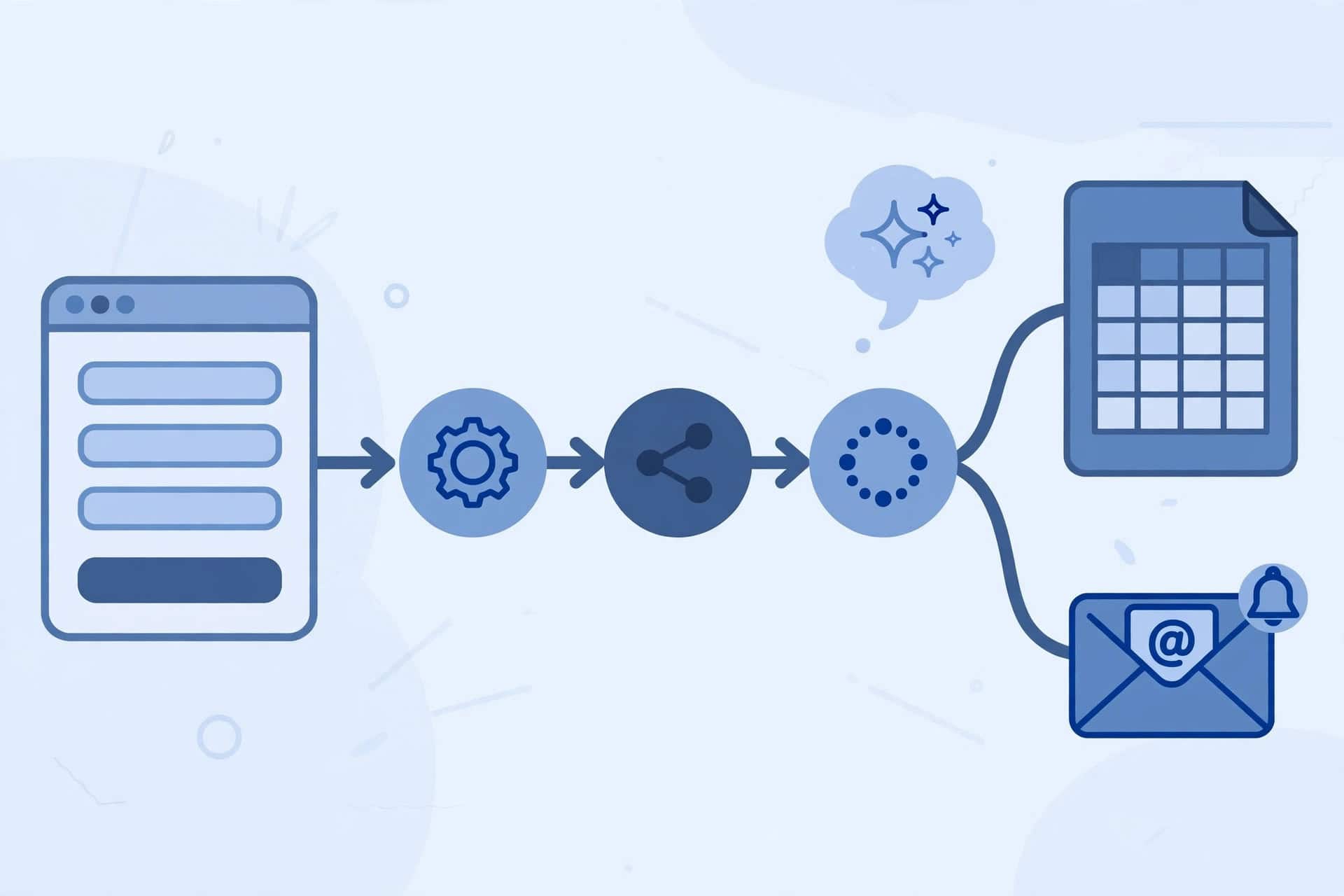
This guide builds one small, useful workflow, with no coding. A website enquiry form sends its answers to n8n. n8n tidies the fields, optionally asks an AI model for a one-line summary, saves a row in Google Sheets, and emails you a short notification. If the AI step feels like too much on day one, skip it and the rest still works.
For the bigger picture, see 25 AI Automation Examples for Businesses in 2026. For the gentlest start, read How to Automate Email + Spreadsheet Work with Zapier, Step by Step for Beginners.
What n8n Is, in Plain Language
n8n is a workflow automation tool. You connect apps and steps on a visual canvas, and n8n runs them when something happens, such as a form submission, or on a schedule.
- Workflow: the whole automation, drawn as a chain of steps.
- Node: one step in that chain — receiving a form, tidying a field, adding a spreadsheet row, sending an email, or asking an AI model a question.
- Trigger: the first node, which starts the workflow — for example a webhook (data sent to a special web address), a schedule, or a new row or email in another app.
- Execution: one complete run of a workflow. Ten form submissions mean ten executions.
- Credential: a saved, secure connection to another app, such as your Google account or an AI provider.
Data moves step by step, so you can run one node, inspect what it received and produced, and fix that one step before moving on.
Cloud or Self-Hosted? Choose the Simpler Start
n8n Cloud is the managed version, run by n8n. You sign up, build workflows in your browser, and n8n handles the servers, updates, and backups. It is the simplest start, and it is billed by workflow executions, so check n8n’s current pricing page against how many form submissions you expect.
Self-hosted n8n is the free Community Edition on your own server. The software costs nothing, but you pay for the server and handle updates, backups, security, and repairs yourself. That suits you later, when you want full control — but “free software” does not mean “no cost and no work.” This guide works the same in both, so beginners should start with the managed option.
Before You Build: Choose One Small Job
Do not start by automating your whole business. Start with one narrow, repeatable job that happens often, has clear inputs and outputs, and is easy to check if something goes wrong.
For this guide, the job is: log website enquiries in a spreadsheet, with a short summary, and notify yourself by email. You need an n8n account or instance, a Google account for Sheets, an email account for the notification, and a website form that can send data to a web address (a webhook). Allow about an hour. On privacy: only collect the fields you need, and only connect a business mailbox and sheet. If you add the AI step, the message text is sent to the AI provider you connect.
The Worked Example: Form to Spreadsheet, with an AI Summary
A visitor submits your enquiry form. The form sends the name, email, and message to n8n through a webhook. n8n tidies those fields, optionally asks an AI model for a one-line summary, adds a row to a Google Sheet, and emails you a short notification.
Step 1: Prepare Your Google Sheet First
- Create a spreadsheet in Google Sheets, named clearly, for example “Website Enquiries Log”.
- In the first row, add headers: Date received, Name, Email, Message, AI summary, Status.
- Leave “Status” blank, for your own follow-up later, such as “Replied” or “Call back”.
- Do not add merged cells, extra formatting, or a second header row. n8n needs a clean header row.
Step 2: Create a Workflow and Add a Webhook Trigger
- Sign in to n8n, create a new workflow, and name it clearly, for example “Website enquiries to sheet”.
- Add your first step and choose a Webhook trigger — a special web address n8n gives you. When data is sent to that address, the workflow starts.
- Note the webhook address n8n shows you. Paste it into your form’s settings, or give it to whoever manages your form.
- In testing, n8n usually gives you a test address that only listens while you are actively testing. Once activated, the workflow uses a production address instead. Make sure your form ends up pointing at the production address.
Step 3: Test the Trigger with a Real Submission
Do not skip this step.
- In n8n, start listening for a test submission, using the test option in the webhook node.
- Submit your own website form with test details: your own name and email and a short test message.
- Go back to n8n and check that the webhook node received the submission, with name, email, and message visible.
- If nothing arrives, check the form address, the submission, and listening mode, then fix this before adding more nodes.
Step 4: Tidy the Fields
Form data is often messier than it looks: field names may be long, some fields empty, and the order may not match your sheet.
- Add a node after the webhook that lets you set or edit fields — in n8n this is the field-editing node (often called Edit Fields or Set, depending on the version).
- Map the incoming data to clean field names: name, email, and message. Keep only the fields you need.
- Run this node on its own and check its output: one clean set of fields, in the expected order, with no extra clutter.
- If a field is blank, check whether that information actually exists in the test submission from Step 3. Do not invent a value to fill the gap.
Step 5: Add the AI Summary (Optional)
This step is optional. Skip it, and the workflow still logs enquiries and notifies you. Include it, and you get a short, scannable summary of each message.
- Add an AI agent node after the field-tidying node, and connect a chat model to it, using a model provider you have an account with.
- Give the AI step a short, plain instruction, such as: “Summarise this enquiry in one short sentence, and say what the person seems to need.”
- Feed it only the message text, not the visitor’s whole submission.
- Run this node on its own and read the summary. Is it accurate, one sentence, and helpful?
- Treat the AI summary as a helper’s note, not a fact. It goes in the sheet for your own scanning, and is never sent to the customer as a reply.
If you do not have an AI provider account yet, skip this step and come back to it later.
Step 6: Add the Google Sheets Row
- Add a Google Sheets node after the previous step (or after Step 4, if you skipped the AI step).
- Connect your Google account when asked, and double-check it is the business account you intended.
- Choose the append-row operation, which adds a new row each time the workflow runs, rather than overwriting anything.
- Select the spreadsheet from Step 1, then the correct worksheet inside it.
- Map the fields one by one to the matching columns: date, name, email, message, AI summary (if you built Step 5), and leave Status blank.
- Run this node on its own and open Google Sheets. Check the new row column by column, and fix the mapping if needed.
Step 7: Send Yourself a Short Email Notification
A sheet is a good record, but it does not tap you on the shoulder. A short email does.
- Add an email node after the Sheets node — Gmail, or whichever email app you use, connected with a credential.
- Send the email to your own business address, not to the visitor. This is a notification for you, not a reply to them.
- Keep the subject short, such as “New website enquiry” plus the visitor’s name, and keep the body short too: name, email, AI summary (if any), and message.
- Run this node on its own and check the email arrives, with the right details in the right places.
Step 8: Activate the Workflow, Then Send a Real Test
- Activate the workflow in n8n, so it listens on its production webhook address.
- Make sure your website form now points at the production address, not the test address from Step 2.
- Submit the form again, with a clear test message.
- Check three things: the new row in Google Sheets, the notification email in your inbox, and the workflow’s execution history in n8n.
- Delete the test row and ignore the test email. If all three checks pass, your workflow works. If any one fails, work through the checklist below before rebuilding anything.
Testing Checklist
Use this checklist every time:
- The form points at the production address once activated.
- A real test submission was received by the trigger.
- The tidied fields are clean, complete, and in the right order.
- The AI summary, if used, was read and checked for accuracy.
- The test row landed in the right columns of the right sheet.
- The notification email arrived at your own business address.
- A real test after activation worked end to end.
- You know where to find the workflow, deactivate it, and read its execution history.
If you can tick all eight, you can trust the workflow for day-to-day use, with occasional checks.
Common Mistakes
Using the test webhook address in production
The workflow works in testing, then nothing happens for a real visitor: the form still points at the test address. Switch it to the production address after activation, then test again.
Skipping the real test submission
Sample data hides field-name mismatches — “your-email” in the form will not map itself to “email” in the sheet. Submit a real form first, then build on what actually arrived.
Mapping the wrong fields
Name in the email column is easy to do and hard to spot later. Run each node on its own and read its output, not just glance at a green tick.
Sending AI output straight to the customer
An AI summary is a helper’s note, not a verified fact. Keep AI output internal until you have checked it, and write customer replies yourself.
Connecting the wrong account
With several Google accounts, it is easy to connect a personal account to a business sheet. Check the connected account in each node, and reconnect if needed.
Automating everything at once
A workflow with ten branches and three AI steps is not a first workflow — it is a project. Start with the small chain in this guide, let it run reliably for a week or two, and only then add the next branch.
Letting a broken workflow run silently
If a credential expires or a form changes its field names, a workflow can fail without an obvious warning. Check the execution history occasionally.
What to Automate Next
Once this workflow has run reliably for a week or two, you have a safe pattern to reuse: trigger, tidy, optionally summarise, log, notify. Next, you could add a branch for urgent-sounding enquiries, or log a second form into the same sheet. Each is a separate, small change, tested the same way.
For a broader view, return to 25 AI Automation Examples for Businesses in 2026. Its more advanced examples add more interpretation — such as classifying a message or drafting a reply — before acting. Start with a summary you check yourself; add interpretation only with a clear reason and a way to check it.
As for Zapier versus n8n: Zapier, covered in How to Automate Email + Spreadsheet Work with Zapier, Step by Step for Beginners, is the faster start for a simple two-app job. n8n is the better fit for more steps, control, branches, and AI steps on one canvas.
Frequently Asked Questions
Do I need to know how to code to use n8n?
No. n8n is a visual, no-code tool: choose nodes, connect them, map fields, test, and activate. The AI step is set up by choosing a model and writing a plain-language instruction.
What is the difference between a workflow, a node, and an execution?
A workflow is the whole automation, from trigger to final step. A node is one step inside it. An execution is one complete run — one form submission running through all the nodes.
Is n8n free?
The self-hosted Community Edition software is free, but you still pay for your own server and your own time maintaining it. n8n Cloud is a managed, paid service, billed by executions. This guide deliberately quotes no price or limit — check n8n’s current pricing page against how many submissions you expect.
Do I need the AI step, or can I skip it?
You can skip it. The workflow logs enquiries and notifies you without it. Add it later, when you want a quick summary to scan, and keep its output internal until you have checked it.
What happens if the workflow fails?
Check the execution history in n8n first. It shows which node failed and what data it received — usually a wrong webhook address, an expired credential, or a changed field name. Fix that one step and run the workflow again.
Should I use n8n or Zapier?
For a simple job between two apps, Zapier is usually the faster start. For a job with several steps, branches, and AI steps on one canvas, n8n gives you more control. Neither is “better” in general — the right choice depends on the job.
Conclusion
Before you treat this workflow as part of your business process, check once more: the form points at the production address, the fields are mapped correctly, a live test row appeared in the sheet, the notification email arrived, and you know how to deactivate the workflow.
That is the whole method: start small, test properly, and only then rely on it. A single reliable workflow is worth more than five half-tested ones, and it teaches the pattern — trigger, tidy, log, notify — that every later workflow will follow. Keep this workflow running and note anything you would change, as described in 25 AI Automation Examples for Businesses in 2026.

Flowmez publishes practical AI workflow guides, tested steps and honest tool reviews to help small businesses save time.