

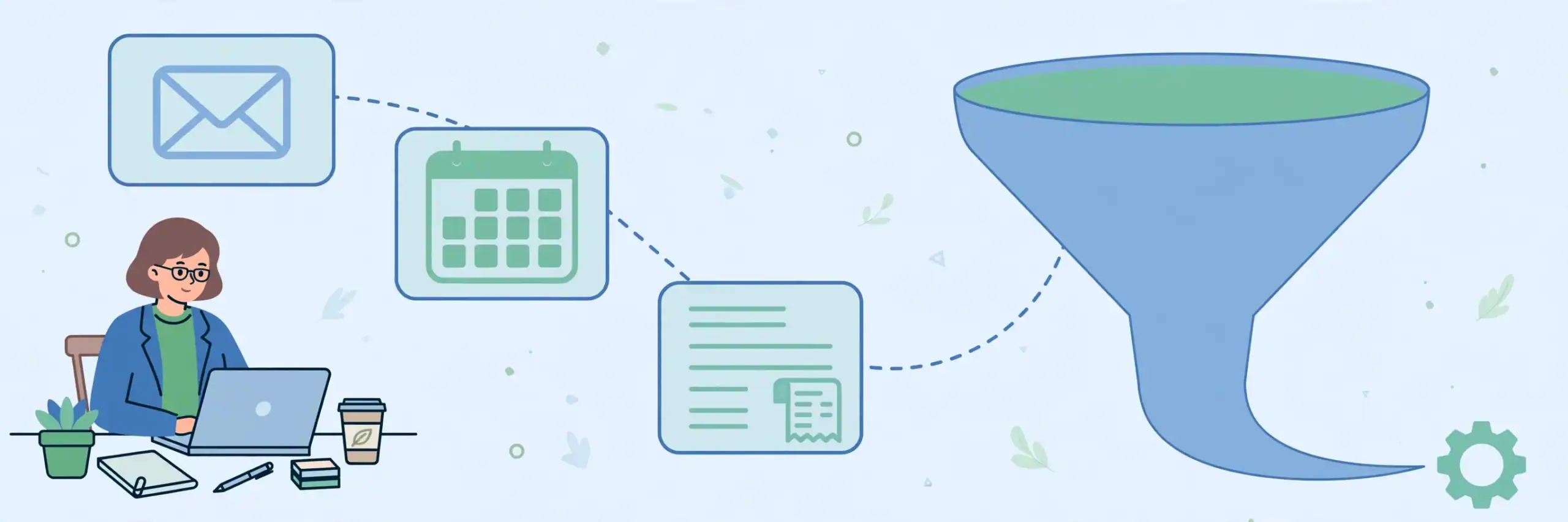
Every small business owner knows the feeling. The day starts with real work — serving customers, doing the job, making sales — and by mid-morning the admin has taken over. Emails to sort. Appointments to confirm. Details to copy from one place to another. Invoices to chase. Files to name and put somewhere sensible. None of it is hard. All of it repeats. And together, it eats the hours that should have gone to the business itself. The fastest way to win those hours back is to automate repetitive admin tasks small business owners face every day.
The usual answer is to hire someone. For many small businesses, that answer arrives too early, costs too much, and solves the wrong problem: a new person doing the same messy, undocumented process by hand. There is a cheaper first step. Automate one repetitive admin task properly, prove it saves real time, and only then decide whether the next task — or the next hire — is needed.
This guide shows you how to do that in plain language, without code. You will learn how to list and time your admin tasks, pick the first task worth automating, fix the process before you automate it, build a simple workflow for email triage, scheduling, data entry, invoice follow-ups, and filing, test it before it goes live, hand off to a person where judgment is needed, and measure time saved honestly.
For the bigger picture, see 25 AI Automation Examples for Businesses in 2026.
What Counts as Repetitive Admin
Admin is the work that keeps the business running but does not directly earn money: sorting email, booking appointments, copying details between tools, sending reminders, chasing payments, filing documents, and writing weekly summaries. A task counts as repetitive admin when it meets three tests at once.
First, it happens often. Daily, or several times a week. A task you do once a quarter is not an automation project; it is a template and a calendar reminder.
Second, it follows the same steps every time, or nearly the same steps. If the steps change every time because each case is different, the task needs a person, not a workflow.
Third, a mistake is costly or annoying. A missed appointment, a lost lead, a late invoice, or a file nobody can find later — these are the errors that make admin worth automating, because the cost of the mistake is higher than the cost of setting up the workflow.
If a task passes all three tests, it is a candidate. If it fails even one, leave it alone for now. A rare task, a judgment-heavy task, or a task where mistakes do not matter is rarely worth automating, however easy it looks.
List and Time Your Admin Tasks First
Do not buy a tool first. Do not automate the task that annoys you most. Start with one week of honest notes, because the task that feels biggest is often not the task that costs the most time.
Keep a simple one-week log
For one normal week, write down every admin task you or your team do, as you do it. Keep it simple: a notebook or a spreadsheet with five columns — task, what started it, steps in order, minutes it took, and what went wrong or almost went wrong.
Do not write down what you think you do. Write down what you actually do. The difference is usually surprising. Owners often discover they answer the same five questions by email every week, retype the same customer details into two or three tools, or spend twenty minutes a day looking for files that were saved under the wrong name.
At the end of the week, add up the minutes for each task and multiply by how often it happens. A five-minute task done twenty times a week costs more than an hour and a half. A twenty-minute task done twice a week costs about the same. That simple multiplication is your shortlist — it is also the only honest basis for deciding what to automate first.
Score each task before you choose
Give each task on your list a quick score. Give it one point for each statement that is true:
- It happens at least once a week.
- It follows the same steps every time.
- It takes fifteen minutes or more when done by hand, counting all the small pieces.
- A mistake is costly: a lost lead, a missed appointment, a late payment, or a lost document.
- The information it needs already exists in a tool you use, such as email, a form, a calendar, or a spreadsheet.
Tasks that score four or five are excellent first projects. Tasks that score three are worth doing second. Tasks that score two or less are usually better left alone, at least for now — automate them only if the process changes first.
Write the score next to each task. That one column stops the most common mistake in small business automation: automating the task that was easiest to demo, instead of the task that costs the most time.
Fix the Process Before You Automate It
This is the step competitors almost always skip, and it is the step that decides whether your automation works or quietly makes a bad process faster.
Automation does not fix a messy process. It copies it, runs it on schedule, and hides the mess until something breaks. Before you build anything, write the process down in plain language, step by step, and then remove the steps that add no value.
Ask three questions about each step. Does this step change the result, or is it just habit? Does someone actually read or use what this step produces? Would a customer notice if this step disappeared? If the answer is no, cut the step. A five-step process that becomes three steps is a better automation project than a five-step process automated as it stands.
Then name the exceptions. Every process has them: a customer who pays by check, a form with a missing phone number, an appointment that needs a different location. Write down what happens in each case and who decides. If you cannot name the exceptions, you are not ready to automate, because the workflow will meet them on its first day and stop — or worse, guess.
Finally, give the process a plain-language owner. Not a tool, a person. That person checks the failures, updates the steps when something changes, and knows how to pause the workflow fast. A workflow with no owner is a workflow nobody is watching.
Automate Repetitive Admin Tasks Small Business Owners Face First
Your first automation should be frequent, simple, and low-risk — and easy to check. You are not just saving time. You are learning to trust a system, and your team is learning to trust it too. A first win that works quietly for a month is worth more than an ambitious project that breaks in week one.
Good first tasks for most small businesses include appointment reminders, moving form entries into a spreadsheet or customer record, sending a confirmation email when a form is submitted, and sending invoice reminders on a schedule. They are frequent, they follow the same steps, and a mistake is visible quickly, so you learn fast.
Bad first tasks include anything involving refunds, legal wording, health or safety claims, a specific customer’s sensitive situation, or a promise about a price or date that might change. Those need judgment, and they need a person approving the exact wording. Automate them later, if at all, and only with a human review step built in.
Pick one task. Just one. Build it, test it, run it for two weeks, and measure it honestly before you start the second one. One working automation teaches you more about your business than five half-built ones.
Build a Simple Workflow: The Five Parts
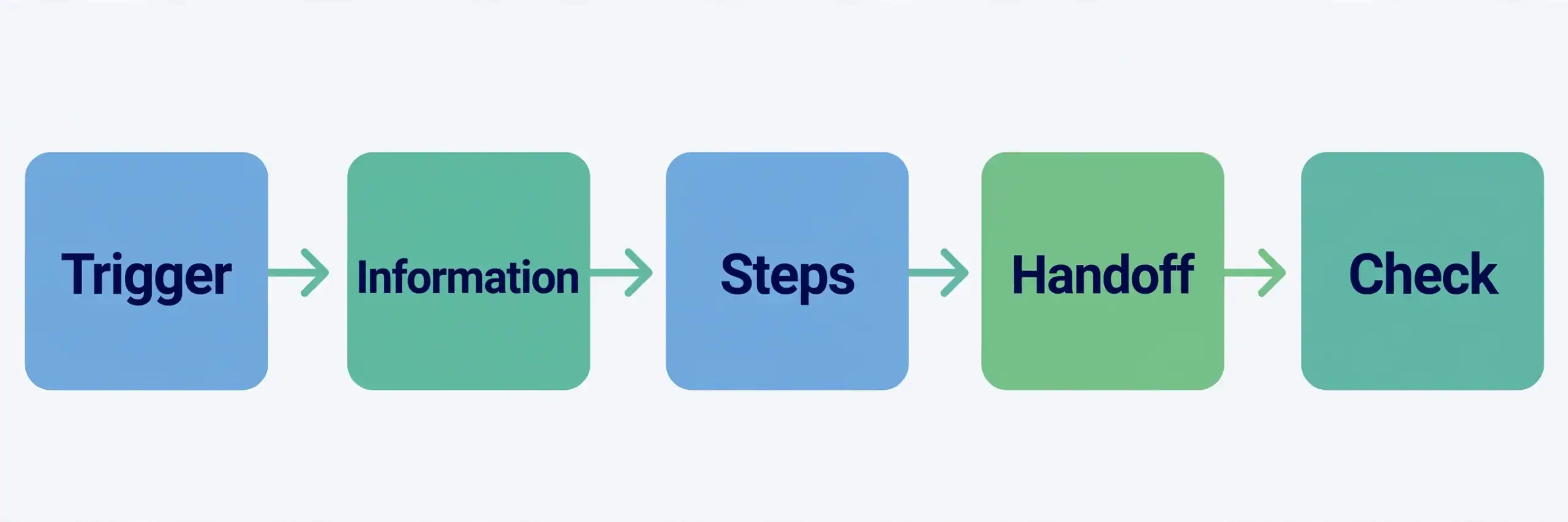
Every admin workflow, however different the job looks, has the same five parts. Learn them once and you can build any of the examples in this guide.
- Trigger: what starts it. A form submission, a new email, a calendar event, a due date arriving, a job marked complete.
- Information: what the workflow needs, and where it already lives. A name, an email address, a date, an amount. If the information does not exist yet, the workflow cannot run — fix that first.
- Steps: what happens, in order. Copy the details, create the record, send the message, set the reminder. Keep the steps short and in the order a person would do them.
- Handoff: where a person takes over. A reply that needs judgment, an exception, a complaint, a payment problem. The workflow should hand these to a named person with the context attached, not try to handle them itself.
- Check: how you know it worked. A record created, a message sent, a reminder logged, a failure alert that someone actually reads.
Write those five parts down in plain language before you touch any tool. That short document is your workflow specification. It is also what you will use to test the workflow, to fix it when it breaks, and to rebuild it later on a different tool if you ever switch. A workflow that only exists inside a tool is a workflow you cannot explain, test, or hand to anyone else.
Email Triage: Sort First, Reply Second
Email is where most small businesses lose their mornings. The inbox mixes real customer questions with newsletters, supplier messages, receipts, and spam, and every message feels equally urgent until you open it.
Start by sorting, not by replying. Set up folders or labels for the kinds of email you actually get: new inquiries, existing customers, billing, suppliers, and internal notes. Then add rules that sort incoming mail by sender or subject into those folders. A rule that moves all receipts into a receipts folder, or all messages from your booking form into an inquiries folder, is a small automation that pays off every single day.
For replies, use drafts and templates for structure, not for words. A useful template is a structure: greet the person, answer the question, give the next step, offer a path to a person. A fixed sentence pasted under every message is not a template; it is a form letter, and customers can spot it after the second time they see it. If you use a saved reply for a common question, adapt it to the message in front of you: use the person’s name, refer to the detail they mentioned, and change the wording.
Never automate replies to complaints, or to messages that need a decision. Those go to a person, with the original message attached, and the reply comes from that person. An automated reply to an unhappy customer is worse than a slow human reply, because it tells the customer nobody read their message.
A realistic way to measure this workflow: time your inbox once a day for a week before you change anything, then time it again for a week after. If the inbox takes twenty minutes instead of forty, that is a real saving. If it takes the same time but nothing gets missed, that is a real improvement too — measure both, and say which one you got.
Scheduling: Let Customers Book, Remind Them, Follow Up
Scheduling by email back-and-forth is one of the most expensive admin tasks in a small business, because every round of messages costs both sides time. The fix is simple: let customers book from a link, and let the system handle the reminders.
Set up one booking page with your real availability, the services you offer, and the time each one takes. Share that link on your website, in your email signature, and in replies to booking questions. When a customer books, the appointment lands in your calendar, the customer gets a confirmation, and a reminder goes out before the appointment — usually the day before and again a few hours before, depending on your business.
Add one follow-up after the appointment: a thank-you message, a request for feedback, or a reminder to book the next visit. That follow-up is where most small businesses lose repeat work, simply because nobody remembered to send it. Automating it is not impersonal; it is the opposite. It means every customer gets the follow-up, not just the ones you remembered.
Keep a human step for the exceptions: a customer who needs a different time, a longer appointment, or a service you have not listed. Those requests go to a person, and the person replies. The booking page handles the routine cases. The person handles the rest.
Data Entry: Copy Once, Check Once, Never Retype
Data entry is the admin task most owners hate, and the one most worth automating, because retyping is where errors are born. Every time a name, address, or amount is copied by hand from one tool to another, there is a chance to mistype it — and a mistyped email address means a confirmation that never arrives, while a mistyped amount means an invoice that is wrong.
The rule is simple: enter each piece of information once, in one place, and let the workflow carry it everywhere else it needs to go. A form submission creates the customer record and the spreadsheet row. A completed job creates the invoice draft. A new booking creates the calendar event and the reminder.
Before you automate data entry, clean the source. Check that the form asks for the information in the format you need: a phone number with a country code, a date in one format, an amount with no currency symbol in the wrong place. A workflow cannot fix a form that collects messy data; it can only move the mess faster.
Test data entry with the cases that break it: a missing field, a duplicate submission, a name with an unusual character, an email address with a typo. For each one, decide in advance what the workflow should do — stop and alert a person, or skip the record and log it — and write that decision down. A workflow that silently creates a broken record is worse than no workflow at all, because nobody knows the record is broken until a customer complains.
Invoice Follow-Ups: Remind on Schedule, Escalate to a Person
Chasing payments is admin work that directly affects cash flow, and it is also the work most owners put off, because it feels uncomfortable. That combination — important, repetitive, and easy to delay — makes it an ideal automation candidate.
Set up a simple schedule: a reminder a few days before the due date, a reminder on the due date, and a reminder a few days after it. Each message should be polite, specific, and useful: the invoice number, the amount, the due date, and a payment link. The tone should sound like your business, not like a collection agency.
Escalate to a person when the schedule has run its course and the invoice is still unpaid, or when a customer replies with a question or a problem. The person then handles the conversation — a payment plan, a dispute, a wrong amount — with the full history attached. The workflow reminds. The person negotiates. That division is what keeps the automation from damaging a customer relationship.
For a full method, see Automate Invoice Payment Reminders for Your Small Business.
Filing: Name It Once, Find It in Seconds
Filing feels like the smallest admin task, and it is the one that wastes the most time in aggregate, because every lost document costs ten minutes of searching and a small amount of trust.
Agree on one naming rule and stick to it. A useful pattern is date, customer or job, and what the document is: for example, 2026-11-07-Smith-Quote.pdf. The date first means files sort in order. The customer name means you can search by customer. The document type means you know what it is without opening it.
Agree on one folder structure, too — by customer, by job, or by month, whichever matches how you actually look for things — and do not let every team member invent their own. Then automate the filing: when a form is submitted, when an invoice is created, when a job is marked complete, save the document to the right folder with the right name automatically, and log where it went.
The test for your filing system is simple: can a team member who did not create the file find it in under a minute? If not, the system needs fixing before it needs automating. Automation that files documents under the wrong name, in the wrong folder, is just a faster way to lose them.
Test It Before It Goes Live
Never trust a workflow you have not tested with real-looking cases. Testing is not a luxury for big companies. It is the step that stops a small business from sending a hundred wrong emails, creating a hundred broken records, or reminding a customer who already paid.
For a full method, see How to Test an Automation Before It Goes Live: Errors, Fallbacks, Limits. At minimum, run these five test cases before you switch any admin workflow on:
- The normal case: a complete, correct submission. Does the record get created, the message go out, and the reminder get set, exactly as written?
- The duplicate: the same form submitted twice. Does the workflow create two records, or does it recognize the duplicate and stop?
- The missing field: a form with the phone number or email address left blank. Does the workflow stop and alert a person, or does it create a broken record?
- The failed step: a connected tool is temporarily unavailable, or a step fails. Does the failure show up clearly, does the item wait somewhere visible, and does someone get alerted?
- The pause: can you pause the workflow fast, and can you delete or correct a scheduled message before it goes out? If you cannot pause it, it is not ready, no matter how easy it was to set up.
Run the tests with test data, not real customer data. Check the results by hand. Only when all five cases behave as you wrote them down should the workflow go live — and even then, watch it closely for the first week.

Hand Off to a Person Where Judgment Is Needed
Automation handles the routine. It does not handle judgment. The difference between a workflow that helps and a workflow that damages trust is a clear, written handoff rule: exactly which cases go to a person, who that person is, and how fast they reply.
Send these to a person, always:
- Complaints and unhappy customers. A complaint needs a person reading it and replying to it, not a template.
- Money decisions. Refunds, discounts, payment plans, or a disputed amount. No workflow should promise or change money without a person approving it.
- Sensitive or personal situations. A customer’s health, family, legal, or financial details. These need judgment and discretion, not a queue.
- Anything the workflow does not understand. A message that does not match any category, a form with an unexpected answer, a request the workflow was not built for. The workflow should hand it over with the full context attached, not guess.
For each handoff, write down three things: who the person is, how they are alerted, and what “done” looks like. If the alert goes to an inbox nobody checks, it is not a handoff; it is a dead end. If nobody knows who owns the handoff, it is not a system; it is a hope.
A useful test: pick one real message from last month that needed judgment, and trace it through your workflow on paper. Does it reach a person, with the context they need, in time to reply well? If not, the handoff rule needs rewriting before the workflow goes live.
For the question of when a fixed workflow is enough and when a more flexible tool might fit, see AI Agent vs AI Workflow: When to Use Which (Beginner Guide for Small Businesses).
A Worked Example: One Week From One Admin Audit
Take a small US service business — two owners and one part-time helper — that did a one-week admin log and found three expensive tasks: answering the same booking questions by email, copying new inquiries into a spreadsheet and a customer record, and chasing late invoices.
On Monday, they wrote down the process for the first task: a customer emails asking to book, someone replies with available times, the customer picks one, someone puts it in the calendar and sends a confirmation. They cut two steps: the back-and-forth about times, and the manual confirmation. The new process is a booking link on the website and in the email signature, with confirmation and reminders sent automatically. The exception is a customer who needs a longer appointment — that goes to a person.
On Tuesday, they built the second workflow: a website form that creates the customer record and the spreadsheet row in one step, with a confirmation email to the customer. They tested it with a duplicate submission and a missing phone number, and both cases behaved as written: the duplicate was caught, and the missing-field case stopped and alerted the owner.
On Wednesday, they set up the invoice reminders: a polite reminder three days before the due date, one on the due date, and one three days after. Unpaid invoices after that go to a person, with the full payment history attached.
By Friday, the inbox was quieter, no inquiry had been copied by hand, and no invoice had been forgotten. The owners did not hire anyone. They also did not automate everything — complaints, refunds, and unusual requests still go to a person, by design. That is the whole system: one task at a time, a fixed process, a test before launch, and a human handoff where judgment lives.
For the lead-handling part of this example, see Automate Lead Follow-Up: From Form to CRM to Email, Without Losing Leads.
Measure Time Saved Honestly
Most articles about admin automation quote a number of hours saved per week as if it were a fact. It is not a fact unless you measured it, and the measurement is simpler than most guides make it sound — and more honest.
Measure before you change anything. For one week, time the task as you do it now. Use a timer, not a guess. Write down the minutes per task and how often it happens. That is your baseline. Without a baseline, any number you quote later is invented.
Measure again after the workflow has run for two weeks. Time the same task the same way, including the time you spend checking it, fixing its failures, and replying to the cases it handed off. That last part matters: checking and fixing are real costs, and a workflow that saves thirty minutes of copying but adds twenty minutes of fixing has saved ten minutes, not thirty.
Then report the result in plain terms: what the task cost before, what it costs now, and what changed. If the saving is small, say so. A small, honest saving that repeats every week is worth more than a large, invented saving that nobody believes — and it is the number you need to decide whether the next task is worth automating.
Also watch for warning signs that the automation has gone too far: a sudden drop in replies from customers, a complaint that a message felt impersonal, a queue full of messages that no longer match the business, or a workflow that nobody has checked in weeks. Any of those is a reason to pause, review, and cut back before you add more.
Pre-Automation Checklist
Use this checklist before you build any admin workflow:
- ☐ Each task on your list has been logged for one week, with minutes and frequency, and scored on frequency, same steps, time, cost of mistakes, and available information.
- ☐ The first task scores four or five, is frequent, simple, and low-risk, and is easy to check.
- ☐ The process is written down in plain language, step by step, and steps that add no value have been cut.
- ☐ The exceptions are named, with what happens in each case and who decides.
- ☐ One named person owns the workflow, including failures, updates, and the pause button.
- ☐ The workflow is written as five parts — trigger, information, steps, handoff, and check — before any tool is opened.
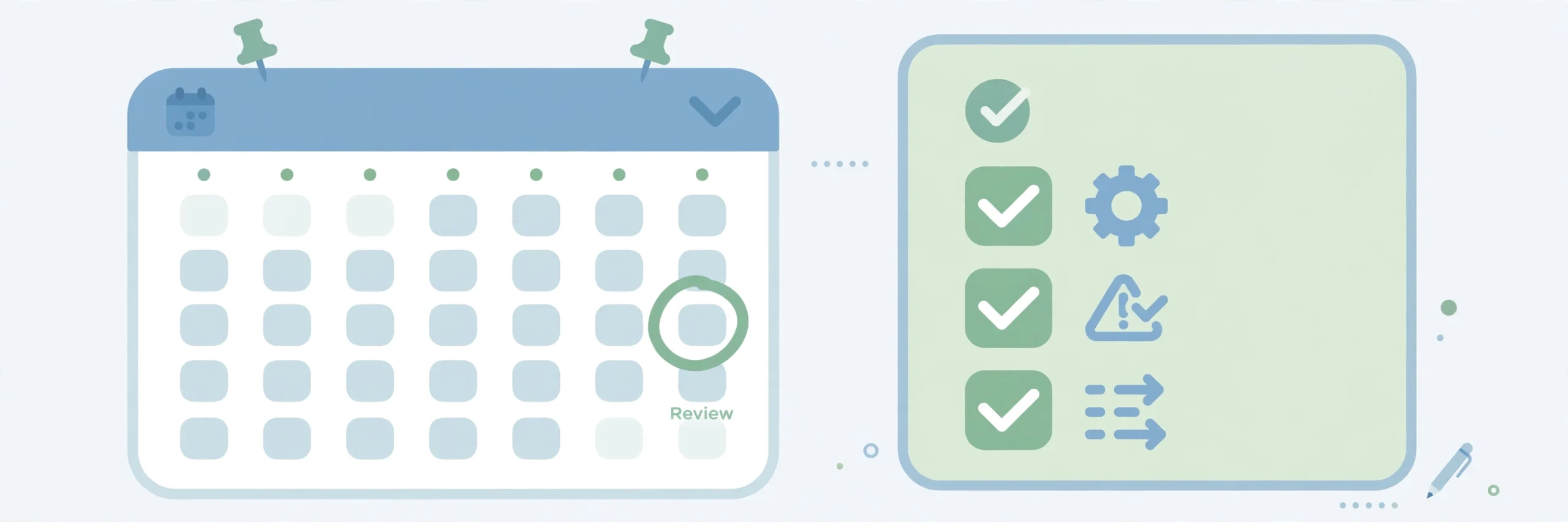
- ☐ All five test cases pass with test data: normal, duplicate, missing field, failed step, and pause.
- ☐ Handoff rules are written: complaints, money decisions, sensitive situations, and anything the workflow does not understand go to a named person.
- ☐ No customer personal data is used in test data, shared examples, or AI prompts.
- ☐ A baseline time measurement exists, so time saved can be measured honestly after two weeks.
- ☐ A manual fallback exists, so the business can do the work by hand while a workflow is paused or broken.
- ☐ You are starting with one workflow and a two-week measurement period, not automating everything at once.
If a workflow cannot pass the process, test, and handoff boxes, do not build it yet. Fix the process first, or leave the task with a person.
Common Mistakes
Automating everything at once
The first mistake most business owners make is trying to automate every admin task in one project. The result is five half-built workflows, none of them tested, and a team that stops trusting all of them. Build one workflow, prove it, measure it, and only then start the second.
Automating a messy process
A process with unclear steps, unnamed exceptions, and no owner does not become a good workflow when you automate it. It becomes a fast, invisible mess. Write the process down, cut the useless steps, name the exceptions, and only then build.
Choosing the tool before the task
A tool demo is not a plan. Choosing a tool because it looked impressive, and then searching for a task to use it on, is how small businesses end up paying for software nobody uses. Choose the task first, score it, write the five parts, and then pick the simplest tool that fits.
Skipping the test cases
A workflow that was never tested with a duplicate, a missing field, or a failed step will meet all three on its first real week. Test with test data before launch, and check the results by hand. A test that takes an hour saves a week of fixing.
Letting an automated message handle a complaint
An automated reply to an unhappy customer tells them nobody read their message. Complaints, refunds, and sensitive situations always go to a person. The workflow can sort and route them. It should never answer them.
Measuring time saved with a guess
“I think it saves hours” is not a measurement. Time the task before and after, including checking and fixing time, and report the honest number. A small real saving beats a large invented one, because only the real one helps you decide what to automate next.
Forgetting the manual fallback
If the tool stops, a connection breaks, or the workflow fails, the business still has customers to serve. Every customer-facing workflow needs a manual way to do the job, even if more slowly. An automation with no manual fallback leaves the business stuck when it breaks.
Never checking the workflow again
A workflow that worked in January may not match the business in March. Prices change, services change, team members change. Check each workflow once a month: does it still match the process, are failures being read, and does the queue still make sense? A workflow nobody checks is a workflow waiting to fail quietly.
Frequently Asked Questions
What admin tasks should a small business automate first?
The tasks that score highest on your own list: they happen at least once a week, follow the same steps every time, take fifteen minutes or more by hand, and cost real money or trust when they go wrong. For most small businesses, that means appointment reminders, moving form entries into a record, confirmation emails, and invoice reminders. Pick one, prove it, and then pick the next.
Do I need to hire someone to set up automation?
Not for the first workflows in this guide. They use tools you already have — email, forms, calendars, spreadsheets — plus one workflow tool, and they need no coding. What you do need is a named owner: one person who writes the process down, tests the workflow, and checks its failures. If no one owns it, do not build it yet. A widely used example is Zapier, which connects the apps you already use.
How long does it take to automate one admin task?
A simple first workflow usually takes an afternoon to build and test, once the process is written down. The writing-down part is what most people skip, and it is what takes the time: one week of logging, an hour to write and simplify the process, and an hour to test the five cases. A workflow built in an hour without that preparation usually costs a week of fixing later.
How do I know if automation is actually saving time?
Time the task for one week before you change anything, then time it again after two weeks of running the workflow, including checking and fixing time. The difference is your saving. If the saving is small, say so — a small honest saving that repeats every week is still worth having, and it is the only number that helps you decide what to automate next.
Should I automate replies to customers?
Automate the sorting and the routine messages — confirmations, reminders, and acknowledgments with the right details. Do not automate replies that need judgment: complaints, refunds, disputes, or sensitive situations. Those go to a person, with the original message attached. A slow human reply builds more trust than a fast automated one that misses the point.
What if a workflow breaks while I am away?
That is exactly why every workflow needs a named owner, a failure alert that someone actually reads, and a manual fallback. Before launch, test the failed-step case and the pause button, and write down how the business does the work by hand while the workflow is fixed. A workflow with no owner and no fallback is not automation. It is an unattended process waiting to fail quietly.
When should I hire instead of automating?
Hire when the work needs judgment, conversation, or care that no workflow can provide — handling complaints, advising customers, making decisions about money or sensitive situations — and when there is enough of that work to fill a person’s time. Automate first when the work is frequent, repetitive, and rule-based. The right order is usually automate the routine, then hire for the human work that remains, not the other way around.
Conclusion
Automating repetitive admin tasks in a small business is not about buying software or replacing people. It is about a simple discipline: list and time the work, fix the process before you automate it, pick one frequent, simple, low-risk task, build it as five parts — trigger, information, steps, handoff, and check — test it with the five cases that break workflows, hand off to a person where judgment lives, and measure the time saved honestly.
That discipline is what turns automation from a faster way to make mistakes into a quiet system that gives the same team more hours for the work that actually grows the business — serving customers well, without hiring more staff to do the admin. For the bigger picture, return to 25 AI Automation Examples for Businesses in 2026. That is how you automate repetitive admin tasks small business owners face — one workflow at a time.

Flowmez publishes practical AI workflow guides, tested steps and honest tool reviews to help small businesses save time.