

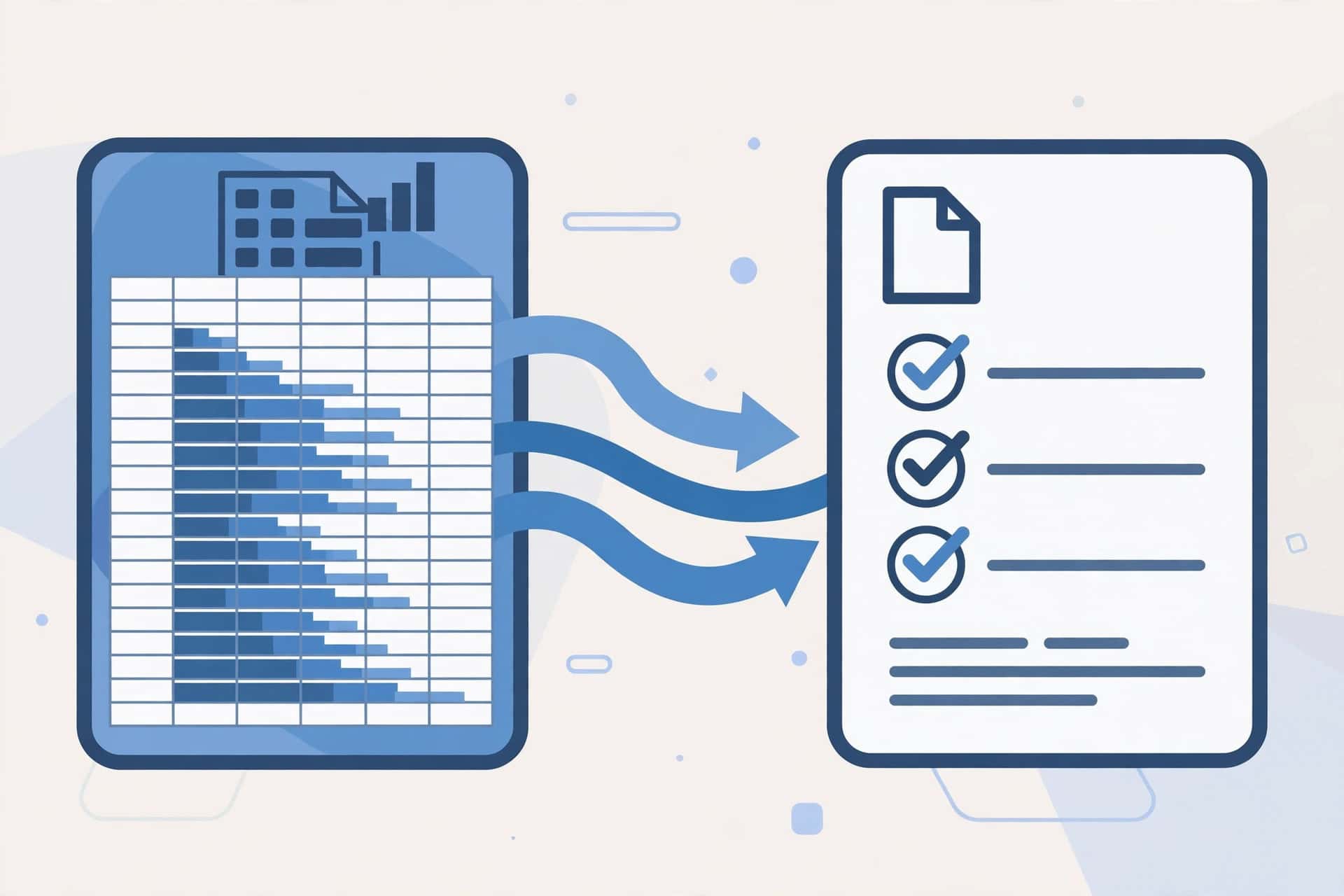
Every week, the same job lands on someone’s desk: gather last week’s numbers, write a short summary, and send it to the team. Done by hand, it takes an hour, it is easy to put off, and one copied number in the wrong row can quietly change the story.
This guide fixes that with a simple routine: one clean table in Google Sheets, a short summary from ChatGPT, a check of every number before it goes out, and the same format every week. No coding is needed, and you do not need a paid tool to start.
For the bigger picture, see 25 AI Automation Examples for Businesses in 2026. For the simplest automation starting point, see How to Automate Email + Spreadsheet Work with Zapier, Step by Step for Beginners. For a longer workflow, see How to Build Your First AI Workflow in n8n, Step by Step.
What This Routine Does, in Plain Language
A weekly report answers three questions: what happened this week, what changed compared with last week, and what needs attention next week. That is all — it is not a full accounts review or a strategy document.
The routine is:
- Record the week’s figures in one clean Google Sheets table.
- Share only safe, aggregated figures with ChatGPT — never personal or sensitive data.
- Ask ChatGPT for a short summary using a prompt you reuse every week.
- Check every number in that summary against the sheet.
- Send the report in the same format, on the same day, every week.
ChatGPT writes the words. You stay responsible for the numbers.
Step 1: What the Weekly Report Should Contain — and What It Should Leave Out
Before you open a spreadsheet, decide what the report is for, then pick five to eight measures at most and use the same ones every week so weeks can be compared. A good starting set is:
- Sales or revenue for the week, with last week’s figure beside it
- Number of new leads or enquiries
- Number of orders, jobs, or bookings completed
- Overdue invoices or outstanding payments, as a total only
- One or two things that went wrong or need a decision
Leave these out: every transaction, customer names, personal details, passwords, and bank details. A weekly report is a summary, not a copy of your records. Write the headings down once and reuse them every week — consistency turns a one-off summary into a report people actually read.
Step 2: Preparing the Data in Google Sheets — One Clean Table
A messy sheet produces a messy summary, so spend your effort here first.
Set up one sheet, called “Weekly figures”, with one row per week and the same columns every week: Week starting, Sales, New leads, Orders completed, Overdue total, and Notes.
Follow these rules, and do not break them later:
- One header row at the top, with clear, short column names.
- No merged cells in the data area — they break sorting, copying, and pasting.
- No blank rows inside the table. A blank row looks like the data has ended.
- Numbers as numbers, not as text, so they can be added and compared.
- One figure per cell. Do not write “about 12 or 13” in a number column.
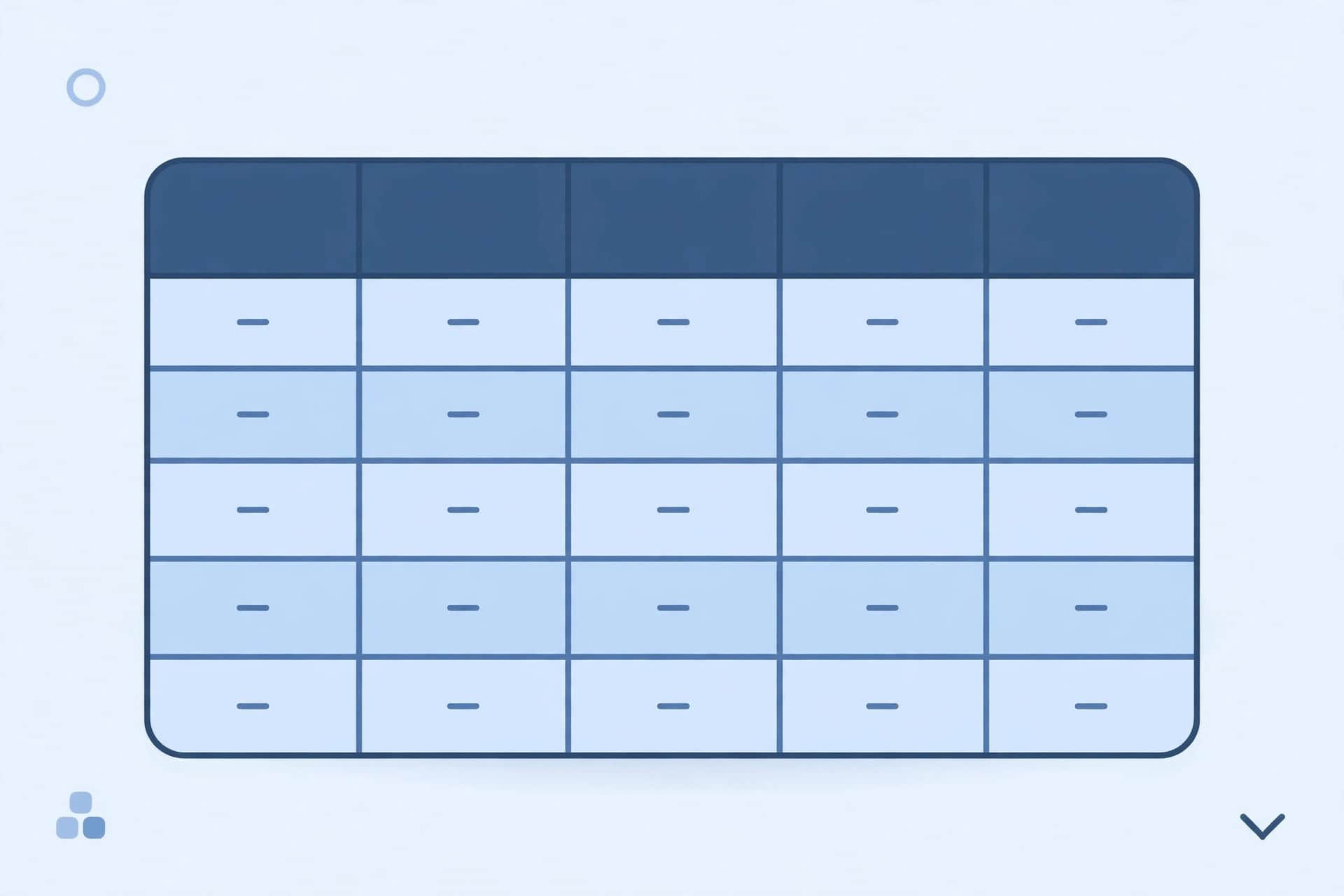
Enter this week’s figures with last week’s row above, so both weeks are visible together. If a figure is not available yet, leave the cell blank and write “not yet available” in the notes column, rather than guessing. An honest blank beats an invented figure.
Step 3: Getting a Summary from ChatGPT — What to Paste, and What Never to Paste
This is where most beginners make their biggest mistake: they paste far too much. ChatGPT does not need your customer list, and it must never receive personal data.
Safe to share: aggregated weekly totals, such as total sales, number of leads, number of orders, and the overdue total, with no names attached.
Never paste: customer names, email addresses, phone numbers, home addresses, payment or bank details, passwords, staff personal data, or contracts. If your sheet contains any of that, do not paste the whole sheet — copy only the totals into a short summary table and paste that instead.
Once you have the safe figures, reuse this prompt pattern every week:
Here are my weekly figures. Last week: sales [figure], new leads [figure], orders completed [figure], overdue total [figure]. This week: sales [figure], new leads [figure], orders completed [figure], overdue total [figure]. Write a short weekly report in plain language, under 250 words, with three sections: What happened, What changed, and What needs attention. Use only the figures I gave you. Do not invent any numbers, names, or reasons. If a figure is missing, say so.
Replace the bracketed figures with your real totals, and keep the last two sentences every week — they tell ChatGPT to stay inside your data. Read the summary once through, but do not trust it yet: the check in the next step is never optional.
Step 4: Checking the Summary Before It Goes Out — Numbers Must Match the Sheet
ChatGPT can write fluently and still get a number wrong, round a figure you did not round, or explain a change with a reason you never gave. Catch all three before anyone else sees the report.
Check the summary line by line against the sheet:
- Every number must appear in the sheet, exactly. If the summary says sales rose, check that this week’s figure is actually higher than last week’s.
- Every comparison must match, including the amount stated.
- Every reason must be yours, not invented. If the summary credits a promotion you never ran, delete that sentence.
- Every missing figure must be marked as missing, not filled with a guess.
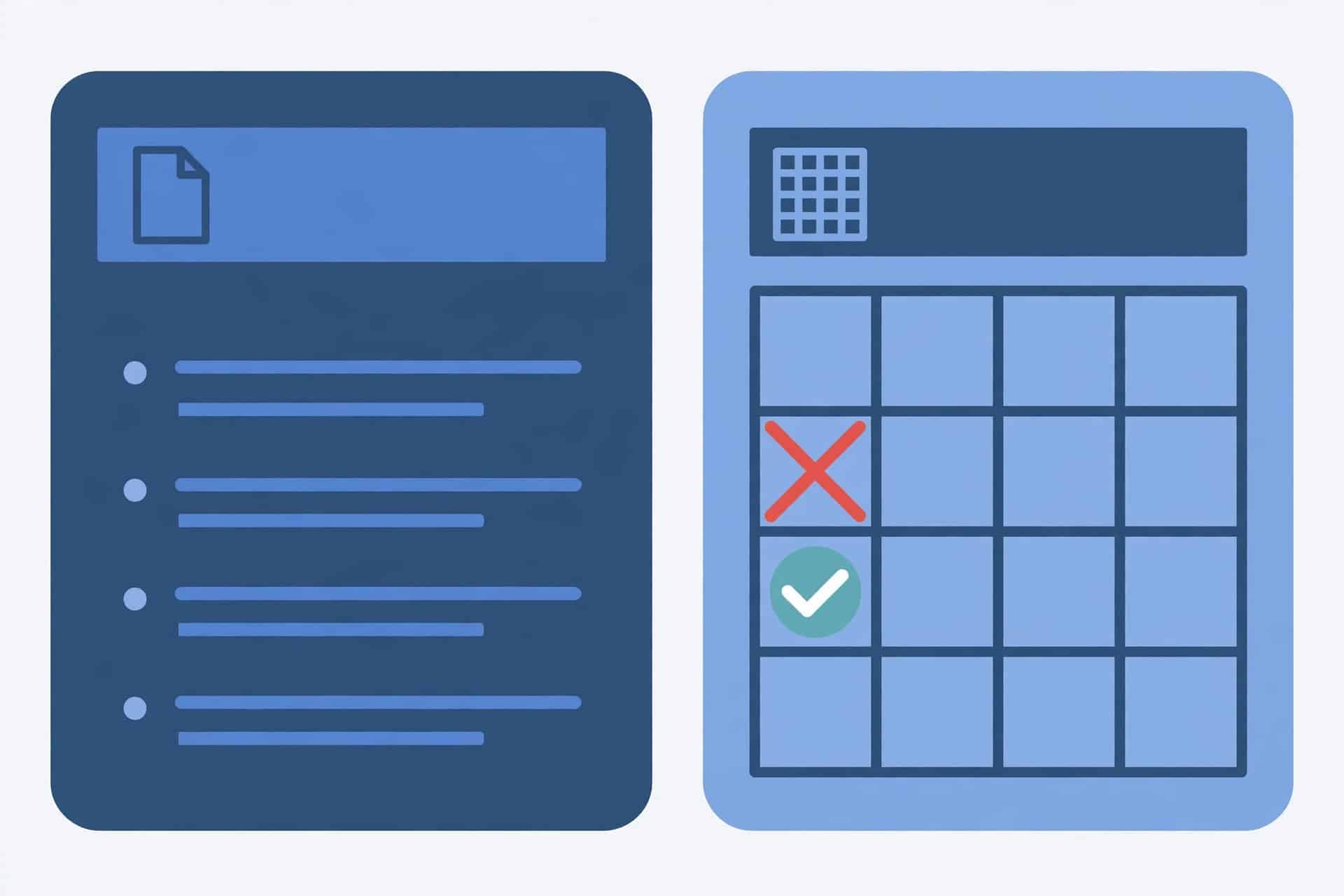
If you find an error, fix it by hand from the sheet — do not keep re-asking ChatGPT until it guesses right. This five-minute check is what makes the report trustworthy.
Step 5: Putting the Report Together — The Same Day, the Same Format
A report people can rely on arrives on the same day, in the same shape, every week. Pick one day — Friday afternoon or Monday morning — and put it in one person’s calendar. One owner, one day, one format.
Use the same layout every week:
- Title: Weekly report, week starting [date]
- What happened: three to five short bullet points, with the week’s key figures
- What changed: the same figures compared with last week, in plain words
- What needs attention: one to three items only, each with a named owner or a next step
- Source note: one line at the bottom, such as “Figures from the weekly figures sheet, checked against the source data”
Keep it to one short email or one page. If it takes longer than a few minutes to read, people will stop reading it. Send it the same way every week, and if a week is missed, say so in the next report rather than pretending the gap never happened.
Step 6: Automating the Repetitive Parts — Templates, Reminders, and Workflow Tools
Do not automate everything at once. Start with the parts that cost you time for no benefit, and keep the numbers check manual — it should never be automated away.
Three low-effort automations help most beginners:
- A template: save one blank report with the headings, sections, and source note already in place. Each week, copy it and fill in the new figures.
- A scheduled reminder: set a calendar reminder for the report day and time, so the report does not depend on someone remembering it. This is the same “one owner, one check” pattern used in Automate Lead Follow-Up: From Form to CRM to Email, Without Losing Leads.
- A workflow tool, only if it saves real time: if your figures already live in another tool, a tool such as Zapier, Make, or n8n can copy new rows into your sheet or send the finished report each week. Start with the free or built-in options in tools you already use, and do not buy a tool until the manual routine already works.
What not to automate yet: collecting figures you do not trust, sending the report without the numbers check, or letting a workflow write and send the summary on its own. Automation should move data and remind people. Judgement about the numbers stays with a human.
Step 7: Testing — Run One Full Week End to End on Test Data Before Using Real Figures
Do not run this routine on real figures until you have watched it work once, start to finish, on made-up data — then a mistake costs nothing.
- Create a small test sheet with two weeks of made-up figures: one that falls, one that rises, and one blank.
- Copy only the safe totals into your prompt, using the Step 3 pattern.
- Check the summary against the test sheet, exactly as in Step 4: the falling figure must read as falling, the rising figure as rising, and the blank figure as missing — not guessed.
- Put the summary into your template and send it to yourself.
- Read it as a reader would. Is it short? Are the figures clear? Does anything need a decision?
- Only then repeat the routine with real figures, and check the first real report the same way.
If the test summary invents a number or a reason, that is useful information: it proves the numbers check matters, and that the prompt’s “do not invent” sentences must stay in place every week.
Testing Checklist
Use this checklist every time you change the sheet, the prompt, or the report format:
- ☐ The sheet has one header row, one row per week, and the same columns every week.
- ☐ No merged cells, no blank rows inside the table, and numbers stored as numbers.
- ☐ Only safe, aggregated totals were shared with ChatGPT — no customer personal data, no passwords, no bank details.
- ☐ The prompt was reused, including “use only the figures I gave you” and “do not invent any numbers”.
- ☐ Every number in the summary was checked against the sheet, and every comparison matches.
- ☐ No invented reason was left in the report, and every missing figure is marked as missing.
- ☐ The report uses the same headings and format as last week, and names an owner for each item needing attention.
- ☐ One full test week worked end to end on test data before real figures were used.
If you can tick all eight, you can trust the routine week to week, with the numbers check still in place.
Common Mistakes
Pasting the whole sheet, personal data included
Sharing a full export feels quick and creates a privacy problem. Copy only the aggregated totals, and never paste names, contact details, or payment information.
Trusting the summary without checking it
A fluent summary is not a correct summary. Check every number against the sheet, every time, even when last week’s report was perfect.
Changing the measures every week
If the columns change weekly, weeks cannot be compared. Pick five to eight measures and keep them for at least a month.
Writing a report nobody reads
A long report with every transaction in it will be ignored. Keep it short, use the same headings, and put items needing attention at the end.
Letting ChatGPT explain why a number changed
ChatGPT does not know why your sales rose or fell. If you know the reason, write it yourself. If you do not know, say so, rather than letting the summary invent one.
Skipping a week silently
A missing week breaks the comparison and erodes trust. If a week is missed, say so in the next report and pick the routine back up.
Buying a tool before the manual routine works
A workflow tool cannot fix a messy sheet or an unchecked summary. Get the manual routine working first, then automate only the step that clearly wastes time every week.
Frequently Asked Questions
What data is safe to share with ChatGPT?
Aggregated weekly totals: total sales, number of leads, number of orders, and an overdue total, with no names attached. Never share customer names, contact details, payment or bank details, passwords, staff personal data, or contracts. If your sheet contains any of that, copy only the totals into a separate short table and share that instead.
What if ChatGPT invents a number?
Treat it as expected and fix it by hand from the sheet. Do not keep re-asking until the number happens to come out right. Keep the prompt’s “do not invent any numbers” sentence in place every week, and keep the manual numbers check — that check is what makes the report safe to send.
How long should a weekly report be?
Short enough to read in a few minutes: under 250 words for the summary, plus the key figures, in the same headings every week. If it takes longer, cut detail, not headings.
Can this run without any paid tool?
Yes. Google Sheets and a basic ChatGPT account are enough: a clean table, a reusable prompt, a manual check, and a template. A workflow tool such as Zapier, Make, or n8n can help later if one step clearly wastes time every week, but do not buy one until the manual routine already works.
What if a figure is missing for the week?
Say so plainly — write “not yet available” beside that measure — rather than guessing. A marked missing figure keeps the report honest; a guessed figure breaks trust in every other number.
Should I share the report outside my business?
Only the checked version, and only with people who need it. Do not forward the raw sheet or any version containing personal data or unchecked figures.
Conclusion
For the bigger picture, see 25 AI Automation Examples for Businesses in 2026.
Before you treat this routine as part of your business, run through it once more: one clean table, only safe totals shared, the prompt reused, every number checked, and the report out on the same day, in the same format, as last week.
That is the whole method: clean figures in, a short checked summary out, the same routine every week. One reliable weekly report beats five detailed ones nobody reads.

Flowmez publishes practical AI workflow guides, tested steps and honest tool reviews to help small businesses save time.