

A small business owner searches for AI automation tools for small businesses and gets a list of fifteen platforms, a price table, and a winner that changes on the next site. The list does not say which job each tool actually does, which one to try first, or what to test before paying. So the owner signs up for three tools, pays for two of them, and uses none of them properly.
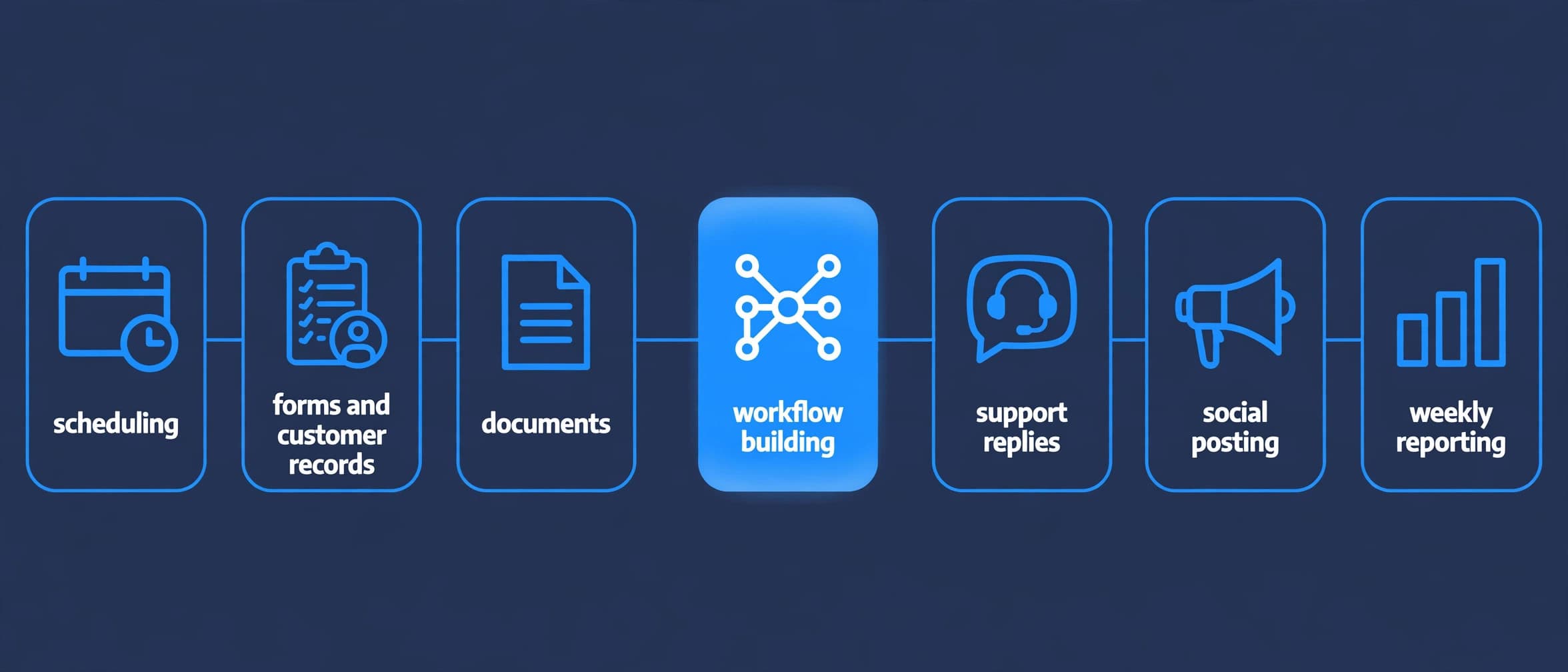
That is the wrong way round. A tool is not good in general. It is good for a job, for a team, at a volume, at a cost the business can maintain. This guide starts from the jobs instead of the logos. It covers seven tools, each one for a different job a small US business actually has: scheduling and email reminders, forms and customer records, documents and spreadsheets, support replies, social posting, weekly reporting, and one flexible workflow builder that connects the others.
For each tool you will get the same plain treatment: what job it does, what it is best at, what it is not for, what to test in a free trial, and when to skip the paid plan. No tool in this guide is ranked as the single winner, because the right first tool depends on the job that is costing you the most time right now.
How to Judge a Tool Before You Try It
Most tool lists judge a tool by its feature list. That is the wrong test for a small business. A long feature list does not tell you whether your team will use the tool in week three, whether a failure will be visible, or whether the bill will make sense at your volume. Use these five questions instead, before you sign up for anything.
1. What exact job will it do, in one sentence?
Write the job before you open the tool’s website. “Remind customers about appointments by email and text” is a job. “Do AI automation” is not a job. “Turn a form into a customer record and a follow-up email” is a job. “Improve productivity” is not a job. If you cannot write the job in one sentence, you are not ready to choose a tool. You are ready to browse, and browsing is how small businesses end up paying for tools they do not use.
2. Who will own it, really?
Name one person who will build the first workflow, check failures, update it when an app changes, and pause it fast if something goes wrong. Not who could learn it in theory, but who will actually own it week to week. A tool that needs a technical owner and gets a non-technical owner will fail quietly. A tool that a non-technical owner can run alone will keep working. Ownership is the test most lists skip, and it is the test that decides most outcomes.
3. How will you know if it worked?
Pick one visible result before the trial starts. A scheduling tool should cut no-shows and back-and-forth emails. A form tool should mean no lead is lost and every lead gets a reply. A reporting tool should mean the owner can see the week’s numbers in one place, without opening five apps. If the result is “it feels modern,” the trial will prove nothing. If the result is a number you already watch — replies sent, no-shows, leads answered, hours saved — the trial will give you an answer in a month.
4. What does it cost at your volume, not at the demo volume?
Free tiers are for learning, not for running a business on. A free tier that covers a handful of runs a month is useful for testing whether you like a tool. It is not evidence that the paid plan will be cheap for your real volume. Before you pay, work out the cost for your longest workflow and your highest-volume workflow, using the tool’s own billing logic — per action, per run, per contact, per message, or per user — and check the current pricing page. This guide deliberately quotes no specific prices or plan limits, because they change often and because competitor price tables that do quote them often disagree with each other. Check the vendor’s official pricing page at publish time and again before you pay.
5. What happens when it fails, and what happens when it stops?
Every tool fails sometimes: an app changes a field, a connection expires, a step times out. Before you rely on a tool, know how a failure shows up, who gets told, and where the failed item waits. Know how to pause it fast. Keep a manual fallback for anything customer-facing or money-related, so the business can still do the job by hand while the tool is fixed. A tool with no visible failure path and no pause button is not ready, no matter how easy it was to set up.
The 7 Tools at a Glance
| Job | Tool | Best for | Start with |
|---|---|---|---|
| Flexible workflow builder | Zapier | Connecting apps with the gentlest learning curve | One simple workflow, such as form to spreadsheet and email |
| Scheduling and email reminders | Calendly | Booking and reminders without back-and-forth emails | One booking page and one reminder rule |
| Forms and customer records | HubSpot | Forms, a customer record, and follow-up in one place | One form that creates a contact and a follow-up task |
| Documents and spreadsheets | ChatGPT | Drafting, summarising, and turning notes into a usable draft | One repeated document, such as a weekly report draft |
| Support replies | Tidio | Common questions answered fast, with a human handoff | Five approved answers and a clear handoff rule |
| Social posting | Buffer | Scheduling social posts with spacing, not in bursts | One platform, a few spaced posts a week |
| Weekly reporting | Looker Studio | A simple dashboard from a spreadsheet, in one place | One dashboard with the week’s numbers only |
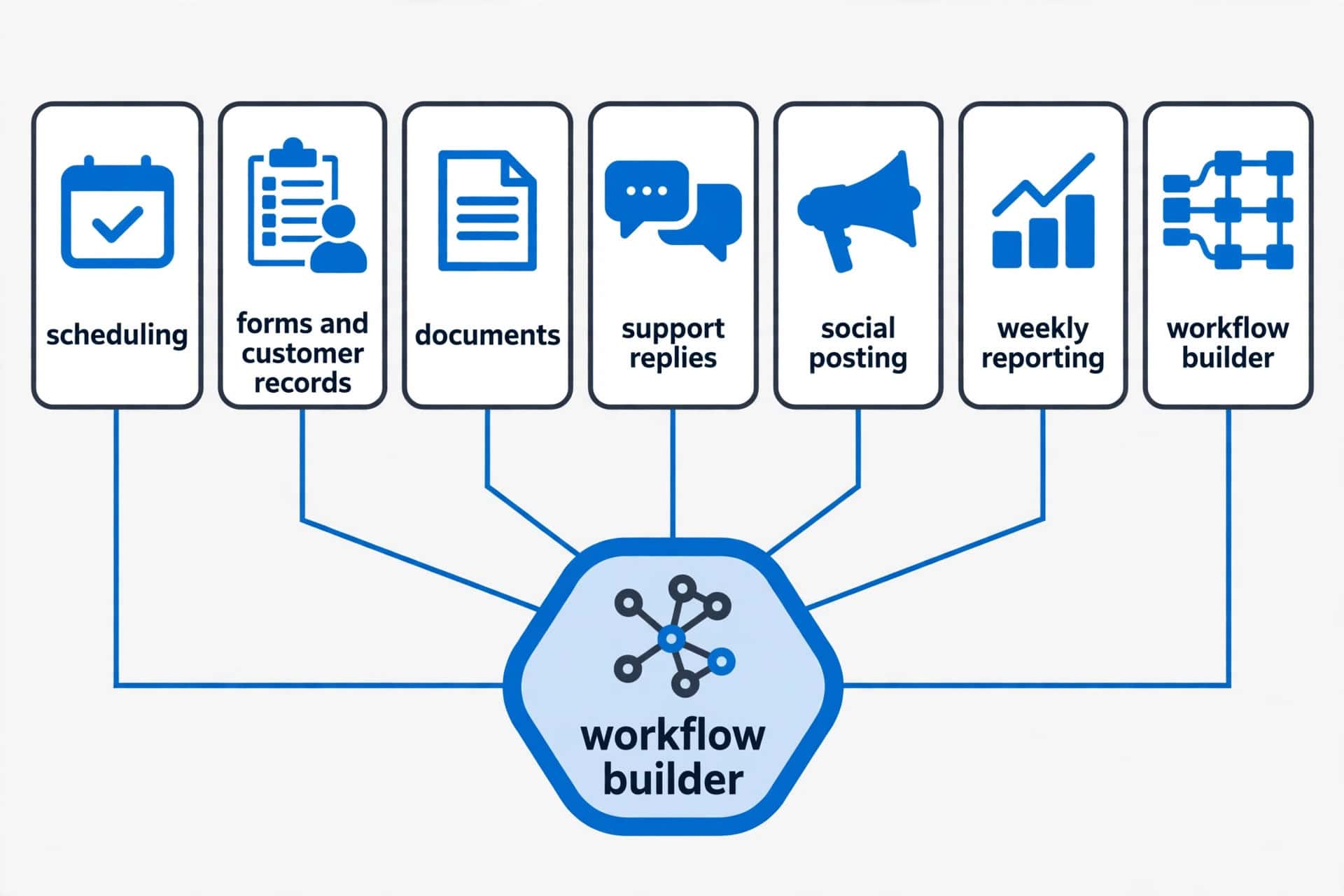
Read that table as a starting point, not a verdict. The rest of this guide explains why each tool fits its job, where it starts to feel wrong, and what to test before you pay for it.
1. Zapier — The Flexible Workflow Builder
Zapier is the connector that ties the other tools on this list together. It is the flexible workflow builder in this guide, and for most non-technical owners it is the safest first workflow tool. Its builder walks you through one step at a time: when this happens, do that, then do the next thing. You do not need to draw a flowchart first. You pick an app, pick a trigger, pick an action, test it, and turn it on.
What job it does
Zapier moves information between apps you already use. A form submission creates a customer record and sends an email. A new booking adds a row to a spreadsheet. A new order sends a notification to the team. Those small, repeatable handoffs are where most small businesses lose time, and they are exactly what Zapier is built for. It also offers AI steps inside a workflow — for example, drafting or classifying a message — but the workflow around the AI step stays predictable, which is the safe pattern for most small businesses.
What it is best at
It is best at getting a first automation running in an afternoon, even if you have never built one before, and at being easy to hand to someone else on your team, because the workflow reads top to bottom like a checklist. It is also best at breadth: the app you need is very likely already connected, which removes a whole category of setup work.
What it is not for
It is not the best choice for long, branching workflows that split into many paths, or for heavy reshaping of data. Those jobs are easier to read and maintain on a visual canvas tool. It is also not the cheapest choice at high volume, because it bills in principle per action step that runs, so a long workflow that runs often uses more billed units than a short one. For a full comparison, see Make vs Zapier vs n8n for a Small Business: An Honest Comparison.
What to test in a free trial
Build one real workflow you actually need — for example, the form-to-spreadsheet-and-email workflow in How to Automate Email + Spreadsheet Work with Zapier, Step by Step for Beginners — using test data. Check how long it took to build, how easy it is to read a week later, what happens on a duplicate submission or a missing field, and how many billed units a realistic month of runs would use. If your team cannot fix it when you are away, it is not the right first tool yet, no matter how easy the setup felt.
When to skip the paid plan
Skip the paid plan if you are only automating one or two simple tasks. The free tier covers that kind of light use for testing. Pay only when a real workflow runs often enough that the free tier stops covering it, and you have already measured the volume for a month.
2. Calendly — Scheduling and Email Reminders
Calendly is the scheduling tool in this guide. Its job is narrow, and that is why it works: it removes the back-and-forth emails around booking a time, and it reminds people so fewer appointments are missed.
What job it does
A customer picks a time from a booking page, the appointment goes on the calendar, and reminders go out before it happens. The business stops spending time asking “does Tuesday at 2 work?” and stops losing time to no-shows that a reminder would have prevented. For a service business, a consultant, a clinic, or any business that books time with customers, that is a job worth automating before almost anything else.
What it is best at
It is best at making booking boring and reliable: one booking page, clear availability, automatic reminders, and a calendar entry the team can trust. It is also best at being easy for customers to use, because they do not need an account or a phone call to book.
What it is not for
It is not a CRM, a workflow builder, or a marketing tool. It does not replace a customer record, a follow-up system, or a way to handle a booking that needs a conversation first. If a booking always needs a phone call to qualify the customer, a booking page alone will not fix that. The human step stays human.
What to test in a free trial
Set up one booking page for one service, with one reminder rule, and use it for real bookings for two weeks. Check how many bookings came through the page, how many reminders went out, whether no-shows fell, and whether customers found the page easy to use. Check what happens when a customer cancels or reschedules, and who on your team sees that change. If bookings still need a phone call to confirm, the reminder rule needs fixing before the tool gets blamed.
When to skip the paid plan
Skip the paid plan if you take only a handful of bookings a month, or if every booking already happens through a system that works. Pay only when bookings are frequent enough that the back-and-forth and the missed appointments are a real weekly cost.
3. HubSpot — Forms and Customer Records
HubSpot is the forms and CRM tool in this guide. Its job is to make sure no lead is lost, every lead has a record, and every record has a next step.
What job it does
A form on your website creates a customer record, the record shows what the person asked for and when, and the team gets a follow-up task instead of relying on memory or an inbox search. That sounds basic, and it is basic — which is why so many small businesses skip it and then lose leads in a shared inbox. A CRM is not a luxury for a business with more leads than it can remember. It is the system of record that every other automation in this guide depends on.
What it is best at
It is best at keeping forms, customer records, and follow-up in one place, so a lead does not live in three different apps with three different versions of the truth. It is also best at starting small: one form, one record, one follow-up task, and then growing only when that first loop works.
What it is not for
It is not a workflow builder for long, custom automations, and it is not a replacement for a human reply to a real question. A CRM can remind you to follow up, and it can draft a follow-up, but it cannot decide what a customer actually needs. It is also not free in the sense that matters most: it costs time to keep records clean, and a CRM full of duplicate or out-of-date records is worse than no CRM at all, because the team stops trusting it.
What to test in a free trial
Build one form that creates a contact and a follow-up task, and run it with real leads for two weeks. Check whether every lead got a record, whether every record got a reply, how long the reply took, and whether the team actually opens the CRM or still works from email. Check how duplicates are handled, and who cleans the records. If the team does not open it, the problem is the habit, not the tool, and a paid plan will not fix it.
When to skip the paid plan
Skip the paid plan if you have only a few leads a month and a spreadsheet still works, or if no one will own keeping the records clean. Pay only when leads are being lost, replies are slow, or the team needs one shared view of who asked for what and when.
4. ChatGPT — Documents and Spreadsheets
ChatGPT is the documents and spreadsheets tool in this guide. Its job is drafting and summarising: turning rough notes into a usable first draft, so a person can edit and approve it instead of starting from a blank page.
What job it does
It drafts the things a small business writes over and over: a weekly report from spreadsheet numbers, a reply to a common question, a summary of meeting notes, a first draft of a proposal or a post. The pattern that works is the same every time: the person supplies the facts, the tool drafts, the person checks and edits, and only then does anything go to a customer. That pattern is the safest and most useful way to use AI in a small business, because the judgment stays with a person.
What it is best at
It is best at removing the blank page. A weekly report that took an hour of staring and formatting can become a draft in minutes, ready for the owner to check against the real numbers. It is also best at being general: the same tool can draft, summarise, explain, and tidy up, without a new subscription for each job.
What it is not for
It is not a system of record, a workflow builder, or a source of facts. It does not know your numbers, your prices, or your customers unless you give them to it, and it can write a confident-sounding answer that is wrong. It must never send a customer message, change a record, move money, or publish content without a human check. For the workflow-with-one-AI-step pattern in full, see AI Agent vs AI Workflow: When to Use Which (Beginner Guide for Small Businesses).
What to test in a free trial
Pick one repeated document — for example, the weekly report in ChatGPT + Google Sheets Weekly Reports — and run it for three weeks. Check how long the draft took, how many facts needed correcting, whether the owner still checks every number, and whether the finished report is actually read. Check what happens with customer personal data: never put it into a prompt, a test, or a shared example. If the draft needs more correcting than writing from scratch, the prompt needs fixing, not the tool.
When to skip the paid plan
Skip the paid plan if you only write occasionally, or if the free tier already covers the drafting you actually do. Pay only when drafting is a weekly job, the free tier’s limits keep interrupting it, and a human still reviews every output before it goes anywhere.
5. Tidio — Support Replies
Tidio is the support replies tool in this guide. Its job is to answer common questions fast on your website, and to hand the rest to a person with the context attached.
What job it does
A visitor asks a common question — hours, prices, delivery, how to book — and gets an approved answer right away, instead of waiting for an email reply. A question the tool cannot answer goes to a person, with the conversation attached, instead of starting again from zero. That handoff is the whole point: a support tool that answers the easy questions and loses the hard ones is worse than no tool at all.
What it is best at
It is best at being there when the business is not: evenings, weekends, and the minutes between jobs, when a visitor is deciding whether to buy or to leave. It is also best at being narrow: five approved answers that are right beat fifty answers that are mostly right.
What it is not for
It is not a replacement for a person on a complaint, a refund, a booking change, or anything sensitive. It must never promise a refund, a date, or a price change unless that outcome is already confirmed. For the full method, see Automate Customer Support Replies with an FAQ Workflow (A Small-Business Guide). An automated reply that is pasted without reading the question damages trust faster than a slower human reply.
What to test in a free trial
Write five approved answers for your five most common questions, set a clear handoff rule, and run it for two weeks. Check how many questions got a correct answer, how many were handed to a person, how long the handoff took, and whether any customer got a wrong or invented answer. Check what happens outside working hours, and who reads the conversations the next morning. If a wrong answer went out, the approved list needs fixing before the tool gets more questions.
When to skip the paid plan
Skip the paid plan if you get only a handful of support messages a month, or if every question already gets a fast human reply. Pay only when common questions are eating real time every day, and the approved answers are already written and tested.
6. Buffer — Social Posting
Buffer is the social posting tool in this guide. Its job is scheduling social posts with spacing, so the account shows up regularly without flooding anyone’s feed.
What job it does
Posts are written in a batch, reviewed, and scheduled with spacing across days and times, instead of being published in a burst on the morning they were written. That spacing is what keeps scheduled posting from looking like spam. The tool handles publishing. It does not handle relationships: replies still come from a person, in short daily windows, as explained in Automate Social Media Posting Without Looking Like Spam (A Small-Business Guide).
What it is best at
It is best at turning social media from daily scrambling into weekly planning: batch a week of posts, review them on a different day, schedule them with spacing, and then use the saved time for replies. It is also best at keeping the queue visible, so a post that no longer fits can be paused or removed before it goes out.
What it is not for
It is not a way to fake engagement. It must never automate likes, follows, comments, or unsolicited messages, and it must never copy the same caption everywhere. It is also not a substitute for having something to say: a scheduler removes the effort of publishing, but it does not remove the need for good ideas.
What to test in a free trial
Pick one platform, schedule a few spaced posts a week for two weeks, and reply to comments in two short daily windows. Check whether posts went out spaced and on time, whether any post went out with a mistake, whether replies got real questions, and whether the pause control works. If a post went out during a problem and could not be paused, the pause rule needs fixing before the queue grows.
When to skip the paid plan
Skip the paid plan if you post rarely, or if one platform’s own scheduling already covers what you need. Pay only when you post regularly on more than one platform, the queue is reviewed every week, and replies are happening in daily windows.
7. Looker Studio — Weekly Reporting
Looker Studio is the weekly reporting tool in this guide. Its job is to show the week’s numbers in one place, from a spreadsheet the business already keeps, without opening five apps.
What job it does
A simple dashboard pulls the numbers from a spreadsheet — leads, bookings, replies, sales, or whatever the business actually watches — and shows them on one page the owner can read in minutes. The point is not a beautiful chart. The point is that the owner stops guessing and starts seeing the same numbers every week, in the same place, in the same format.
What it is best at
It is best at being simple and cheap to start: one spreadsheet, one dashboard, the week’s numbers only. It is also best at being shared: the same page works for the owner and for a helper, so both people are looking at the same truth instead of two different spreadsheets.
What it is not for
It is not a CRM, a workflow builder, or a source of facts on its own. If the spreadsheet is out of date, the dashboard will be out of date too, and it will look authoritative while being wrong. A dashboard does not fix messy data. It only shows it more clearly, which is useful only if someone fixes the data.
What to test in a free trial
Build one dashboard with the week’s numbers only — for example, the weekly report workflow in ChatGPT + Google Sheets Weekly Reports — and use it for three weeks. Check whether the owner actually opens it, whether the numbers match the spreadsheet, how long it takes to update, and whether any decision changed because of it. If no one opens it, the numbers on it are not the numbers the business cares about, and a fancier dashboard will not fix that.
When to skip the paid plan
Skip paying for reporting altogether if a spreadsheet already answers the week’s questions in minutes. Looker Studio’s basic use is free in general terms — check the official page — and the cost that matters is the time to keep the spreadsheet clean. Pay for a reporting tool only when the spreadsheet itself has become the bottleneck, not before.
The Decision Framework: Five Questions, One Tool at a Time
Answer these five questions honestly, in order. Your answers will point to a first tool more reliably than any ranking list. They will also show which AI automation tools for small businesses fit the job you actually need done first.
1. Which job costs the most time right now?
Not which job is most interesting, but which one eats hours every week: missed appointments, lost leads, unanswered questions, late reports, or a workflow that is done by hand every day. That job decides the first tool. A business that loses leads should start with forms and a CRM, not with a reporting dashboard. A business that misses appointments should start with scheduling, not with social posting.
2. Who will own it?
If the answer is a non-technical owner with no technical help, start with the easiest tool for that job — Zapier for workflows, Calendly for scheduling, Buffer for social posting. If the answer is a tech-comfortable operator, a visual tool such as Make is a strong default for workflows, and the choice is covered in full in Make vs Zapier vs n8n for a Small Business: An Honest Comparison. If the answer is nobody yet, do not pick the tool that needs the most ownership. Pick the simplest tool, build one workflow, and let the ownership question answer itself as the business grows.
3. How much work will actually run each month?
Estimate runs, then billed units under each tool’s logic, for your real work — not for a demo. A few short workflows running a few hundred times a month will not punish any tool’s billing. A long workflow running thousands of times a month will punish per-step billing far more than per-run billing. A social queue that posts daily will punish a per-post limit. Run this math for your real workflows, and check the vendor’s current pricing page before you pay.
4. Does data need to stay on your own systems?
If the answer is no for your normal business data, all the tools in this guide are viable, and you can choose on ease, job fit, and cost. If the answer is yes for a specific workflow — because of a customer requirement, a contract, or a sensitivity judgment — that workflow points to a self-hosted option, even if your other workflows live elsewhere. Running two tools for different jobs is normal. Never put customer personal data into a test workflow, a shared example, or an AI prompt.
5. What happens if this tool stops working tomorrow?
Can your team do the work by hand for a week? Do you know how to pause the workflow? Do you have a record of what each workflow does, in plain language, outside the tool itself? If the answer to all three is yes, you are choosing a tool. If the answer is no, you are depending on a tool, and no tool — easy or powerful — fixes that. Write the plain-language record first, keep a manual fallback, and then choose.
The framework in one line: start with the job that costs the most time, choose the simplest tool that does that job well, owned by a real named person, at a volume whose cost you have actually calculated.
The Starter Stack: Three Tools, Not Seven
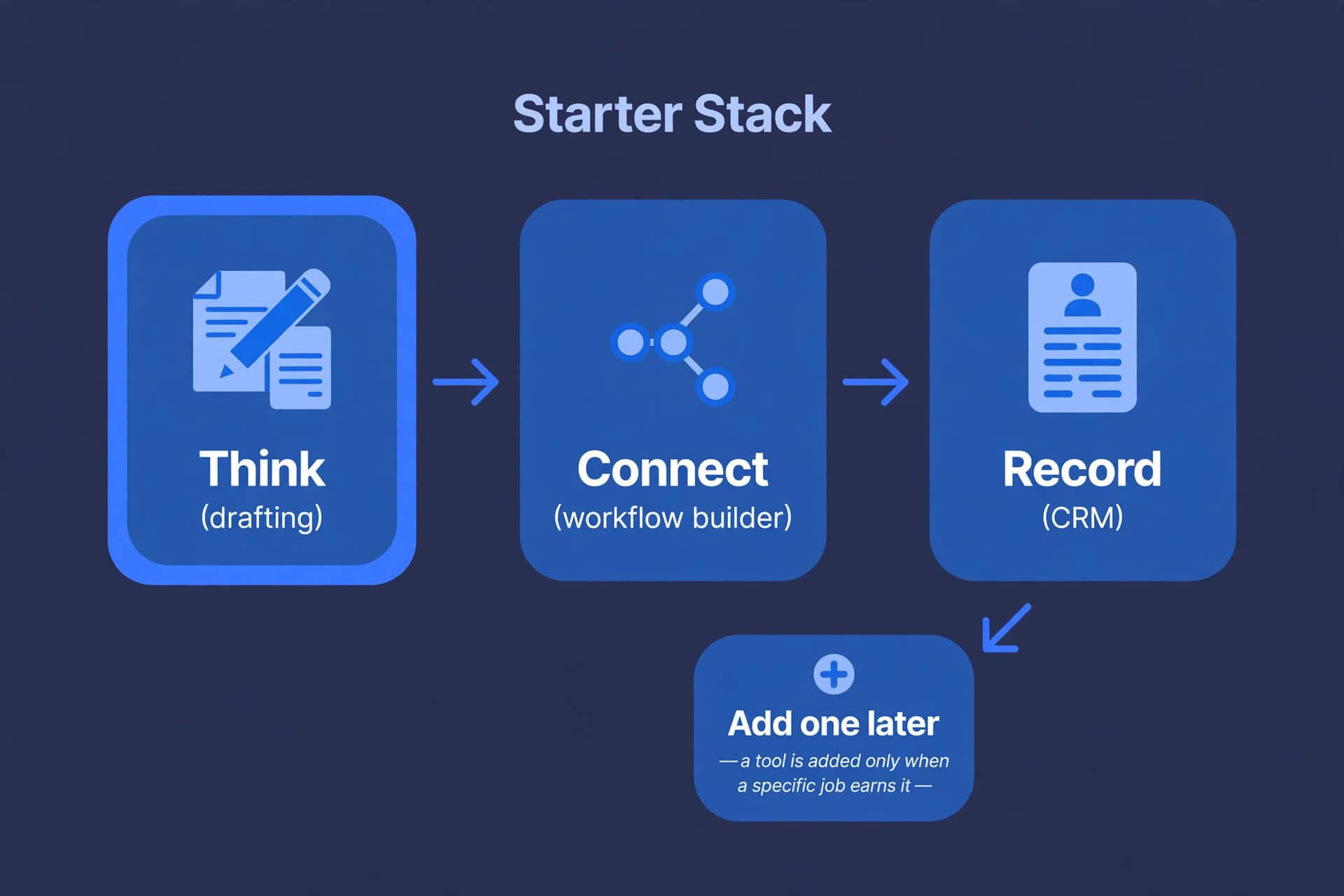
You do not need all seven tools on day one. Most small businesses need three: a chatbot for drafting, a workflow builder to connect apps, and one system of record such as a CRM. That is the whole starter stack, and it is the stack most competitor lists bury under fifteen logos. Start with AI automation tools for small businesses that solve one costly job well, rather than buying all seven at once.
- Think: ChatGPT for drafting, summarising, and turning notes into a usable first draft, always checked by a person before anything goes to a customer.
- Connect: Zapier for the first workflow, such as form to spreadsheet and email, or form to CRM and follow-up.
- Record: HubSpot for forms and customer records, so no lead is lost and every lead has a next step.
Add a fourth tool only when a specific job earns it: Calendly when missed appointments are a weekly cost, Tidio when common questions eat real time every day, Buffer when you post regularly and replies happen in daily windows, Looker Studio when the spreadsheet itself has become the bottleneck. Add one tool, prove it for a month, and only then add the next. A stack that grows one tool at a time stays maintainable. A stack bought all at once becomes a shelf of subscriptions.
How to Test AI Automation Tools for Small Businesses Before You Pay
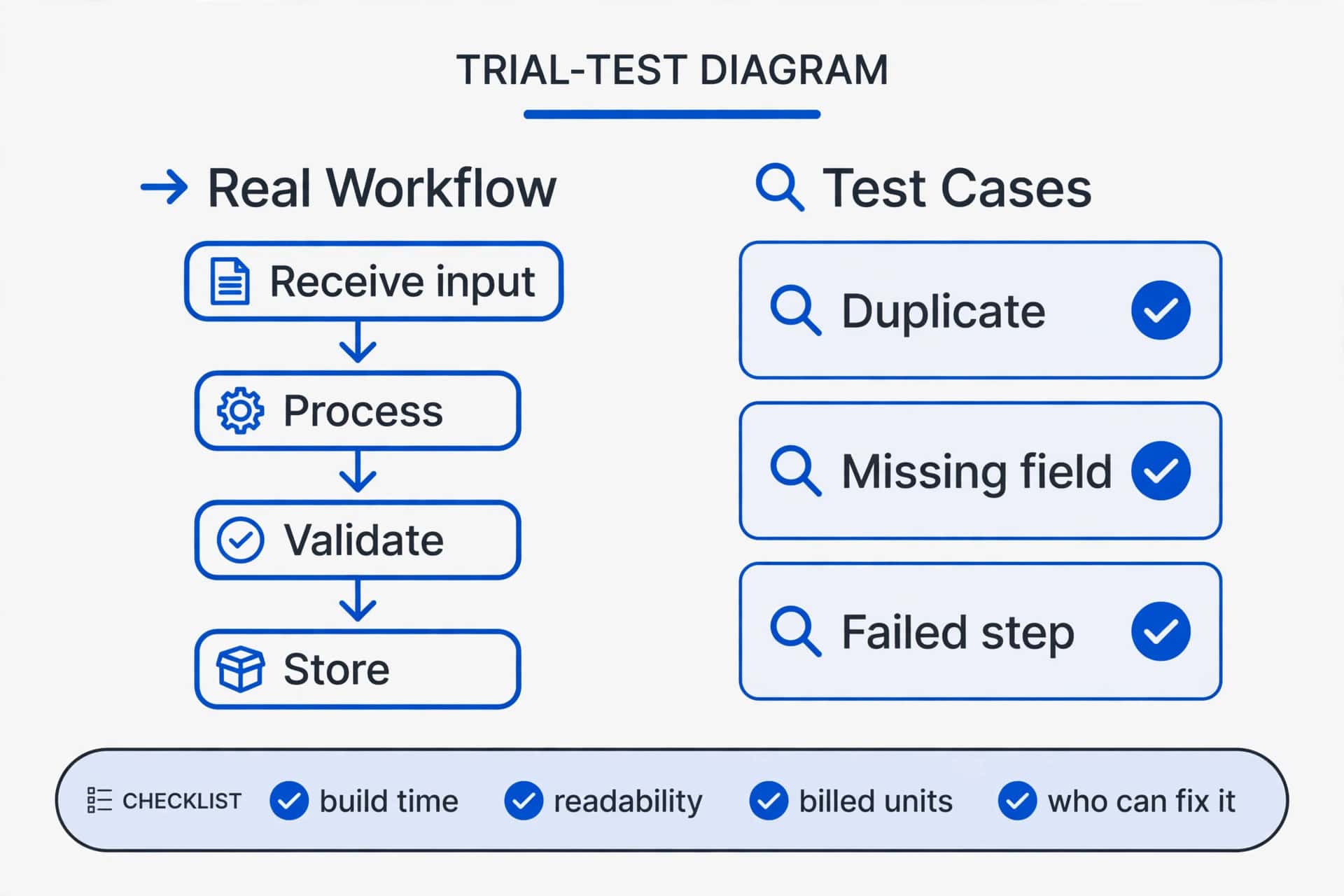
Before you pay for a year of any tool, run the same test on each candidate for a short trial, using the same test cases. This is the single most useful step in this whole guide, and it is the step most comparison lists skip in favour of a price table.
Pick one workflow you actually need, build it on the tool you are considering, using test data, and check the same things every time. For a full testing method, see How to Test an Automation Before It Goes Live: Errors, Fallbacks, Limits.
- How long did it take to build, including the time spent learning the tool?
- How easy is it to read the finished workflow a week later, without the builder’s help?
- What happens on a duplicate, a missing field, and a failed step? Does the failure show up clearly, and does the item wait somewhere visible?
- How many billed units did a realistic month of runs use, under the tool’s own billing logic?
- Who on your team could fix it if it broke while you were away?
- Can you pause it fast, and can the business still do the job by hand while it is fixed?
The tool that wins that test for your team is the right tool, even if a comparison article says otherwise. A tool that looks best in a table but feels confusing to your team in a trial will cost you more over a year than a tool that looks ordinary in a table but is easy for your team to maintain.
Do not standardise your whole business on day one. Build one workflow, prove the result, measure the volume and the maintenance effort for a month, and only then decide whether to build the next five workflows on the same tool.
Pre-Purchase Checklist
Use this checklist before you pay for any tool in this guide:
- [ ] One named person owns the tool and each workflow, including failures and updates.
- [ ] The job is written in one sentence, and the result you will measure is already chosen.
- [ ] Your most complex planned workflow, not just your simplest one, fits the tool comfortably.
- [ ] You have estimated monthly runs and billed units under the tool’s billing logic for your longest and highest-volume workflows.
- [ ] You have checked the vendor’s current pricing page and confirmed the billing unit and which features the plan you are considering actually includes.
- [ ] Each required app is connected, or you have confirmed it can be connected, on the tool you are considering.
- [ ] You have answered the data question: where customer data passes through, and whether any workflow needs to stay on your own systems.
- [ ] You have tested the same real workflow on the tool with test data, including a duplicate, a missing field, and a failed step.
- [ ] You know how to pause each workflow fast, and you have a manual fallback for customer-facing or money-related work.
- [ ] AI steps, if any, are limited to places where judgment is needed, and a human reviews output before any customer message, record change, payment, or publication.
- [ ] You are starting with one workflow and a one-month measurement period, not standardising the whole business on day one.
- [ ] You can say, in one sentence, why this tool fits this business, without mentioning a price table.
If you cannot tick the owner, job, and volume boxes, do not pay for a year yet. Run a trial on one workflow first, and let the trial answer those boxes for you.
Common Mistakes
Buying seven tools on day one
A stack bought all at once becomes a shelf of subscriptions. Start with three tools — drafting, connecting, recording — and add one at a time only when a specific job earns it. A tool that is not used in week three was not a bargain, no matter what the price table said.
Choosing by price table alone
A price table compares numbers that measure different things. Per-task, per-operation, per-execution, per-contact, and per-user billing are not the same unit, and a plan that looks cheapest for light use can be the most expensive for high-volume work. Calculate your own workflows first, then look at prices, and check the vendor’s current pricing page before you pay.
Choosing the most powerful tool for simple work
Power you cannot maintain becomes fragility. If your workflows are simple and your team is non-technical, the most powerful tool is the wrong tool, no matter how impressive its feature list looks. Simplicity that your team can maintain beats capability that nobody owns.
Letting an AI step act without human review
An AI step that drafts, sorts, or summarises is useful. An AI step that sends a customer message, changes a record, moves money, or publishes content without a human check is a risk on any platform. The guardrails belong in the workflow, not in a hope that the AI step will be right every time. For the distinction in full, see AI Agent vs AI Workflow: When to Use Which (Beginner Guide for Small Businesses).
Sending sensitive data through a tool without thinking about it
Every automation tool sits between your apps, and customer data passes through it. That is normal for cloud tools, but it should be a conscious choice, especially for sensitive data. Never put customer personal data into a test workflow, a shared example, or an AI prompt.
Building on a free tier and calling it a business system
A free tier that allows only very short workflows, or a small amount of monthly work, is useful for testing whether you like a tool. It is not evidence that the paid plan will be cheap for your real volume, and it is not a stable base for customer-facing or money-related work. Test on a free tier, decide on your real workflow’s math, and only then pay.
Ignoring who owns failures, updates, and hosting
This is the mistake that hurts most when a tool stops working. A workflow with no owner, no failure alert that someone actually reads, and no pause button is not automation. It is an unattended process waiting to fail quietly.
Forgetting the manual fallback
If the tool stops, the app changes, or the workflow breaks, the business still has customers to serve. Every customer-facing or money-related workflow needs a manual way to do the job, even if more slowly. An automation with no manual fallback leaves the business stuck when it breaks, on any platform.
Frequently Asked Questions
Which AI automation tool should a small business try first?
Start with the job that costs the most time, not with a ranking list. For most small businesses that job is connecting apps, so Zapier is the usual first workflow tool: easiest to start, most apps connected, and a free tier for light use. If the biggest cost is lost leads, start with HubSpot for forms and customer records. If it is missed appointments, start with Calendly. The right first tool follows the job.
Do I need all seven tools in this guide?
No. Most small businesses need three to start: a drafting tool such as ChatGPT, a workflow builder such as Zapier, and a system of record such as HubSpot. Add Calendly, Tidio, Buffer, or Looker Studio only when a specific job earns it, one tool at a time, with a month of proof before the next one.
Are free tiers enough for a small business?
Free tiers are enough for testing, and for very light use — one or two simple workflows, a handful of bookings, a few support questions a month. They are not a stable base for customer-facing or money-related work at real volume. Test on a free tier, measure a month of real use, and pay only when the free tier stops covering the work.
How much will AI automation tools cost per month?
There is no single honest number, because the tools bill for different units of work — per action, per run, per contact, per message, or per user — and because prices and plan limits change often. Competitor price tables that quote a single figure often disagree with each other for exactly that reason. Work out the cost for your own longest and highest-volume workflows, and check each vendor’s current pricing page before you pay.
Can AI tools replace my team?
No, and that is the wrong goal. The tools in this guide replace repetitive handoffs — moving information between apps, reminding customers, drafting a first version, answering a common question — so people can spend their time on the parts that need judgment: real questions, complaints, decisions, and relationships. A tool that tries to replace judgment becomes a risk, not a saving.
Which tool is best for AI workflows — Zapier, Make, or n8n?
It depends on who owns it and how complex the work is. Zapier is easiest for a non-technical owner. Make is the visual middle ground for branching work. n8n is the most control, for a technical owner who can own hosting and maintenance. For the full comparison, see Make vs Zapier vs n8n for a Small Business: An Honest Comparison.
When should I switch from one tool to another?
Switch for a specific, measurable reason: volume has grown past the point where the billing logic hurts, complexity has grown past the point where the builder stays readable, or a data requirement has changed. Move one workflow at a time, run it in parallel first, keep the old tool running until the new one proves itself, and keep a plain-language record of each workflow so the rebuild is a translation, not a rediscovery.
Conclusion
There is no single best option among AI automation tools for small businesses, and any list that names one without asking about your jobs, your team, and your volume is selling a verdict, not a decision. Start from the job that costs the most time. Choose the simplest tool that does that job well. Name the owner. Calculate your own volume under the tool’s billing logic. Test one real workflow for a month. Then add the next tool only when a specific job earns it.
That discipline is what turns a shelf of subscriptions into a system the business actually uses. Start with three tools — drafting, connecting, recording — prove the first workflow, and let that evidence decide what comes next. For the bigger picture, return to 25 AI Automation Examples for Businesses in 2026.

Flowmez publishes practical AI workflow guides, tested steps and honest tool reviews to help small businesses save time.