

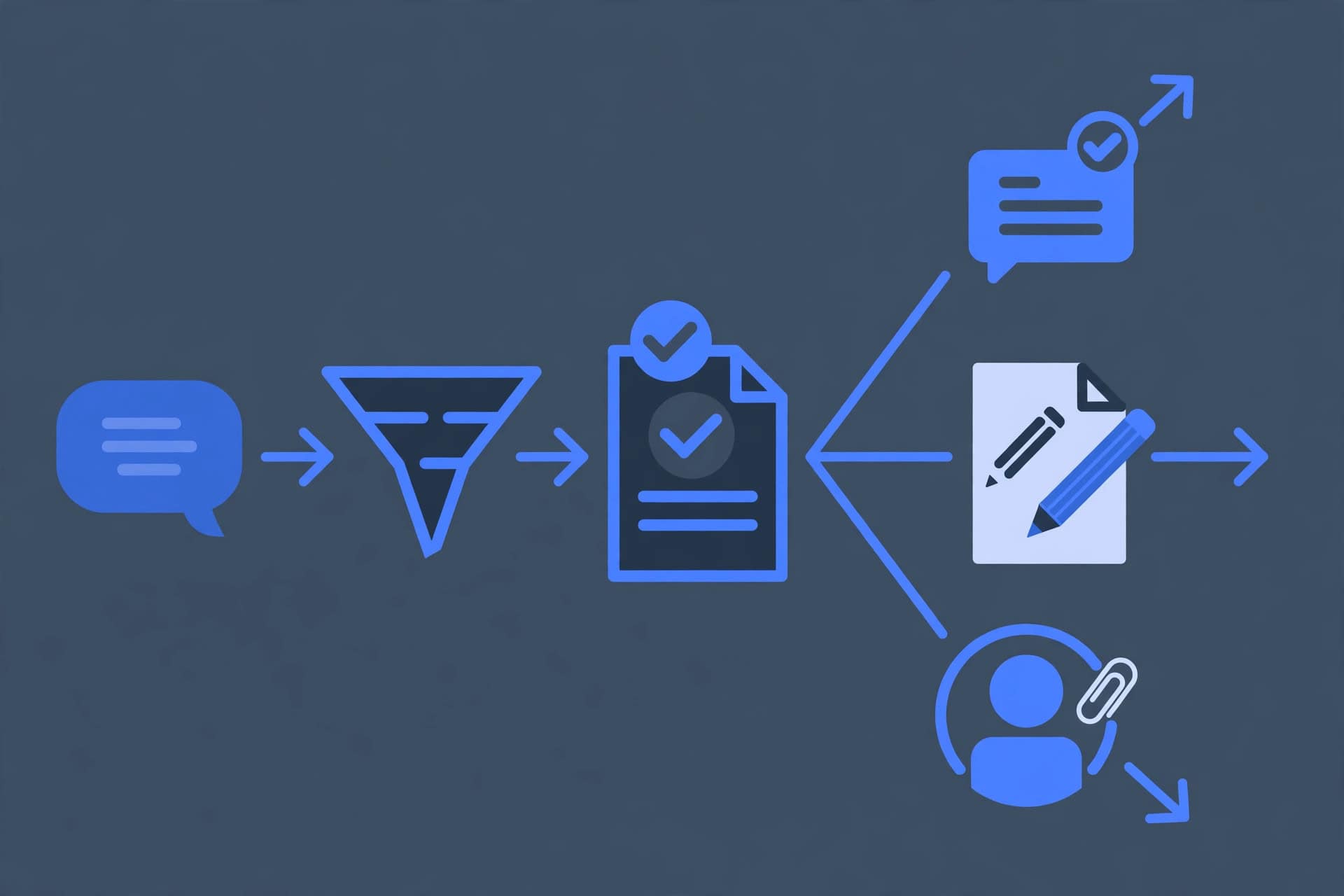
An FAQ workflow is the simplest automation that fixes that problem without turning your business into a chatbot maze. It is not a robot that pretends to be a person. It is a fixed route: a customer message comes in, the workflow sorts it, it matches it to an answer you already approved, and it either sends that answer, drafts it for a human to check, or hands the whole conversation to a person with the context attached.
This guide shows you how to build that workflow, step by step, in plain language and without code. You will learn how to build a knowledge base customers can trust, how to sort messages so the right ones reach a person fast, how to decide what the workflow may send on its own, how to test it before launch, and how to keep it accurate as your business changes.
For the bigger picture, see 25 AI Automation Examples for Businesses in 2026. For a related fixed workflow that already moves a message to the right next step, see Automate Lead Follow-Up: From Form to CRM to Email, Without Losing Leads.
Why an FAQ Workflow, Not Just a Chatbot
A chatbot is a channel. An FAQ workflow is a system. That distinction matters, because many small businesses buy or install a chatbot, load it with a few answers, and then wonder why customers still get frustrated.
A chatbot answers in the moment. A workflow answers, records, routes, and learns. When a message arrives, the workflow does more than produce text. It tags the topic, checks whether the answer is approved and current, decides whether a human should review it, logs what happened, and, when it cannot help, passes the full conversation to a person instead of making the customer start over.
The workflow also protects you in a way a bare chatbot does not. If the answer is not in your approved knowledge base, the workflow does not guess. It holds the message for a human or asks a clarifying question. A confident guess about a refund, a delivery date, or a price is worse than a slow answer, because the customer acts on it and then blames the business when reality differs.
Start with the workflow, even if you later add a chat window to it. The chat window is the front door. The workflow is everything behind it that makes the answer trustworthy.
What an FAQ Workflow Does, Step by Step
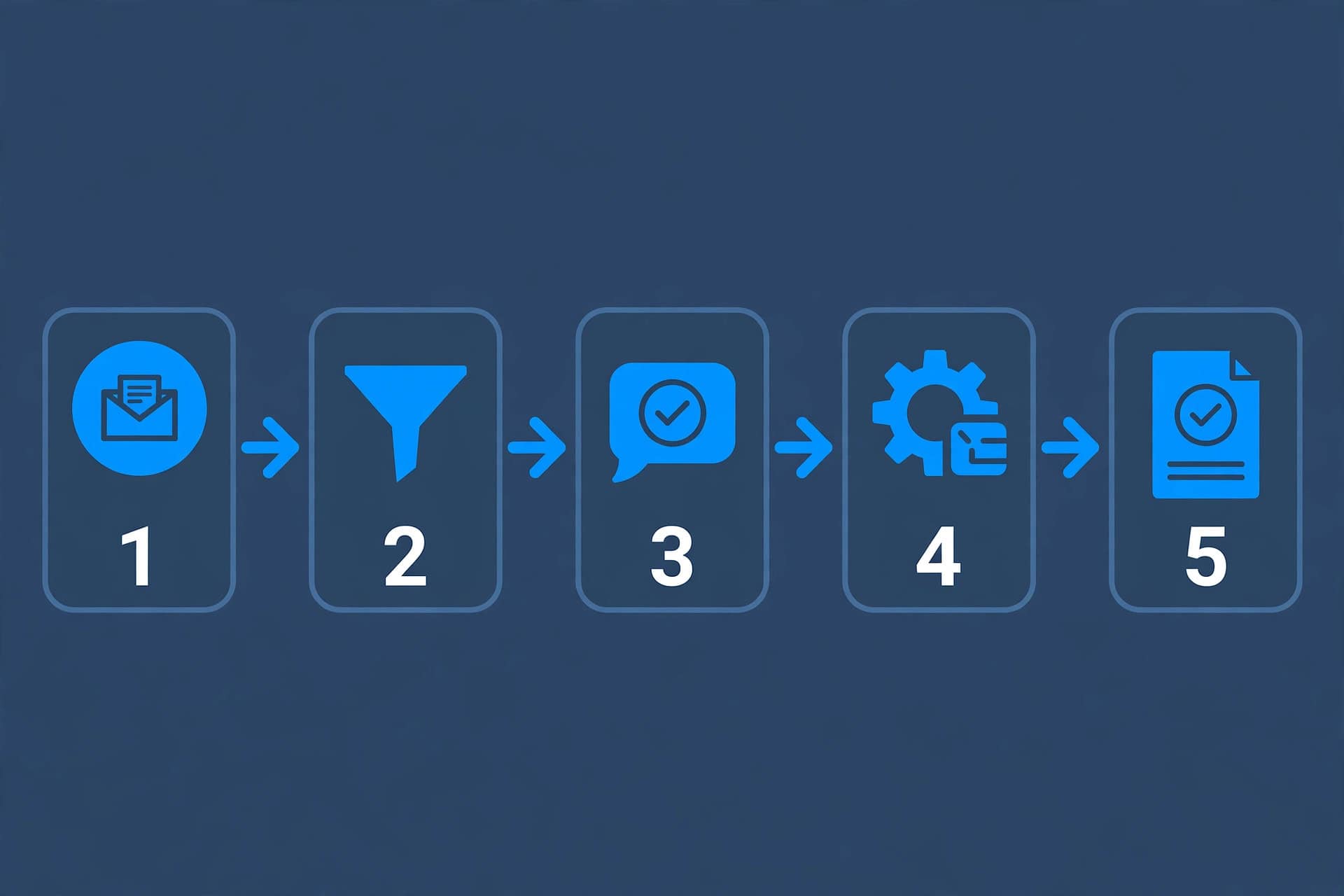
Every FAQ workflow, however simple the tool, follows the same route:
- A message arrives. It may come by email, a contact form, web chat, or a social inbox. The workflow brings it into one shared place so nothing sits unread in a separate account.
- The message is sorted. The workflow tags its topic, such as shipping, returns, pricing, or appointments, and flags urgency, such as an angry tone, a missed deadline, or a payment problem.
- The answer is matched. The workflow looks for an approved answer in your FAQ knowledge base. If it finds a strong match, it uses that answer and nothing else.
- A send rule is applied. Depending on the topic and the confidence of the match, the workflow sends the answer, drafts it for human review, or holds it for a person.
- The result is recorded. The workflow logs the topic, the answer sent, and whether the customer needed more help. That log becomes your next round of FAQ updates.
That is the whole system. You do not need a large support team or an expensive help desk to run it. You need approved answers, clear send rules, and one person who owns the weekly review.
Step 1: Build the FAQ Knowledge Base First
Do not buy a tool first. Do not write a bot script first. Write the answers first, because the workflow is only as good as the answers it is allowed to send.
Find the questions you actually get
Open your inbox, your contact form submissions, your chat history, and your social messages from the past few weeks. Group them by topic and count them. You are looking for the questions that repeat, not the questions you think customers should ask.
A practical starting list for most small businesses includes hours and location, shipping time and cost, order status, returns and exchanges, payment methods, appointment changes, and product or service details. Your list will differ, and that is the point: your FAQ should come from your messages, not from a generic template.
Keep the first version small. Ten to fifteen well-written answers beat fifty half-finished ones. You can add more each week as new questions repeat.
Write one answer per question, in the customer’s words
Each answer should do four things:
- Answer the question directly, in the first sentence. Do not open with your company history or a warm paragraph that buries the answer.
- Give the specific detail the customer needs. A date range, a step, a link, or a next action, not a vague promise to help soon.
- Say what happens next. If the customer must do something, say what it is. If you will do something, say when.
- Offer a way to reach a person. Every automated answer should end with a clear path to a human for cases the answer does not cover.
Write in plain language, in the tone your business already uses with customers. If your business is friendly and informal, the answers should sound friendly and informal. If it is formal and professional, they should sound that way. The workflow should not change your voice; it should carry it.
Make one source of truth, and keep it current
Put the approved answers in one document or page that your team can find and edit. That document is the source of truth. The workflow, the website FAQ page, and any saved replies your team uses should all point to it, so a customer never gets one answer by email and a different answer on your website.
Give each answer an owner and a review date. Prices, policies, hours, and shipping details change, and an outdated answer sent automatically is worse than no answer at all, because it looks official. When a detail changes, update the source document first, then update every place that copies it, and only then let the workflow send it again.
Leave some questions out on purpose
Not every question belongs in an automated answer. Leave out anything that depends on a specific customer’s account, order, or situation, unless the workflow can verify that detail from a trusted record first. Leave out refunds, discounts, legal or safety questions, and anything where the wrong answer costs money or trust. Those go to a human, with the workflow’s job being to collect the details and route them fast, not to answer them.
Step 2: Sort Every Incoming Message
Sorting is the step most small guides rush past, and it is the step that decides whether automation helps or hurts. If every message gets the same reply, customers with urgent problems wait behind customers asking about hours. If every message goes to a person, you have automated nothing.
Sort by topic first
Tag each message with one topic: shipping, returns, pricing, appointments, product help, billing, or a general question. A message can carry more than one tag, but it should have one primary topic, because that topic decides which answer it matches and who owns it if it needs a person.
Start with the topics from your FAQ list. Add a new topic only when you see the same kind of message repeat. A long list of rarely used tags is harder to maintain than a short list that covers most of your inbox.
Sort by urgency second
Urgency is not the same as topic. A shipping question from a calm customer can wait for a routine answer. The same question from a customer whose delivery is already late, who has written twice, or who sounds upset needs a person sooner.
Flag a message as urgent when it shows any of these signs: a missed deadline, a payment problem, a second or third message about the same issue, a complaint, or language that shows the customer is frustrated. Urgent messages skip the auto-send queue and go to a person, even if an FAQ answer exists. Speed matters less than judgment here.
Handle low confidence honestly
Sometimes the workflow cannot tell what the customer is asking. The message may be short, misspelled, written in an unexpected style, or about two topics at once. In that case, the honest move is to ask one clarifying question or to hand the message to a person, not to send the closest answer and hope.
Set a simple rule: if the match is not strong, do not send. A workflow that sends a confident answer to the wrong question creates a second message, and that second message is usually angrier than the first. A short clarification — “Did you mean your order status, or a return?” — costs one reply and saves a complaint.
Keep the customer’s words attached
Whatever the workflow tags or sorts, it should never strip the original message away. The person who eventually reads the conversation needs the customer’s own words, not just a tag. Tags help you find and count messages. The original message helps you understand them.
Step 3: Set the Send, Draft, and Handoff Rules
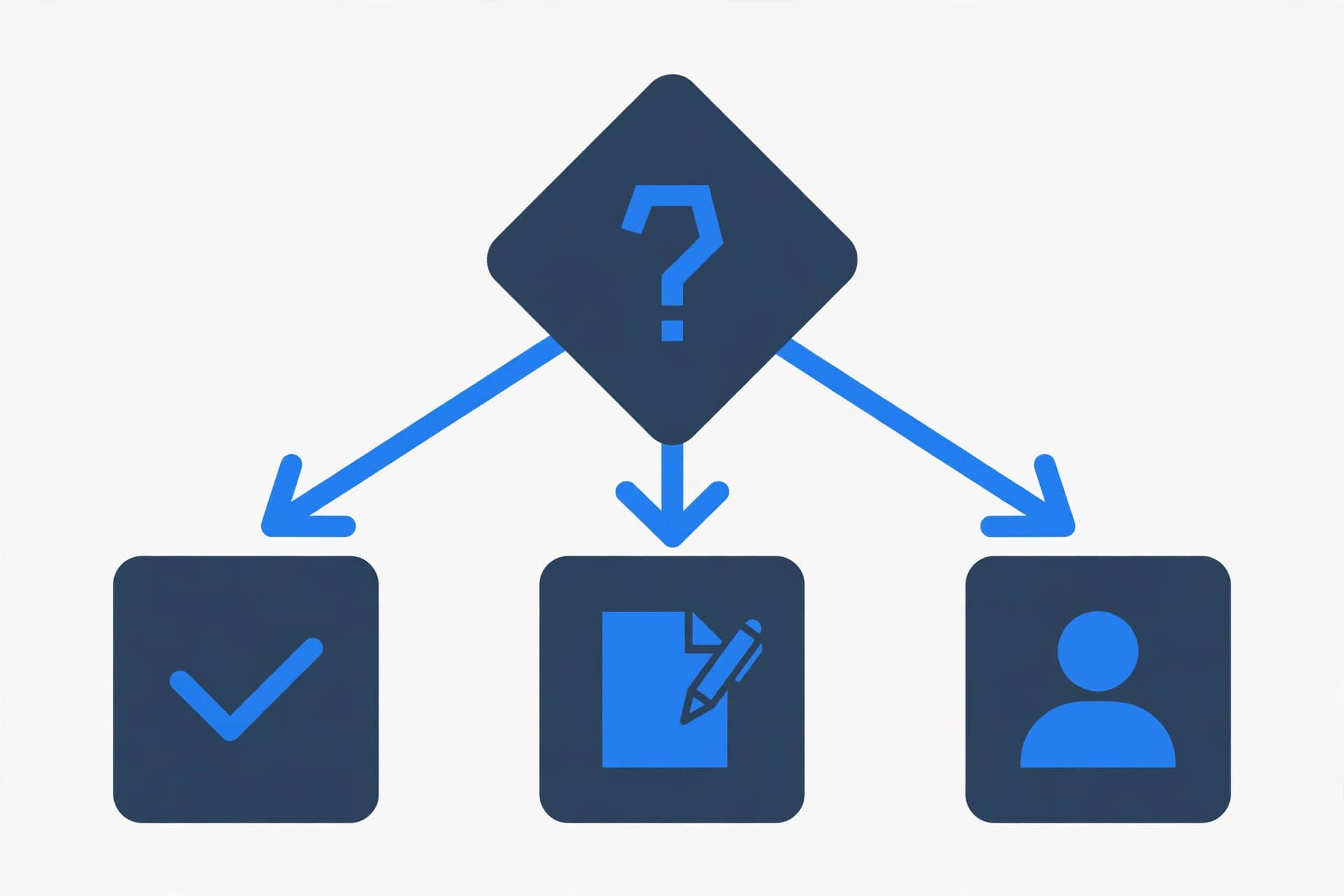
This is the heart of the workflow, and it is where most businesses either automate too much or too little. The rule is simple: the workflow should only send on its own what is low-risk, approved, and confidently matched. Everything else gets a draft or a human.
Send on its own: low-risk, approved, confident
Let the workflow send an answer by itself only when all three are true:
- The answer is in your approved knowledge base and is current.
- The topic is low-risk: hours, location, general policies, shipping timeframes, or other facts that do not change a customer’s money, account, or booking.
- The match is strong: the customer’s question clearly matches one answer, not two.
When those three hold, sending instantly is a genuine service. The customer gets an answer in minutes, including outside working hours, and your team never touches a message that needed no judgment.
Draft for human review: useful, but needs a check
Draft, but do not send, when the answer is helpful but the situation needs a human eye. That includes answers that involve a specific order, a booking change, a partial refund policy, or a message where the customer sounds upset even though the topic is routine.
In draft mode, the workflow prepares the reply from the approved answer, attaches the customer’s message and any relevant details, and puts it in a queue for a person to review, edit, and send. The human still saves time, because the draft is already written, but the human owns the final words. For the first few weeks, draft more than you send. As you learn which categories are consistently sent unchanged, you can move those categories to auto-send, one at a time, and keep checking a sample.
Hold for a human: high-risk, unclear, or emotional
Hold the message for a person, with no automated answer, when any of these apply: a refund or payment dispute, a complaint, a safety or legal question, a request for an exception to policy, a message the workflow cannot confidently match, or a customer who explicitly asks for a person.
A customer who asks for a person should get a person. That is not a failure of the workflow. It is the workflow working as designed: automation handles the repeatable work, and people handle the judgment work.
Never let the workflow promise what it cannot deliver
Write this rule into every answer and every send rule: the workflow must never promise a refund, a discount, a delivery date, or a booking change unless that outcome is already confirmed. If the answer depends on checking a record, the workflow should say what it will check and when the customer will hear back, not invent the result. An automated message that overpromises creates more support work than it saves.
Step 4: Worked Example — A Small Online Shop
Picture a small US online shop that sells home goods. Its owner answers email alone, with help on weekends. The same questions arrive daily: When will my order arrive? What is the return policy? Can I change my shipping address? Is an item in stock?
Here is how the FAQ workflow handles a week of those messages:
- “What are your shipping times?” The message matches an approved, current answer about shipping timeframes. The topic is low-risk and the match is strong, so the workflow sends the answer at once, including a link to the shop’s shipping page and a path to a person if the question is about a specific order.
- “Can I change the address on order 4821?” The answer depends on whether that order has shipped, which the workflow cannot confirm from the FAQ alone. The workflow drafts a reply from the approved address-change answer, attaches the order details the customer provided, and queues it for the owner to check and send. The customer gets a correct answer, not a guessed one.
- “I want a refund, this arrived damaged.” The workflow does not send an FAQ answer about returns. It tags the message as a complaint and a refund request, marks it urgent, and hands the full message, photos if attached, and order details to the owner. The customer receives only an acknowledgment that a person will reply, with a realistic timeframe, not a promise about the refund.
- “Do you have this in stock?” The answer depends on current inventory, which changes. If the shop’s inventory record is the trusted source and the workflow can check it, the workflow may answer from that record. If it cannot check it reliably, it drafts the reply for a person to confirm before sending. The rule is the same in both cases: no answer without a trusted source.
Notice what the workflow did not do. It did not pretend to be a person. It did not guess. It did not make the refund customer repeat the story. It saved the owner time on the repeatable questions and gave the owner the full context for the ones that mattered.
Step 5: Hand Off Without Making the Customer Repeat
A handoff is where many support automations fail, and it is where customers form their opinion of your business. A customer who has already explained the problem, given an order number, and answered a clarifying question should never have to start over with a person.
Pass a context packet, not just a message
When the workflow hands a conversation to a person, it should pass everything the person needs in one place: the original message, the topic and urgency tags, any details the customer already provided, such as an order number, the answer the workflow considered and why it did not send it, and any previous messages from the same customer about the same issue.
That packet is the difference between a handoff and a restart. Without it, the customer repeats the story and loses trust. With it, the person can reply with a decision, not with another round of questions.
Set and keep a response promise
When a message is handed off, the customer should hear, at once, what happens next: that a person will reply, and by when. Do not promise a time you cannot keep. A realistic promise — “A team member will reply by the end of the next business day” — beats an instant promise that fails.
If your business is closed, say so, and say when you will reply. Customers accept waiting when they know the wait. They do not accept silence, or a message that says “resolved” when nothing has been resolved.
Keep one owner for handed-off messages
Assign handed-off messages to one person or one queue, and check that queue every working day. A handoff that lands in an inbox nobody checks is not a handoff. It is a lost message with better labeling. The owner does not have to answer every message personally, but the owner is responsible for making sure every handed-off message gets a reply.
Step 6: Test Before You Launch
An FAQ workflow that sends the wrong answer at scale is worse than a slow inbox, because it sends the wrong answer to everyone. Test it on your own past messages before it sends anything to a real customer.
For a full testing method, see How to Test an Automation Before It Goes Live: Errors, Fallbacks, Limits. For this workflow, run at least these tests:
- Past-message test. Take twenty real past messages, remove customer names and personal details, and run them through the workflow. Check that each one is sorted to the right topic, matched to the right answer, and given the right send rule. Fix any message that gets the wrong answer or the wrong rule before launch.
- Awkward-phrasing test. Test the same question written five different ways, including short, misspelled, and indirect versions. If the workflow only matches the exact wording of your FAQ, it will fail on real customers. Add the phrasings customers actually use as matching examples, or lower the confidence threshold for auto-send and draft more.
- Wrong-answer test. Deliberately send the workflow a question it should not answer: a refund dispute, a question about a product you do not sell, or a message with no clear question. Confirm that it holds the message for a person instead of guessing. If it guesses, your confidence rule is too loose.
- Handoff test. Hand a test conversation to a person and check that the context packet arrives complete. If the person has to ask the customer to repeat anything, fix the handoff before launch.
- Out-of-hours test. Send a test message outside working hours and check what the customer receives. The acknowledgment should be honest about when a person will reply, and it should not promise an instant human reply that will not come.
Launch in stages. Start with draft mode for most categories, even if you plan to auto-send later. After a week of drafts that need few edits, move one low-risk category at a time to auto-send, and keep checking a sample of auto-sent replies every week.
Step 7: Measure, Review, and Update the FAQ
An FAQ workflow is not finished at launch. It is a living document, and its value grows or shrinks with how well you maintain it. The good news is that maintenance is small if it is regular, and large if it is neglected.
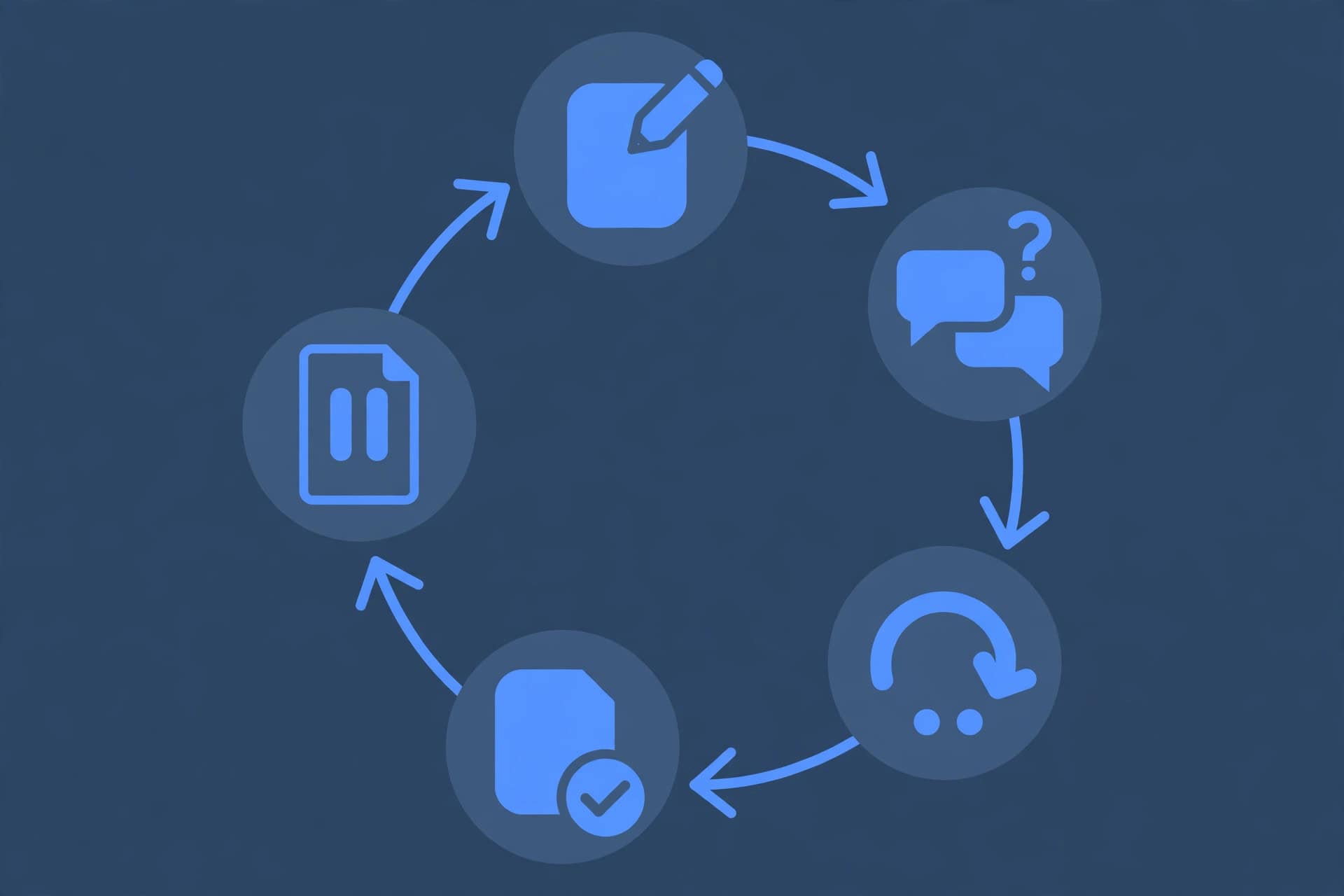
Review weekly, for a short time, with a named owner
Once a week, one named owner reviews three things, for about half an hour: messages the workflow drafted but a person edited, messages it could not match, and messages customers followed up on after an automated reply. Those three groups tell you exactly what to fix.
Edited drafts show where an answer is incomplete or out of date. Unmatched messages show which new questions to add to the FAQ. Follow-ups show where an answer was technically correct but did not actually solve the problem. Fix those first, before adding new categories.
Watch for the signals that matter
You do not need complex analytics to run this workflow well. Watch these simple signals:
- How many messages got an auto-sent answer, a draft, or a handoff? A sudden shift in any group means something changed — a policy, a product, or a wording problem.
- How many customers wrote again after an automated reply? A follow-up usually means the first answer did not solve the problem, even if it was accurate.
- Which questions appear that are not in the FAQ? When the same new question appears three times, add it to the knowledge base, with an approved answer, before it appears a fourth time.
- Which answers are edited most often? An answer that a person rewrites every time is not an approved answer. Rewrite it, or move it to draft-only.
Retire stale answers
An answer that is no longer true is a liability, not an asset. When a policy, price, product, or process changes, update the source document the same day, and pause auto-send for that answer until the update is confirmed. Do not leave a stale answer running while you “get around to” updating it. Customers will find it before you do.
Keep the workflow honest about what it is
Tell customers, plainly, when a reply is automated. A short note — “This is an automated reply based on our help page” — costs nothing and builds trust, because it sets the right expectation. A customer who thinks they are talking to a person and discovers they are not will trust the next answer less, even if it is correct.
Pre-Launch Checklist
Use this checklist before launch, and again before moving a category from draft to auto-send:
- [ ] The top questions came from real past messages, not from a generic template.
- [ ] Each FAQ answer is approved, current, and written in plain language, with a next step and a path to a person.
- [ ] One source document holds the approved answers, with an owner and a review date for each.
- [ ] Messages are sorted by topic and urgency, and urgent messages skip auto-send.
- [ ] Send, draft, and hold rules are written down, and the workflow never sends a high-risk answer on its own.
- [ ] The workflow never promises a refund, discount, delivery date, or booking change it has not confirmed.
- [ ] Handoffs pass the full context packet, and handed-off messages have one owner and a daily check.
- [ ] The workflow was tested on past messages, awkward phrasings, wrong-answer cases, handoffs, and out-of-hours messages.
- [ ] Launch starts in draft mode for most categories, with auto-send added one low-risk category at a time.
- [ ] A named owner will review edited drafts, unmatched messages, and follow-ups every week.
- [ ] Stale answers are paused, not left running, when a policy or detail changes.
- [ ] Automated replies say they are automated, and every reply offers a path to a person.
If you cannot tick the send-rule, handoff, and weekly-review boxes, do not launch in auto-send mode. Launch in draft mode instead, and move to auto-send only when those boxes are ticked.
Common Mistakes
Automating answers before writing them properly
A workflow that sends a vague, outdated, or incomplete answer at scale does not save time. It creates follow-up messages. Write the answers first, approve them, and only then automate them.
Letting the workflow guess when it is unsure
A low-confidence match is not a match. If the workflow is unsure, it should ask a clarifying question or hand the message to a person. A guessed answer that is wrong costs more trust than a short wait.
Treating every message as equally urgent
A routine question and a payment dispute are not the same job, even if they arrive in the same inbox. Without urgency sorting, urgent customers wait behind routine ones, and routine automation gets blamed for a human problem.
Hiding the human behind the bot
If customers cannot reach a person, or if the workflow keeps answering after a customer asks for a person, the workflow becomes a barrier, not a service. A clear path to a person is part of the workflow, not a failure of it.
Forgetting to update the FAQ
Policies change, products change, and hours change. An FAQ that was accurate at launch and never updated becomes a source of wrong answers. Weekly review is part of the system, not optional maintenance.
Measuring speed instead of resolution
A fast reply that does not solve the problem is not a success. Measure whether customers needed to write again, whether handoffs arrived with context, and whether answers stayed accurate. Speed matters, but only after the answer is right.
Launching for every category at once
Auto-sending every category on day one turns every mistake into a customer-facing incident. Start with draft mode, learn from the edits, and move one low-risk category at a time to auto-send.
Copying another business’s FAQ
Another business’s answers describe another business’s policies, prices, and processes. Copying them, even with small edits, risks sending customers information that is wrong for your business. Build your FAQ from your own messages and your own approved answers.
Frequently Asked Questions
What is an FAQ workflow, and how is it different from a chatbot?
An FAQ workflow is a fixed route for support messages: sort, match to an approved answer, send, draft, or hand off, and record the result. A chatbot is one channel that can sit on top of that workflow, such as a chat window on your website. The workflow is what makes the answer trustworthy. Without it, a chatbot is just a fast way to send an unapproved answer.
Can a small business run this without a help desk?
Yes, for a typical small-business inbox. The workflow needs a shared inbox or form, an approved answer document, sorting and send rules, and a weekly review owner. That can be built with tools a small business already uses, such as email, a contact form, and a simple workflow tool, without an enterprise help desk. If message volume grows to the point where manual review of drafts takes more time than the workflow saves, that is the signal to consider dedicated support software.
Should the workflow send replies by itself, or should a person always check?
Both, depending on the message. Let the workflow send low-risk, approved, confidently matched answers on its o[ ] wn, such as hours or general policy questions. Draft answers that involve a specific order, booking, or sensitive topic for a person to check. Hold high-risk, unclear, or emotional messages for a person with no automated answer. The send rule should follow the risk, not the convenience.
What should happen when the workflow does not understand a message?
It should not guess. It should ask one clarifying question, or hand the message to a person with the original message attached. A short clarification costs one reply. A guessed answer that is wrong usually costs a complaint and a second, angrier message.
How do I keep automated answers accurate?
Keep one source document for approved answers, give each answer an owner and a review date, and review edited drafts, unmatched messages, and customer follow-ups every week. When a detail changes, update the source document first and pause auto-send for that answer until the update is confirmed. Never leave a stale answer running.
Will customers be frustrated by automated replies?
Customers are frustrated by wrong answers, repeated stories, and no path to a person, not by automation itself. An automated reply that is accurate, says it is automated, solves the question, and offers a clear path to a person is usually welcomed, especially outside working hours. A reply that guesses, repeats, or blocks a human will frustrate customers no matter how fast it arrives.
When should I use an AI agent instead of a fixed FAQ workflow?
Use a fixed FAQ workflow when the questions repeat and the answers are stable, which covers most small-business support. Consider a bounded agent only when the path itself cannot be written down in advance, such as gathering facts scattered across several records, and only with the guardrails in AI Agent vs AI Workflow: When to Use Which (Beginner Guide for Small Businesses). Even then, the agent should work from your approved answers and hand off with context, not invent answers on its own.
Conclusion
An FAQ workflow does not replace your support team. It removes the repetition from it, so your team can spend its time on the messages that actually need judgment: the refund dispute, the upset customer, the exception, the problem nobody has seen before.
Build the answers first, from your own messages. Sort by topic and urgency. Send only what is low-risk, approved, and confidently matched. Draft the rest for review. Hand off with full context, and never make a customer repeat the story. Test on past messages, launch in draft mode, and review every week with a named owner.
That discipline is what turns automation from a chatbot experiment into a reliable part of the business. For the bigger picture, return to 25 AI Automation Examples for Businesses in 2026.

Flowmez publishes practical AI workflow guides, tested steps and honest tool reviews to help small businesses save time.
2 thoughts on “Automate Customer Support Replies with an FAQ Workflow (A Small-Business Guide)”
Comments are closed.