

A green “success” label in your automation tool is not proof that the automation did the right thing. It only proves that the automation ran without stopping. It can run perfectly and still send the wrong message to the wrong person, create a duplicate record, skip a lead, or charge ahead after a step failed quietly.
That is why testing matters, and why it takes more than pressing a test button once with a perfect example. A useful test answers a harder question: what happens when real people, messy data, duplicate clicks, and a failed connection get involved?
This guide gives you a test pack you can run on any small-business automation, in plain language and without code. You will learn how to set up a safe test, which cases to run, what to do when a step fails, where testing stops, and how to watch the automation in its first week live.
For the bigger picture, see 25 AI Automation Examples for Businesses in 2026. For a concrete workflow to test against, see Automate Lead Follow-Up: From Form to CRM to Email, Without Losing Leads.
Why Testing Matters: A Run Can Succeed and Still Be Wrong
Most automation failures are not dramatic. They are quiet. Here are the kinds of quiet failures a single happy-path test will miss:
- The wrong record. The automation creates a contact, but in the wrong list, under the wrong owner, or with the first and last names swapped.
- The missing record. A filter is slightly too strict, so some real submissions never trigger the workflow at all. Nobody gets an error, because nothing ran.
- The duplicate record. A customer double-clicks submit, or the same event fires twice, and now the same lead, order, or message exists twice.
- The wrong message. The email goes out, but it contains a blank name, yesterday’s date, or another customer’s details because a field did not map the way you expected.
- The half-finished job. Step one succeeds and step three fails, so the customer is told one thing while your records say another, and no one is alerted.
Testing is how you turn “it ran” into “it did the right thing, in the right place, exactly once, and it told someone when it could not.” That sentence is the whole standard for this guide. Every case below exists to check one part of it.
Before You Test: Write the Expected Result First
The most common testing mistake is running the automation first and then deciding whether the result looks acceptable. That is backwards. If you do not write down what should happen before you run it, you will accept whatever the tool happens to produce.
For each automation, write one short paragraph before testing. It should name:
- The trigger. What exactly starts the workflow? A new form submission, a new order, a status change, a scheduled time?
- The destination. Where should the result land? Which list, board, sheet, or inbox, under which owner?
- The exact result. What record should exist, what fields should it carry, and what message, if any, should go out?
- What should not happen. What should stay untouched? For example, no message to the customer yet, no second record, no change to a paid invoice.
- Who gets told on failure. If a step fails, who should be notified, and where should the failed item wait for review?
Keep it to a few lines. Here is an example for a lead workflow:
When a visitor submits the contact form with a name, email, and service requested, the workflow creates exactly one contact in the sales list, assigned to the owner on duty, carrying the form’s original message. The visitor receives one acknowledgment email. If the contact cannot be created, no acknowledgment goes out, and the submission waits in a review list for a person to check.
Now you have something to test against. A test passes only when the actual result matches the expected result, field by field, in the destination itself — not just in the automation tool’s log.
Set Up a Safe Test, Not a Live Rehearsal
Never test on real customers, real orders, or real money. A safe test setup has four parts:
1. A test copy or a test destination
If your tool lets you duplicate a workflow, duplicate it and point the copy at test destinations: a test list, a test sheet, a test inbox that only your team can see. If your tool does not offer a duplicate or test mode, point the live workflow at test destinations first, run your cases, clear the test results, and only then re-point it at the real destinations. Check that re-pointing step twice before you switch it on. Forgetting to switch a destination back is a classic launch-day error.
2. Fake test data, clearly labeled
Create test contacts and test orders with obviously fake details, such as “Test Lead — Maya Example” and a test email address your team controls. Do not use a real customer’s name, email, phone number, or order, even for “just one quick test.” Test data should also be easy to find and delete later, so it does not pollute your real reports.
3. A separate way to see what happened
Do not rely only on the automation tool saying “success.” Open the destination yourself, as the person who would use the record, and check the fields there. Open the test inbox and read the message the customer would receive. If your tool offers a run history or log, read it too, but the destination is the evidence that counts.
4. A way to stop the automation fast
Before you test, know how to pause or switch off the workflow, and test that you can. If a test goes wrong and starts creating records or sending messages, you need a stop button you have already found, not one you are searching for while the problem grows.
The Test Pack: 10 Cases Every Small-Business Automation Needs
You do not need dozens of cases. You need the right ten, run in order, with the expected result written down for each. Run them on the test copy first, then re-run the critical ones on the live workflow in a small, controlled rollout (see the section on going live below).
Case 1: The happy path
Submit a clean, complete example, exactly as a careful customer would. Check that the right record appears in the right destination, with every field correct, and that any message goes to the right address with the right details. This is your baseline. If this fails, stop and fix it before testing anything else.
Case 2: A missing required field
Submit the form or trigger with a required field blank, or with a required piece of information missing. The automation should not invent a value, guess an email address, or silently create a half-empty record. It should either stop cleanly, route the item to a review list, or send a clear alert to a person. Decide which behavior you want before you test, and check that the automation actually does it.
Case 3: An empty, extra, or oddly formatted field
Try a phone number with spaces and dashes, a name with an apostrophe, a message that is very long, and a field that contains only spaces. Real customers do all of these things. Check that the destination still holds the value correctly, that no step breaks on a special character, and that a long message is not cut off in a way that changes its meaning.
Case 4: A duplicate submission
Submit the exact same form twice, a few seconds apart, the way a customer does when a page looks stuck. Check that the business action happens once, not twice. One contact, one order record, one acknowledgment email — not two. If your tool offers a way to detect duplicates, such as checking for an existing record before creating a new one, test that it works. If it does not, your fallback is a human review step that catches duplicates before any customer-facing action happens.
Case 5: The same event firing twice
This is different from a duplicate form submission. It is the same underlying event reaching the workflow a second time — for example, a status change that is saved twice, or an order event that is delivered again after a delay. Feed the same event twice and confirm, again, that the action happens once. Then test a delayed repeat: the same event arriving after the original case is already complete. It should not reopen, re-message, or re-charge anything.
Case 6: A record that should not trigger the workflow
Submit a record that looks similar but should not start the automation: the wrong status, the wrong category, a test record, or a submission missing a qualifying detail. Verify that the workflow stays silent. Over-firing is as harmful as under-firing. A workflow that messages every record, including internal or test ones, will quickly lose your customers’ trust.
Case 7: A record that changes after the workflow starts
Change the source record while the workflow is running, or correct it just after it has run. For example, a customer fixes a typo in their email address, or a team member updates an order after the workflow has already created a follow-up task. Check what happens: does the destination update, does it stay stale, or does it create a conflicting second record? Decide the rule in advance — update, leave and flag for review, or stop — and test that the automation follows it.
Case 8: One step fails in the middle
This is the case most beginners skip, and the one that causes the worst messes. Simulate a failure at each critical step, one at a time, in whatever way your tool allows: disconnect a test account, use a destination that does not exist, or temporarily break a connection in the test copy. Then check three things:
- Does the workflow stop, retry, or continue? It should do the one you designed, not whichever happens by default.
- Is the failure visible? Someone should be alerted, and the failed item should wait somewhere a person can find it.
- Is the state consistent? A customer should not receive a success message for a job that did not complete, and a record should not claim a step happened when it did not.
Pay special attention to failures that happen after a write has already succeeded. If a step writes a record and then the confirmation back to your system is lost, a blind retry can create a duplicate. Your rule for those steps should be: check the destination first, then decide whether to retry. Never retry a payment, a refund, or a customer message blindly.
Case 9: A customer-facing message, read as the customer
For every message the automation sends, read it in the test inbox as if you were the customer. Check the name, the amount or date if there is one, the next step it promises, and the reply address. Check that it does not promise something the business cannot do, such as “we will call you within one hour” when no one is on duty. A message that is technically correct but promises the wrong thing is still a failed test.
Case 10: An AI step that sounds right but is wrong
If your workflow includes an AI step — for example, sorting a message by topic, drafting a reply, or summarizing notes — test it differently from the other steps. An AI step rarely throws an error when it is wrong. It returns something fluent and plausible that may be quietly incorrect.
Test it with short inputs, very long inputs, inputs in a different style or language than you expect, and inputs that are ambiguous between two categories. Check that the output is checked before it acts: either a human reviews it, or a fixed rule validates it, such as “the category must be one of these five values.” If the AI output cannot be validated, it should go to a review queue, not straight to a customer. For more on when an AI step belongs in a workflow at all, see AI Agent vs AI Workflow: When to Use Which (Beginner Guide for Small Businesses).
How to Run a Safe End-to-End Test, Step by Step
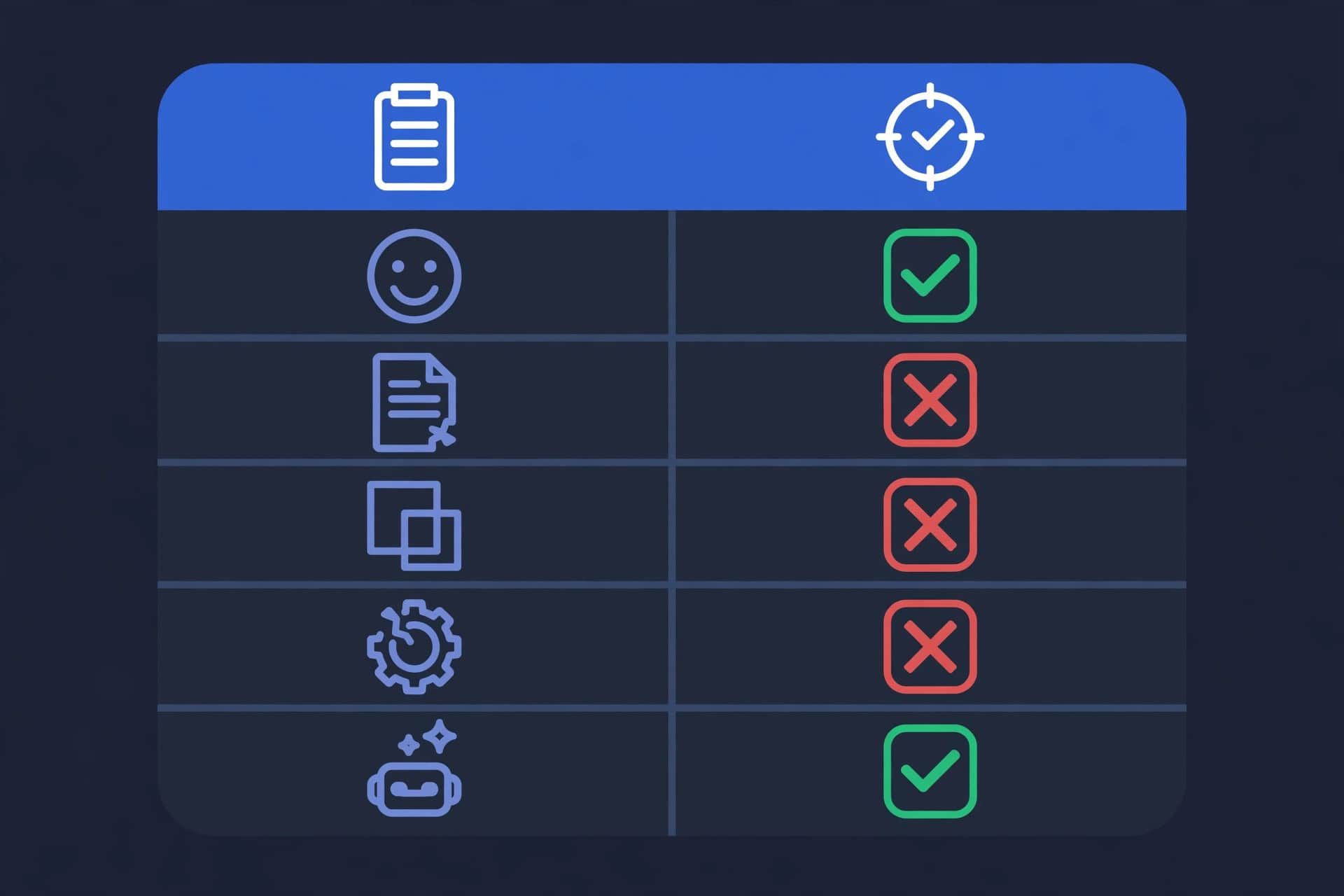
Once your test pack is written, run it in this order. Do not skip to the live workflow because the first case passed.
- Point everything at test destinations. Confirm the test list, test sheet, and test inbox by name before you run anything.
- Run Case 1, the happy path. Open the destination and the test inbox. Compare every field with your expected result. Fix any mismatch before moving on.
- Run Cases 2 through 7, one at a time. After each case, check the destination and the inbox. Record the actual result next to the expected result, with a pass or a fix note. Do not run the next case until you know what the last one did.
- Run Case 8, the failure cases, one step at a time. For each critical step, confirm the alert fires, the item waits in a visible place, and no success message goes out for an incomplete job.
- Run Cases 9 and 10 as a customer and a reviewer would. Read every message. Review every AI output against your validation rule.
- Clear the test results. Delete the test records from the test destinations, or move them to an archive your reports will not count. Check that no test contact, test order, or test message remains in a real list.
- Re-point to real destinations, and check twice. If you used a test copy, build or enable the live version with the same steps and the same fixes. If you re-pointed the live workflow, verify each destination by name. Then run Case 1 once more, in a controlled way, before opening the workflow to everyone (see the next section but one).
Keep your test notes. A short document that lists each case, its expected result, its actual result, and its pass or fix status is the evidence that the automation was tested. It also becomes your regression set: when you change the workflow later, run the same cases again before you release the change.
A Worked Example: Testing a Lead Follow-Up Workflow
Take the lead follow-up workflow from Automate Lead Follow-Up: From Form to CRM to Email, Without Losing Leads: a form submission creates a contact, and an acknowledgment email goes out.
- Happy path: Maya Example submits the form with a name, email, and service requested. One contact appears in the sales list, assigned to the owner on duty, with the original message attached. One acknowledgment email arrives in the test inbox.
- Missing field: The same form arrives without an email address. No acknowledgment goes out, because there is nowhere to send it. The submission waits in a review list, and the owner on duty is alerted.
- Duplicate: The form is submitted twice in ten seconds. One contact is created, one email goes out, and the second submission is recognized as a duplicate or held for review — it does not create a second contact.
- Should-not-trigger: An internal test submission, marked as such, arrives. The workflow stays silent. No contact, no email.
- Middle failure: The contact is created, but the email step fails. The contact remains, the failure is alerted, and no one is told the email went out. A person retries the email step only after checking that the contact is correct, rather than re-running the whole workflow and creating a second contact.
- Message check: The acknowledgment email is read as a customer. It thanks Maya by name, repeats the service requested correctly, and promises a reply within the time your team can actually keep.
If any of those checks fails, the workflow is not ready, even if its log says “success” for every run.
A money example works the same way, with a higher bar. In the invoice reminders workflow from Automate Invoice and Payment Reminders for a Small Business, a reminder must never go to a customer who has already paid, never go twice for the same invoice, and never continue after payment lands. Test the “already paid” case explicitly, with a test invoice marked paid just before the reminder is due. If the reminder still goes out, the stop rule is broken, and the workflow must not go live.
Fallbacks and Stop Rules: What Happens When It Cannot Finish
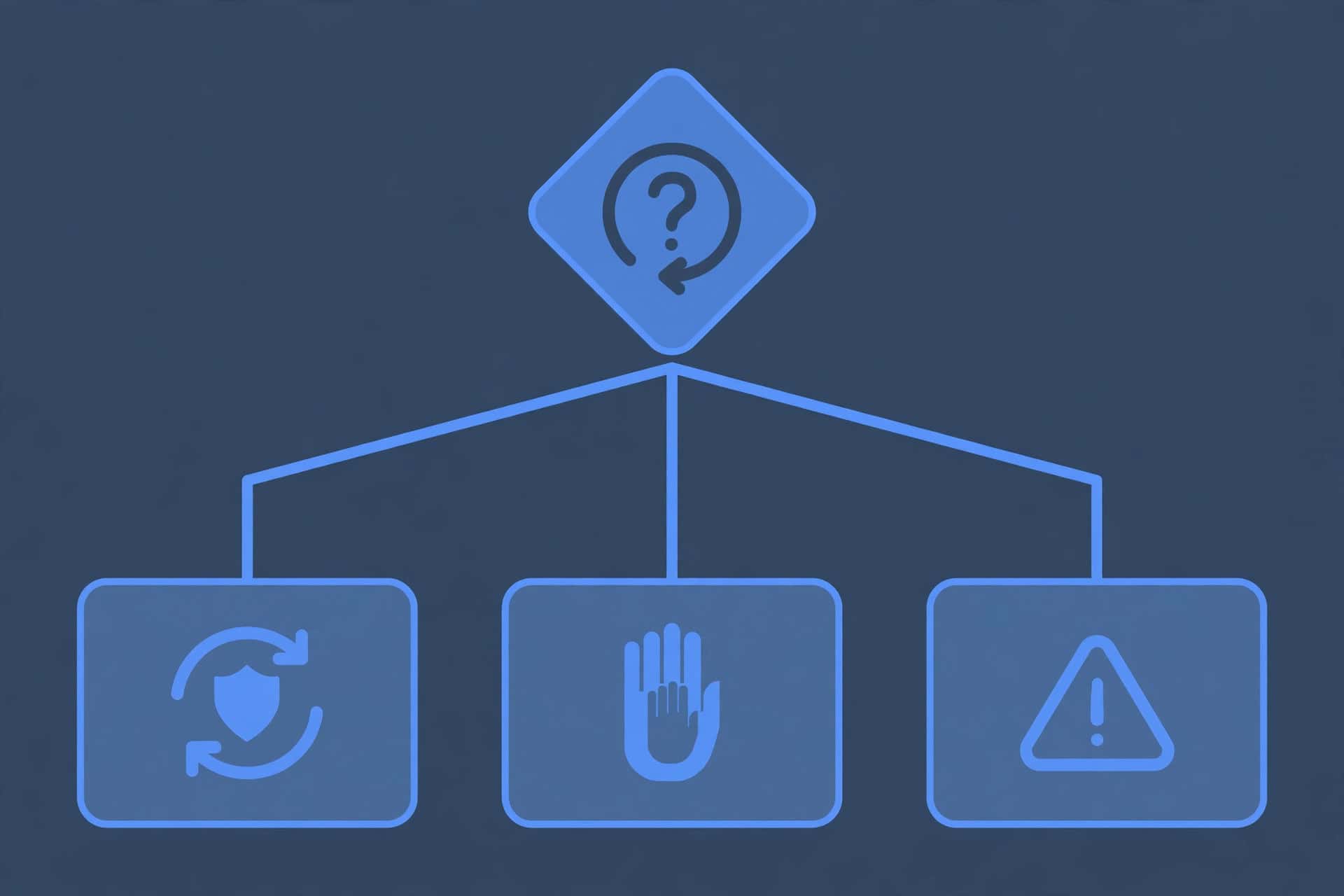
A workflow without a fallback is a workflow that fails silently. For each critical step, decide in advance which of these three behaviors applies:
Retry, but only when it is safe
Retrying makes sense for a temporary problem, such as a brief connection failure, where repeating the same step produces the same result and harms nothing. Set a limit: a small number of retries, spaced apart, and then stop. An endless retry loop can turn a small outage into a flood of duplicate actions.
Before any retry, check whether the step already succeeded. This matters most for steps that write a record, send a message, or move money. If the destination already holds the result, the retry should stop, not repeat the action. If you cannot check the destination, do not retry automatically — send the item to a review queue instead.
Stop and hold for a human
Stopping is the right fallback when the data is wrong, a required field is missing, the result is ambiguous, or the next action cannot be undone. The failed item should wait in a visible review list, with enough context for a person to act: what was submitted, which step failed, and what has already happened. A failure that only appears in a log no one reads is not a fallback. It is a hidden problem.
Continue, but only with a warning
Continuing past a failed step is safe only for non-critical steps, such as an optional internal notification, where skipping it changes nothing the customer sees and nothing the business records. Even then, log the skip and alert the owner if the same step keeps failing. A step that fails every time is not optional. It is broken.
The stop rules that protect customers
Write these down and test them, whatever your workflow does:
- Never retry a payment, refund, or customer message blindly. Check first, or hold for a human.
- Never send a success message for an incomplete job. The message goes out only after the record it describes actually exists.
- Never let a workflow keep running after its owner stops watching it. If the alert goes to an inbox no one checks, the fallback has failed.
- Always have a manual way to do the job. If the automation is switched off, your team should still be able to handle the work by hand, even if more slowly. An automation with no manual fallback leaves the business stuck when it breaks.
Limits: What Testing Cannot Prove
Testing well does not make an automation foolproof. Be honest about its limits, so you do not mistake a good test run for a guarantee.
- Volume and timing. Ten test cases do not prove what happens when fifty cases arrive at once, or when two team members edit the same record at the same time. If your business has busy periods, test a burst of test cases together, and watch for duplicates, delays, and out-of-order results.
- Change in the tools you connect. A connected app can change a field, a permission, or a limit after you launch. A test that passed last month may not pass after that change. Re-run your regression set after any change to the workflow, a connected app, or a permission.
- Change in your own data. New categories, new services, new team members, and new record types all create cases your original test pack never covered. Add each real incident or surprise to the test pack, so the next change is tested against it.
- AI variability. An AI step can produce a different answer on a second run of the same input. Testing it once proves little. Test it on a set of past cases, keep the set, and re-run it whenever the prompt, the model, or the input format changes.
- Cases you never imagined. Real customers will do something your test pack missed. That is normal. What matters is that the failure is visible, the item waits for a human, and the case is added to the test pack so it is caught next time.
Testing reduces risk. Monitoring catches what testing missed. The two belong together.
After Launch: A Small Rollout and a First-Week Watch
Do not switch a customer-facing or money-related automation on for everyone at once. Roll it out in stages, and watch it closely.
Stage 1: Shadow mode
Run the workflow alongside your existing manual process, but let it take no real customer-facing action. Compare its output with what your team actually did. If it creates records, create them in a test destination or mark them clearly as shadow results. Shadow mode catches the cases your test pack missed, without exposing customers to them.
Stage 2: A small live slice
Turn the workflow on for a small, defined slice of real work: one service, one location, one team member’s cases, or a short time window. Check every result in that slice, not just a sample, until the results are consistently correct. If a case fails, pause the workflow, fix it, add the case to the test pack, and re-test before resuming.
Stage 3: Full rollout, with a watch
Only after the small slice passes should the workflow run for everyone. Even then, keep a closer watch than usual for the first week.
The first-week watch
Assign one named owner. That owner checks, every day for the first week:
- How many runs succeeded, failed, or went to review? A sudden change in any count is a signal, not background noise.
- Did any run produce a duplicate, a missing record, or a wrong message? Each one becomes a new test case.
- Did any alert fire? Was it acted on, and how long did that take?
- Did any customer contact you about something the automation did? Treat every such contact as a test failure until you can show otherwise.
- Is the manual fallback still workable? If the automation had to be switched off today, could the team handle the work by hand?
After the first week, move to a weekly check: the same questions, once a week, plus a review of any change made to the workflow or a connected app. If the weekly check stops happening, the automation is unwatched, and unwatched automation is where quiet failures grow.

Pre-Launch Checklist
Do not go live until every critical box is ticked, or the unticked box has a named owner and a date to fix it. A checklist with unchecked critical items and no owner is not a launch plan. It is a hope.
- [ ] The expected result is written down: trigger, destination, exact result, what should not happen, and who is alerted on failure.
- [ ] All tests ran against test destinations, with fake, clearly labeled test data — never real customer data or real payments.
- [ ] The happy path passes, checked in the destination itself, not just in the tool’s log.
- [ ] A missing required field is handled safely: no invented values, no half-empty record sent to a customer.
- [ ] Empty, extra, and oddly formatted fields were tested, and the destination holds them correctly.
- [ ] A duplicate submission creates the business action once, not twice.
- [ ] A record that should not trigger the workflow leaves it silent.
- [ ] A record changed after the workflow starts follows the rule you decided in advance.
- [ ] A failure at each critical step is visible, alerts the right person, and leaves the item in a review list.
- [ ] No success message goes out for an incomplete job, and no payment, refund, or customer message is retried blindly.
- [ ] Every customer-facing message was read as the customer, and promises only what your team can actually do.
- [ ] Any AI step was tested on varied and ambiguous inputs, and its output is validated or reviewed before it acts.
- [ ] Test results were cleared, and every destination was re-pointed to the real list, sheet, or inbox — and checked twice.
- [ ] The workflow can be paused or switched off quickly, and the team knows how.
- [ ] A manual fallback exists, and one named owner will watch the first week daily, then weekly.
If a critical box cannot be ticked, do not launch the automation for that job. Launch a smaller version that can pass, or keep the manual process until the test passes. A delayed launch costs time. A broken launch costs trust.
Common Mistakes
Testing only the happy path
One clean example proves the plumbing works. It does not prove the logic works. A workflow that passes only the happy path is untested for the cases that actually cause damage: duplicates, missing fields, and mid-workflow failures.
Testing in the tool’s log instead of the destination
A log entry that says “success” does not mean the destination holds the right record. Always open the destination, read the fields, and read the message as the customer would. The destination is the test result. The log is only a clue.
Using real customer data for a test
Real data in a test run can trigger real messages, real records, and real confusion, and it can expose customer information to a test destination that was never meant to hold it. Use fake, labeled test data, and delete it when you are done.
Accepting whatever the automation produces
If you run a test without writing the expected result first, you will accept the actual result by default — including a wrong owner, a swapped field, or a missing message. Write the expected result first, then compare.
Retrying everything automatically
A retry is not always safe. Retrying a message sends it twice. Retrying a payment or refund can move money twice. Retrying a write after a lost confirmation can create a duplicate. Check the destination before you retry, and hold anything consequential for a human.
Forgetting to re-point a destination after testing
Test destinations are safe, but only if you switch back. Before launch, list every destination by name — list, sheet, inbox, owner — and verify each one against the live workflow. This one check prevents a whole class of launch-day failures.
Launching for everyone at once
A full launch on day one turns every missed case into a customer-facing incident. Shadow mode, then a small live slice, then full rollout gives you a chance to catch the cases your test pack missed while the damage is still small.
Stopping at launch
Testing does not end when the workflow goes live. Tools change, data changes, and customers surprise you. A regression set, a weekly check, and a named owner are part of the automation, not optional extras.
Frequently Asked Questions
How many test cases do I need before going live?
Start with the ten cases in this guide. They cover the failures that hurt most for a small business: wrong records, missing records, duplicates, mid-workflow failures, and unchecked messages. Add cases for anything specific to your workflow, such as a discount rule, a deadline calculation, or a category list. A small, well-chosen set that you actually run beats a long list that no one finishes.
Can I just use the test button in my automation tool?
Use it, but do not stop there. A test button usually runs one clean example through the workflow. It rarely tests duplicates, missing fields, records that should not trigger, or a step failing in the middle. Treat the test button as Case 1, the happy path, and then run the rest of the pack by hand.
What should I do if a step fails and I do not know whether it already succeeded?
Do not retry it blindly. Check the destination first: does the record, message, or payment already exist there? If it does, stop — the step already succeeded, and the problem is only the missing confirmation. If it does not, and the step is consequential, hold the item for a human to decide. If you cannot check the destination, treat the outcome as unknown and hold it for review. An unknown outcome is not a failed outcome, and retrying it as if it failed is how duplicates happen.
How do I test an automation that sends money or messages?
Do not test it on real money or real customers. Use a test destination and a test inbox, and simulate the money or message step in a way your tool and provider allow — for example, a test mode, a test account, or a held review step — rather than a live transaction. Check the stop rules explicitly: already paid, already sent, and already refunded must all block a repeat action. If you cannot test a money step safely, keep that step manual until you can.
Should I test with real customer data to make it realistic?
No. Realistic does not require real. Build test cases that look like real cases — same formats, same edge cases, same awkward spellings — but with fake names, fake email addresses, and test accounts your team controls. You get the realism without the risk of messaging a real customer or exposing real information in a test destination.
What is the difference between testing and monitoring?
Testing checks, before launch, whether the automation does the right thing on cases you can predict. Monitoring watches, after launch, whether it keeps doing the right thing on cases you could not predict. You need both. Testing without monitoring leaves you blind to change. Monitoring without testing launches known failures into production.
When is an automation ready to go live?
When its critical test cases pass in the destination itself, its fallbacks are tested and visible, its customer-facing messages have been read as a customer, its destinations have been re-pointed and checked twice, it can be switched off quickly, and one named owner will watch its first week. If any of those is missing, launch a smaller version, or wait. A workflow that is not ready is not a delay. It is a decision to protect your customers and your records.
Conclusion
Testing an automation is not about proving it works once. It is about proving it does the right thing, in the right place, exactly once, and that it tells someone when it cannot. Write the expected result first. Run the happy path, the bad input, the duplicate, the should-not-trigger case, and the mid-workflow failure. Check the destination, not just the log. Decide your fallbacks and stop rules before launch, roll out in stages, and watch the first week with a named owner.
That discipline is what turns an automation from a risk into a reliable part of the business. For the bigger picture, return to 25 AI Automation Examples for Businesses in 2026.

Flowmez publishes practical AI workflow guides, tested steps and honest tool reviews to help small businesses save time.
1 thought on “How to Test an Automation Before It Goes Live: Errors, Fallbacks, Limits”
Comments are closed.