

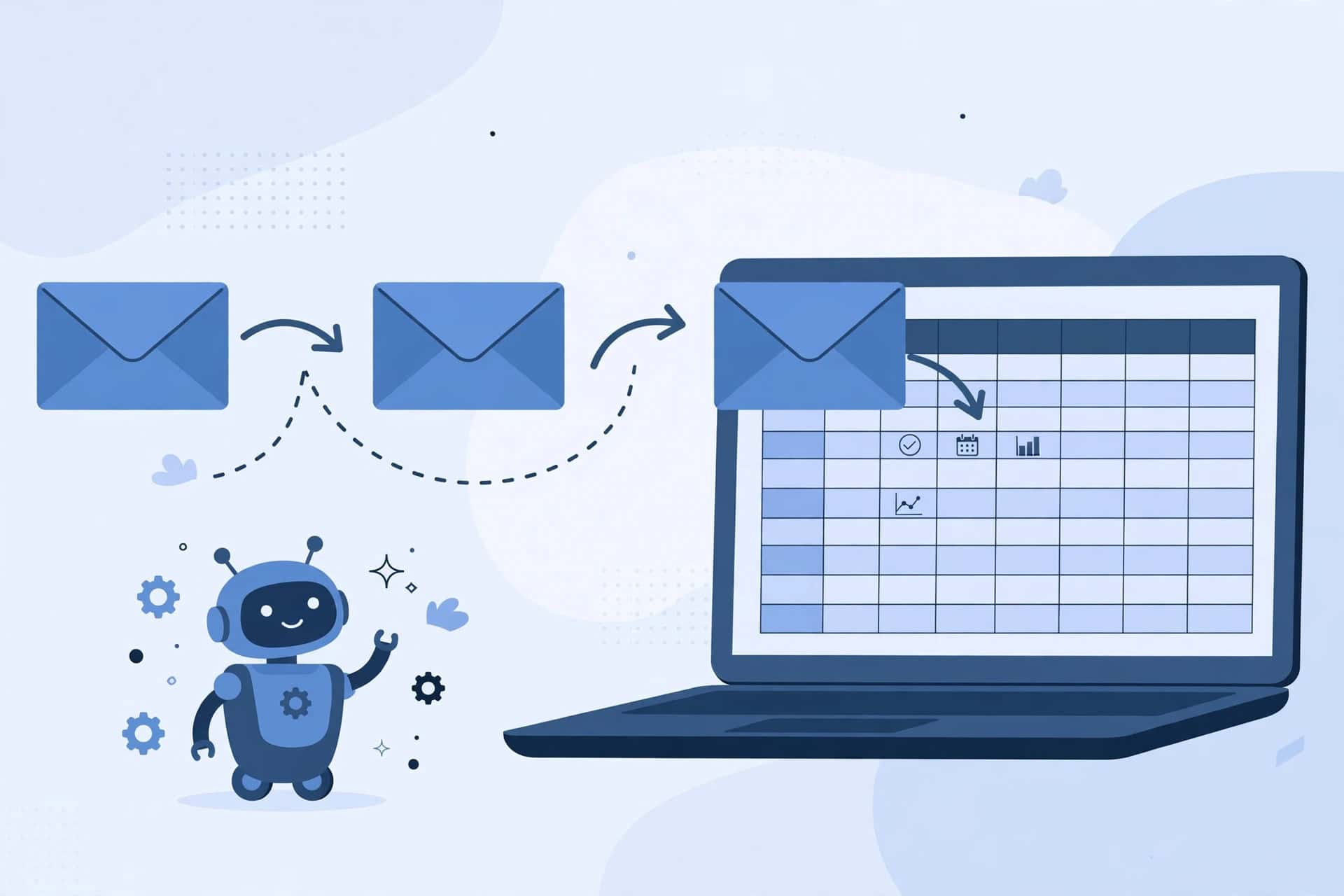
If you run a small business, you probably know this routine. An enquiry arrives by email. You open a spreadsheet, copy the name, email address, subject, and date, and paste them into a row. Then the next email arrives, and you do it again.
One email is easy. Twenty a week is a quiet drain on your time, and copying by hand is how small mistakes creep in: a wrong address, a missed row, a date in the wrong format.
This guide shows you how to automate that exact job with Zapier, with no coding. You will build a workflow that watches Gmail and adds a new row to Google Sheets every time a matching email arrives. It is a good first automation because it is small, easy to test, and easy to undo.
For the bigger picture, see Flowmez’s pillar guide, 25 AI Automation Examples for Businesses in 2026. This tutorial is its practical version: a defined workflow, with clear inputs, clear outputs, and a human still in charge.
What Zapier Does, in Plain Language
Zapier is a no-code tool that connects apps so they can pass information to each other automatically. You do not write code. You choose what starts the workflow, what happens next, and which pieces of information move from one app to the other.
A workflow in Zapier is called a Zap. Every Zap has at least two parts:
- Trigger: the event that starts the Zap, for example a new email arriving in Gmail.
- Action: what Zapier does after the trigger happens, for example creating a new row in Google Sheets.
Read that as a simple sentence: “When this happens, do that.” In our example: “When a new email arrives in Gmail, add a row to Google Sheets.”
A completed action step is counted by Zapier as a task. Zapier plans are measured in tasks, but this first Zap needs only one trigger and one action.
Note: a Zap is not artificial intelligence. Zapier moves information according to rules you set. It does not decide what an email means, unless you add a separate step for that. You stay in control, and you can check every row.
Before You Build: Choose One Small Job
Do not start by automating your whole inbox. Start with one narrow, repeatable job. A good first job happens often, has clear inputs and outputs, and is easy to check if something goes wrong.
For this guide, the job is: log incoming business enquiries in a spreadsheet, using only the fields you need for follow-up.
You will need a Zapier account, a Gmail account for the business mailbox you want to watch, a Google account for Google Sheets, and about 20 to 30 minutes, including testing.
On privacy: Zapier will ask for permission to read Gmail and write to Sheets. Only connect a business mailbox, not a personal inbox, and only log the fields you actually need.
The Worked Example: New Gmail Email to a New Google Sheets Row
Here is the whole workflow in one paragraph, before the detailed steps:
A new email arrives in Gmail. Zapier notices it, takes the date, the sender’s name and email address, and the subject line, and adds them as a new row in a Google Sheet you have prepared. You open the sheet later and see a clean, growing list of enquiries, without copying anything by hand.
Now, the detailed version.
Step 1: Prepare Your Google Sheet First
Do this before you open Zapier. It makes the rest of the build much smoother.
- Create a new spreadsheet in Google Sheets and give it a clear name, for example “Email Enquiries Log”.
- In the first row, add headers for the columns you want. A good starting set is: Date received, From name, From email, Subject, Notes.
- Leave the “Notes” column blank. You will use it later for your own follow-up, such as “Replied” or “Call back”.
- Do not add merged cells, extra formatting, or a second header row at this stage. Zapier needs a clean header row to know where each piece of information belongs.
Step 2: Create a New Zap and Set the Gmail Trigger
- Sign in to Zapier and create a new Zap.
- In the Zap editor, search for Gmail and select it as your trigger app.
- Choose the trigger event for a new email. Zapier offers options that narrow the trigger to a label or a search. For a first Zap, narrow it down — for example, only emails labelled “Enquiry”. If you leave it open, every newsletter and notification will also create a row.
- Connect your Gmail account when Zapier asks, and allow the access it needs to read new emails. Double-check that you connected the business mailbox you intended, not another account.
Step 3: Test the Trigger
Zapier will offer to test the trigger by pulling in a recent email as sample data. Do this, even if you are in a hurry.
- Run the trigger test.
- Check that the sample email is the kind you want to log. Is it an enquiry, or a newsletter you would rather ignore?
- If the sample is wrong, go back and tighten your label or search before you continue. Fixing this now is much easier than cleaning hundreds of unwanted rows later.
If Zapier cannot find a sample email, it may be because no recent email matches your label or search. Send yourself a test email that matches, then test again. Do not skip this step and hope the live Zap will work.
Step 4: Add Google Sheets as the Action
- Add an action step below the trigger.
- Search for Google Sheets and select it as your action app.
- Choose the action event for creating a spreadsheet row. This is the event that adds a new row each time the Zap runs.
- Connect your Google Sheets account when asked.
- Select the spreadsheet you prepared in Step 1, then select the correct worksheet inside it. In most new spreadsheets, this will be the first sheet.
Step 5: Map the Fields, One by One
Field mapping tells Zapier which Gmail detail goes into which spreadsheet column. It is the most important step to get right, and the easiest to rush.
Map them like this:
- Date received: the date from the Gmail trigger.
- From name: the sender’s name from Gmail.
- From email: the sender’s email address from Gmail.
- Subject: the subject line from Gmail.
- Notes: leave blank. This is your human follow-up column, not something Zapier should fill.
Do not map the full email body for a first Zap. Bodies make sheets hard to read and often include signatures and quoted replies you do not need. Subject plus sender details are usually enough to find the original email again. Check each mapping once more: a common error is putting the sender’s name in the email column, or the subject in the date column.
Step 6: Test the Action
- Run the action test. Zapier will use the sample email from Step 3 and create a real test row in your sheet.
- Open Google Sheets and check that row column by column. Is the date in the date column, the name in the name column, and so on?
- If anything is wrong, go back to Step 5 and fix the mapping. If a column is blank, check whether that information actually exists in the sample email.
- Delete the test row once you are happy, so your log starts clean.
Step 7: Turn the Zap On, Then Send a Real Test Email
- Turn the Zap on in the Zap editor.
- Send a real email to the mailbox you connected, one that matches your label or search. Use a clear subject, such as “Test enquiry — please ignore”.
- Wait a little while. Some triggers do not run instantly; Zapier checks for new data at intervals, and that interval can depend on your plan. Do not assume the Zap has failed just because the row does not appear in the first minute.
- Open the sheet and check that the new row appeared, with the right details in the right columns.
- Delete the test row, and delete or reply to the test email as needed.
If the row appears, your Zap works. If it does not, work through the checklist below before rebuilding anything.
Testing Checklist
Use this checklist every time you build a Zap, not just this one:
- [ ] The trigger is narrowed to the right emails, not your whole inbox.
- [ ] The connected Gmail account is the business mailbox you intended.
- [ ] The trigger test pulled in a sample email of the right kind.
- [ ] The spreadsheet and worksheet selected are the ones you prepared.
- [ ] Every field is mapped to the correct column.
- [ ] The action test created a correct row, and you deleted that test row.
- [ ] You sent a real test email after turning the Zap on, and the live row appeared.
- [ ] You know where to find the Zap again in Zapier if you need to turn it off or edit it.
If you can tick all eight, you can trust the Zap for day-to-day use, with occasional checks.
Common Mistakes
Automating the whole inbox
The sheet fills with newsletters and notifications, and useful enquiries get buried. Narrow the trigger with a Gmail label or search, and review the first week of rows.
No header row in the sheet
Without headers, Zapier cannot map fields cleanly. Fix it by adding a single, clear header row before you build the action, as in Step 1.
Mapping the wrong fields
Name in the email column or subject in the date column is easy to do and hard to spot later. Fix it by testing the action and reading the test row column by column, not just glancing at it.
Testing only with sample data
Sample data proves the mapping works, not the live trigger. Always send a real test email after turning the Zap on, as in Step 7.
Assuming the Zap runs instantly
Some triggers check for new data on a schedule, not instantly. A row a few minutes late may be normal for your plan, not a failure. Check Zapier’s help pages for your trigger type before rebuilding anything.
Connecting the wrong account
With several Google accounts, it is easy to connect a personal Gmail account to a business sheet, or vice versa. Check the connected account in each step of the Zap editor, and reconnect if the account shown is not the one you intended.
Letting a broken Zap run silently
If a connection expires or a permission is revoked, a Zap can stop without an obvious warning. Check Zap history occasionally, especially in the first month. If runs are missing, check the connection first, then trigger settings, then field mapping.
What to Automate Next
Once this Zap has run reliably for a week or two, you have a safe pattern you can reuse. Pick the next small, repetitive job and apply the same steps: one trigger, one action, clear fields, test, then turn it on.
Useful next steps include logging form submissions into a similar sheet, or creating a task in your task app when a new enquiry is logged. Each is a separate, small Zap, and each should be tested in the same way.
For a broader view, return to 25 AI Automation Examples for Businesses in 2026. The Zap here follows fixed rules you set, while AI-assisted examples in the pillar guide add interpretation — such as classifying a message — before acting. Start with fixed rules; add interpretation only with a clear reason and a way to check its output.
Frequently Asked Questions
Do I need to know how to code to use Zapier?
No. Zapier is a no-code tool for standard workflows: choose apps and events, connect accounts, map fields, test, and turn the Zap on. No code is needed for this Gmail to Google Sheets workflow.
What is the difference between a trigger, an action, and a task?
A trigger is the event that starts a Zap, such as a new email arriving. An action is what Zapier does after that event, such as creating a spreadsheet row. A task is a completed action step. In this guide, each new email that creates a row uses one action step.
Will the Zap run instantly when an email arrives?
Not always. Some triggers are instant, and some check for new data at intervals. That interval can depend on your plan and on how the Gmail integration works. If a row appears a few minutes after the email, that may be normal. Check Zapier’s help pages for your trigger type before assuming something is broken.
Can I use this Zap for leads, orders, or support questions?
Yes, as long as you narrow the trigger properly. For example, log only emails labelled as enquiries, or only emails matching a search for a particular subject. Do not use one wide-open Zap for everything, or the sheet will mix leads, orders, newsletters, and support messages together.
What happens if Zapier cannot connect to Gmail or Google Sheets?
The Zap may stop, or individual runs may fail. First check whether the connected account still has permission — connections can expire or be revoked, and reconnecting often fixes this. Then check Zap history for logged runs and any error shown.
Is Zapier free?
Zapier offers free and paid plans, and details change over time. This guide deliberately does not quote a price or monthly task limit, to avoid misleading you with an outdated number. Check Zapier’s current pricing page against how many emails you expect to log each month.
Conclusion
Before you treat this Zap as part of your business process, run through this one last time: the trigger is narrow, the fields are mapped correctly, a live test row appeared, you know how to turn the Zap off, and you have checked who can access the spreadsheet.
That is the whole method: start small, test properly, and only then rely on it. A single reliable Zap is worth more than five half-tested ones, and it teaches the pattern — trigger, action, mapping, test, turn on — that every later automation will follow.
Keep this Zap running and note anything you would change. Those notes will help you decide whether your next workflow should stay a simple Zap, or need the AI interpretation described in 25 AI Automation Examples for Businesses in 2026.

Flowmez publishes practical AI workflow guides, tested steps and honest tool reviews to help small businesses save time.